
How to Identify and Edit Post Type Sidebars in Brilliant Directories
- Brilliant Directories
- How to Identify and Edit Post Type Sidebars in Brilliant Directories



Why you can trust our content
The tech space is full of hype and difficult terms; we take the reliability standards to new heights. Our blog content is backed by:
Learn more
- Experienced tech professionals, developers, and product engineers
- First-hand data from real projects and in-house case studies
- Verified standards from trusted sources like Statista and BD
Let’s Work Together
Co-Founder & CTO
Key Information Summary for Post Type Sidebar Setup
| Section | Key Takeaways |
|---|---|
|
How Do Post Type Pages Use Sidebars? |
Each Post Type has its own search results and details pages, both powered by assigned sidebars. These sidebars control what filters, widgets, and tools appear on each page. |
|
How Can You Identify Which Sidebar a Page Is Using? |
You can check sidebar assignments directly from Post Type settings. Search Results Design and Detail Page Design tabs clearly show the sidebar in use. |
|
What’s the Fastest Way to Confirm Sidebar Usage on the Front End? |
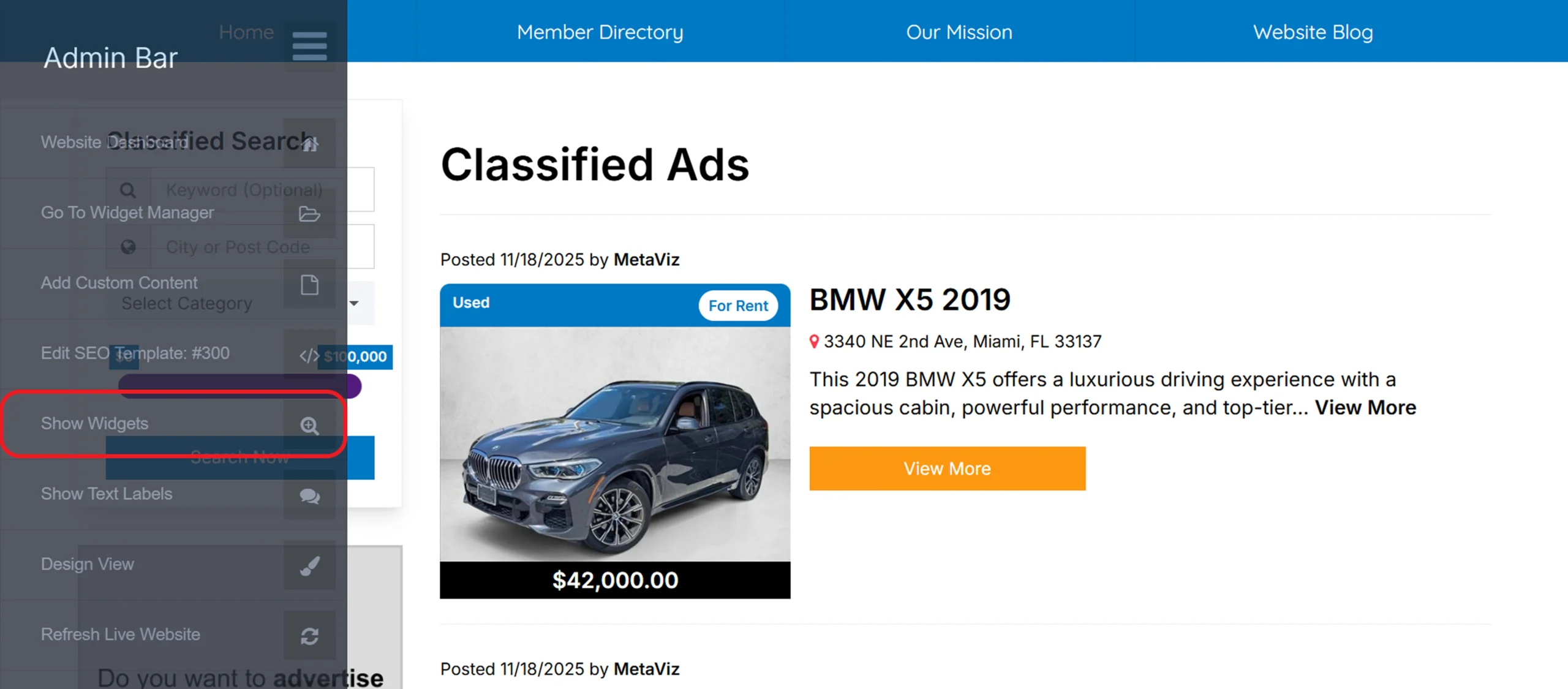
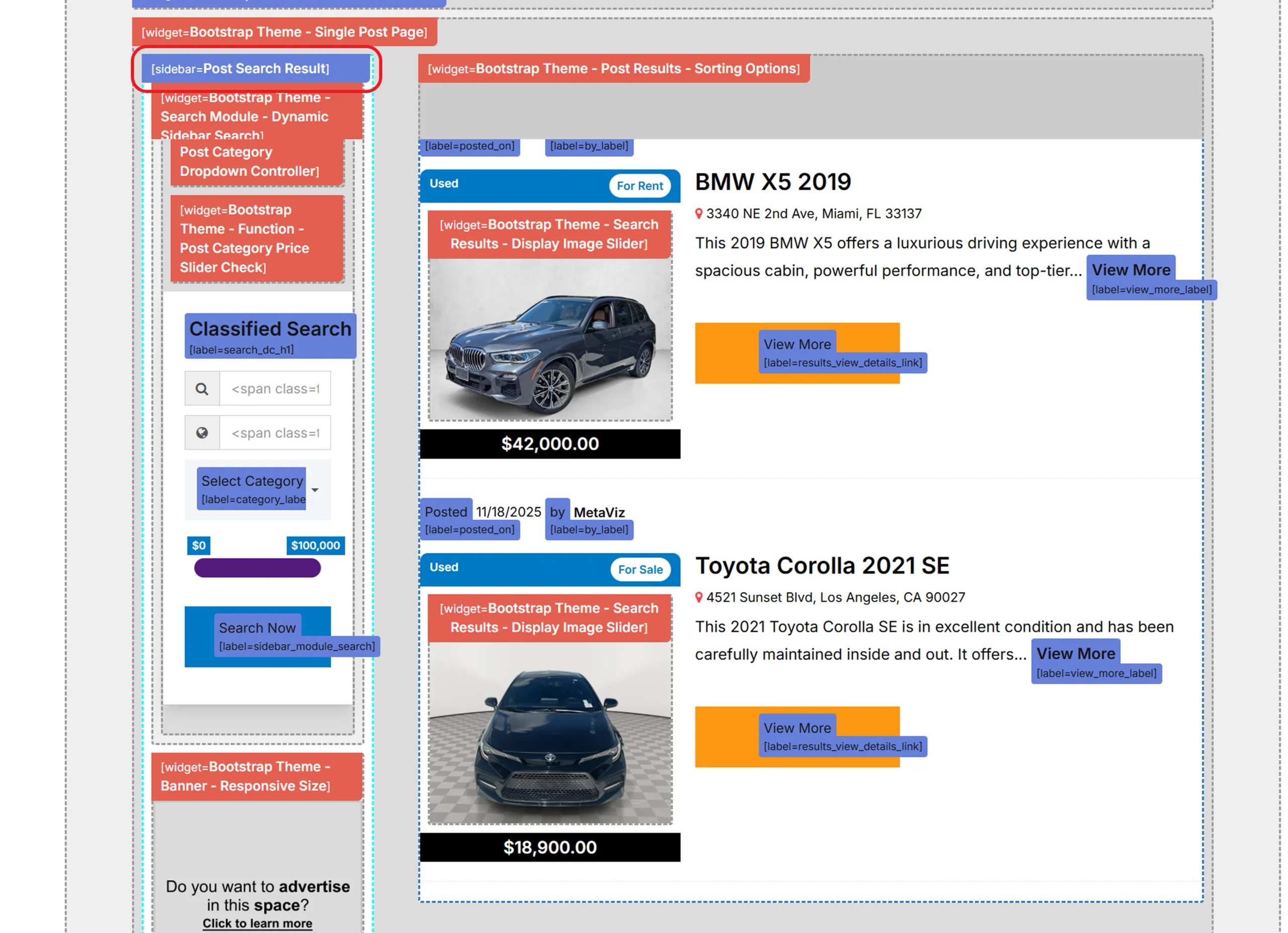
The Admin Bar’s “Show Widgets” option reveals active widgets and the exact sidebar running on any page. It offers instant visual clarity. |
|
How Do You Edit Widgets in a Post Type Sidebar? |
Open the correct sidebar in Sidebar Manager and drag or remove widgets as needed. Simple, visual controls make adjustments quick. |
|
Why Is Correct Sidebar Selection Important? |
Choosing the right sidebar ensures your filters and widgets appear as intended. A wrong sidebar can disrupt the layout or hide key features. |
|
What Limitations Do Post Type Sidebars Have? |
These sidebars include built-in filters and fields that can’t be expanded through normal settings. Adding new filter types requires customization. |
|
When Should You Use the Admin Bar Instead of Settings? |
Use the Admin Bar when you need on-page visibility of widgets and sidebars. It’s ideal for troubleshooting or confirming real-time output. |
|
What Happens If the Wrong Widgets Are Added? |
Incompatible or incorrect widgets may not show up or may break the page layout. Always verify widget compatibility with Post Type sidebars. |
|
How Do Proper Sidebar Settings Improve User Experience? |
Clean, well-managed sidebars make pages easier to navigate and filter results. This leads to smoother browsing and higher engagement. |
Optimize Your Post Type Sidebars Today
Step-by-Step Process to Identify and Edit Post Type Sidebars
ESSENTIAL STEPS TO UPDATE POST TYPE SIDEBARS
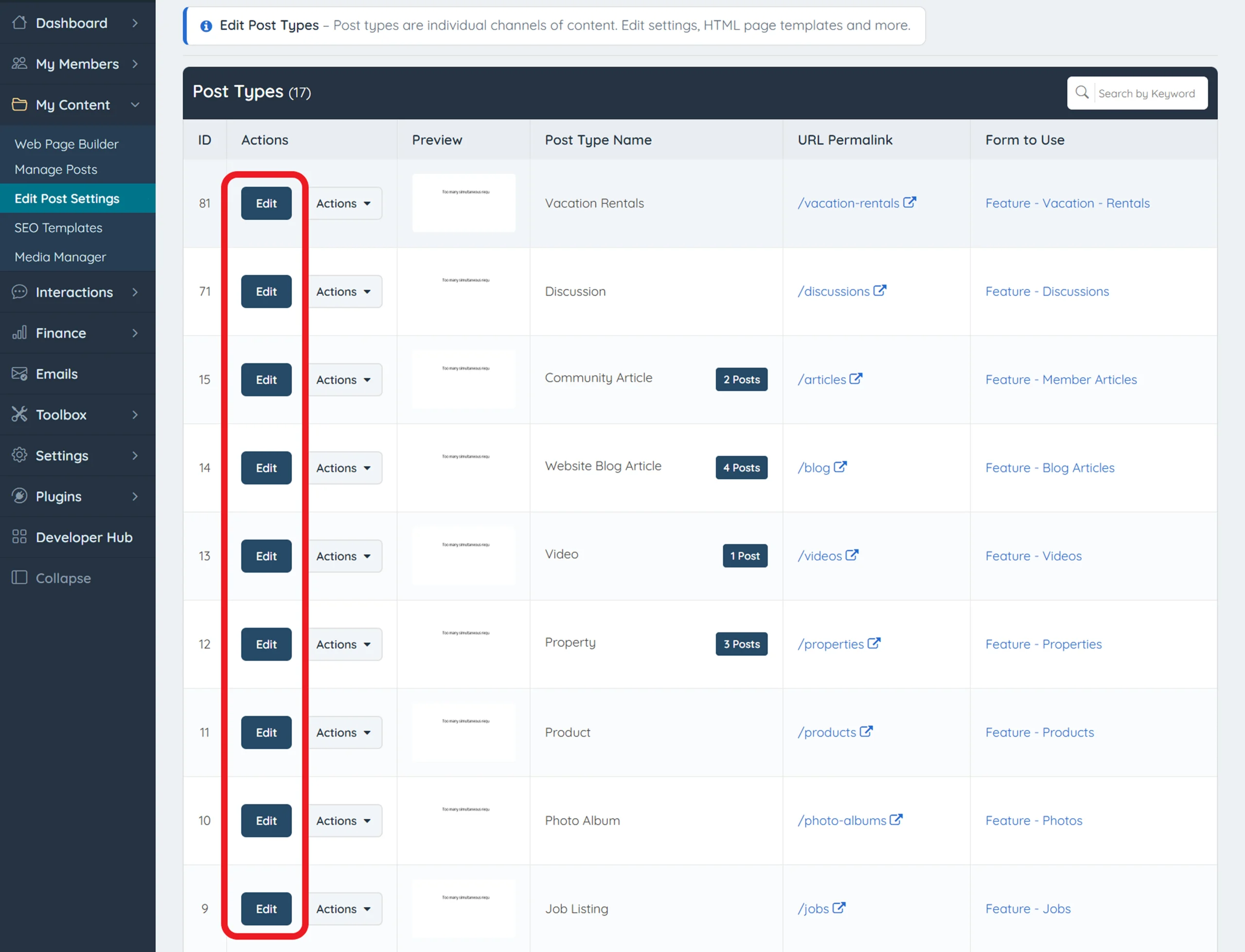
Step 1: Locate the Post Type Settings
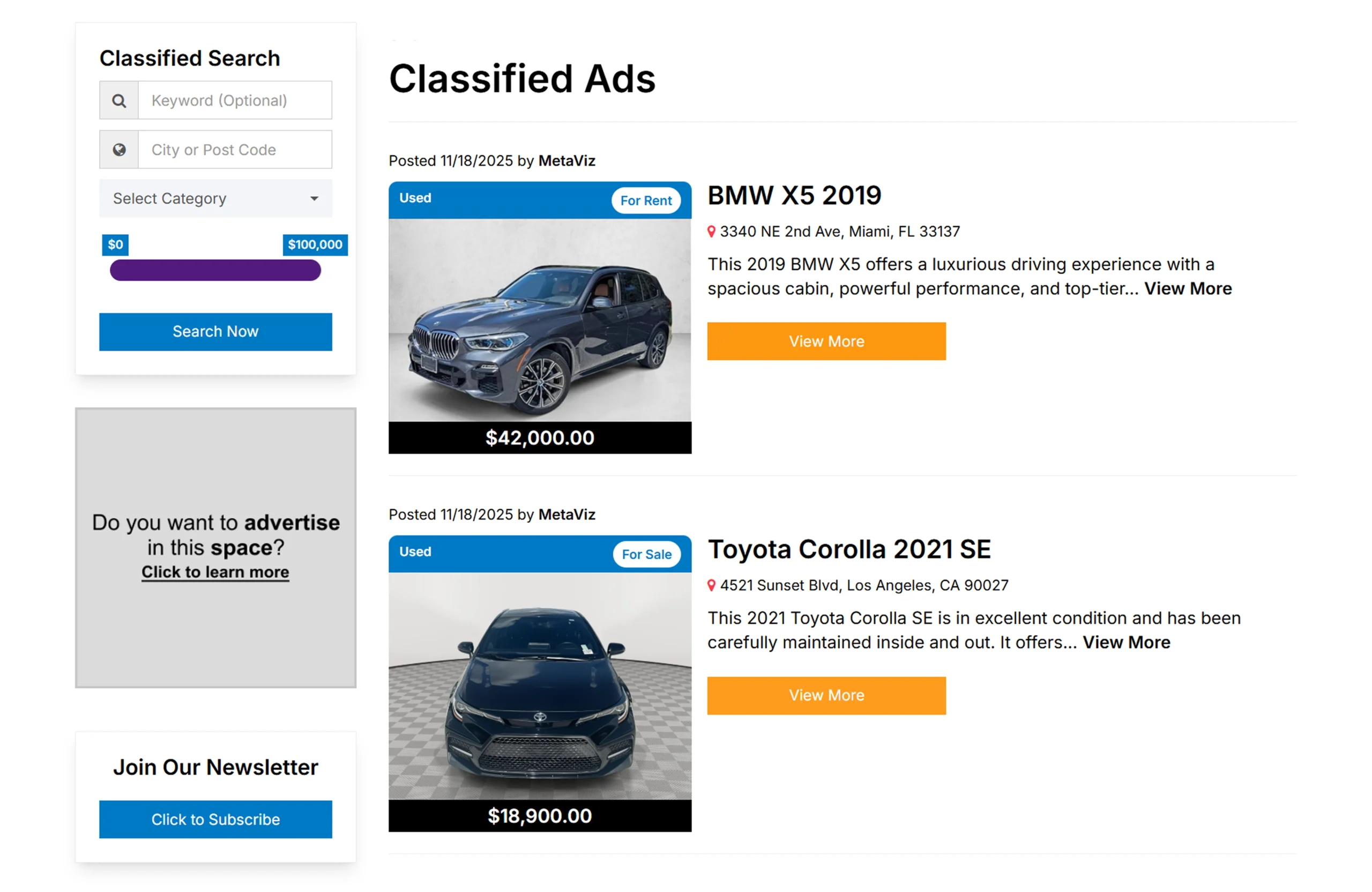
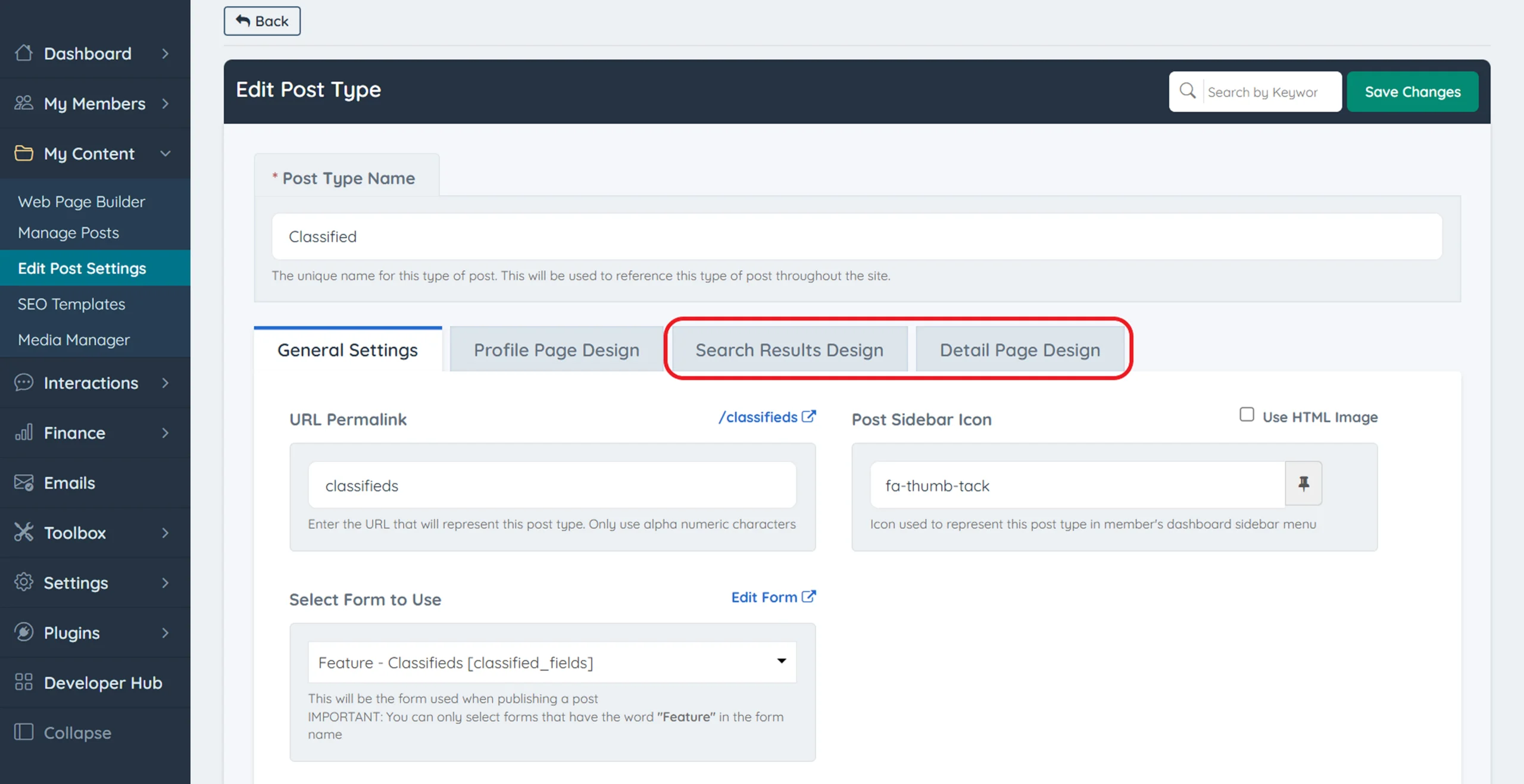
Step 2: Check the Assigned Search Results Sidebar
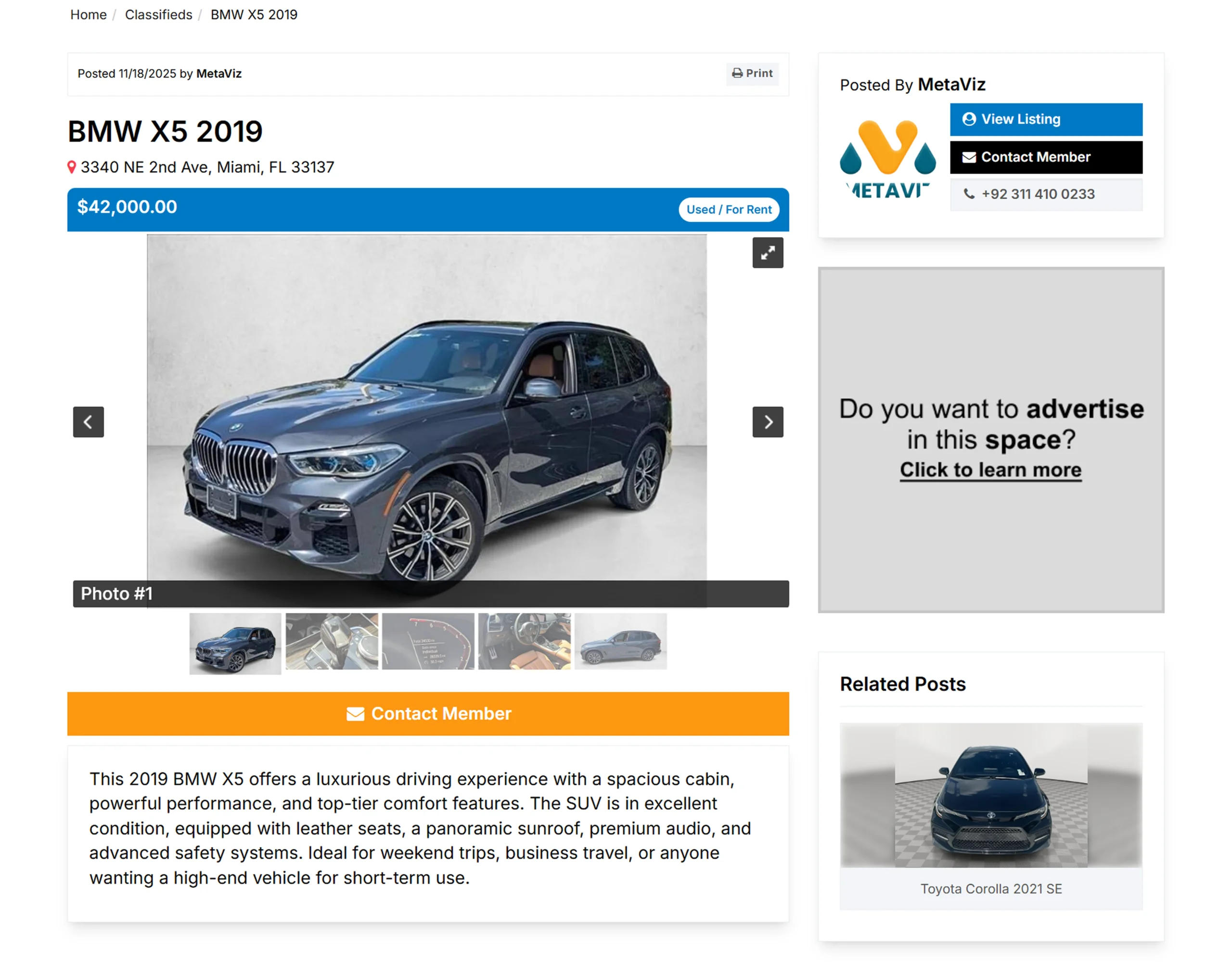
Step 3: Verify the Sidebar on the Details Page
Step 4: Use the Admin Bar for Front-End Confirmation
Step 5: Edit Widgets in the Correct Sidebar
Pro Tip
How To Set Up Sidebars For Post Types
How to Add or Remove Widgets From Sidebars


Important Note
Common Issues When Managing Post Type Sidebars in Brilliant Directories
Always preview your page after updating a sidebar; front-end visibility helps you catch errors instantly and ensures everything displays exactly as intended.
Best Practices for Managing Post Type Sidebars in Brilliant Directories
- Use Clear Sidebar Names: Label each sidebar with a unique, descriptive name to avoid editing the wrong one.
- Check Assignments Carefully: Always confirm which sidebar is linked to Search Results and Detail Pages before making updates.
- Use the Admin Bar for Clarity: Rely on the Show Widgets tool to see exactly which sidebar and widgets are active on the page.
- Keep Widget Layout Clean: Add only helpful, relevant widgets to maintain a user-friendly and organized sidebar layout.
- Test Your Changes on the Front End: Preview your page after edits to verify that widgets display correctly and the layout works as intended.
Enhance Your Sidebar Workflow
Conclusion: Why Managing Post Type Sidebars in Brilliant Directories Matters
Understanding how to identify and edit Post Type sidebars gives you full control over how search results and details pages appear. With the right sidebar assigned and the correct widgets in place, your pages stay organized, user-friendly, and visually consistent. Mastering these sidebar settings helps improve navigation and overall site performance.
Need Help Organizing Your Post Type Sidebars? We’re Here for You!
If you’d like expert support refining your sidebar setup or ensuring each Post Type page displays the right widgets, our team can guide you through every step. Contact us today to optimize your Brilliant Directories layout with confidence.
Your directory deserves clear, well-structured sidebars!
FAQs About Managing Post Type Sidebars in Brilliant Directories
How do I find which sidebar is being used on a Post Type page?
Can I change widgets inside a Post Type sidebar?
What if the widgets I added are not showing on the page?
Why do Post Type sidebars have limited filter options?
How can I check sidebar placements on the front end?
What happens if I accidentally edit the wrong sidebar?
Can I use multiple search modules in a Post Type sidebar?
Share this post on social media:
Dev Bilal is a results-driven AI and web development expert specializing in Brilliant Directories, WooCommerce, and intelligent digital solutions. With deep expertise in AI integrations, data science, and full-stack development, he empowers businesses to build scalable, high-performing, and automation-driven platforms that deliver real results.