
How to Display Custom Post Fields on Post Details Pages in Brilliant Directories
- Brilliant Directories
- How to Display Custom Post Fields on Post Details Pages in Brilliant Directories



Why you can trust our content
The tech space is full of hype and difficult terms; we take the reliability standards to new heights. Our blog content is backed by:
Learn more
- Experienced tech professionals, developers, and product engineers
- First-hand data from real projects and in-house case studies
- Verified standards from trusted sources like Statista and BD
Let’s Work Together
Co-Founder & CTO
Key Information Summary for Displaying Custom Post Fields
| Section | Key Takeaways |
|---|---|
|
How Do Custom Post Fields Enhance Post Details Pages? |
They allow you to showcase extra post information in a clean, structured way, improving clarity and user engagement across your website. |
|
Why Is Customizing the Feature Form Important? |
Adding custom fields at the form level ensures they can be captured, stored, and displayed properly on the Post Details page without extra coding. |
|
How Does Enabling Display View Affect Field Visibility? |
Turning on Display View ensures the custom field becomes visible on the front end, preventing missing data or empty sections on your post page. |
|
Why Customize the Post Single Page Sidebar? |
Updating this sidebar lets you place the Post Meta Details widget so custom fields appear automatically in a consistent, user-friendly layout. |
|
What Is the Role of the Post Meta Details Widget? |
This widget pulls custom field data and displays it neatly, reducing manual work while keeping your page design uniform and professional. |
|
How Does Member Input Trigger Custom Field Display? |
Once a member fills out the custom fields, the system dynamically displays them, ensuring posts show complete and accurate information. |
|
When Should You Use the Widget Shortcode Instead? |
The shortcode is ideal when you want field data directly in the post body rather than the sidebar, giving you more placement flexibility. |
|
How Does Shortcode Placement Change Page Layout? |
Placing the shortcode below the post content integrates custom field details smoothly into the main reading flow, enhancing user experience. |
|
Why Is This Entire Setup Useful for Post Optimization? |
It helps you deliver richer, more informative posts while maintaining full control over layout, structure, and visibility across all post pages. |
Enhance Your Post Layout Today
Step-by-Step Process to Display Custom Post Fields in Brilliant Directories
ESSENTIAL STEPS TO SHOW CUSTOM POST FIELDS
Step 1: Customize the Feature Form
Step 2: Add Your Custom Field
Step 3: Enable Display View for the Field
Step 4: Update the Post Single Page Sidebar
Step 5: Add Custom Field Content as a Member
Pro Tip
How To Display Custom Post Fields on the Post Details Page
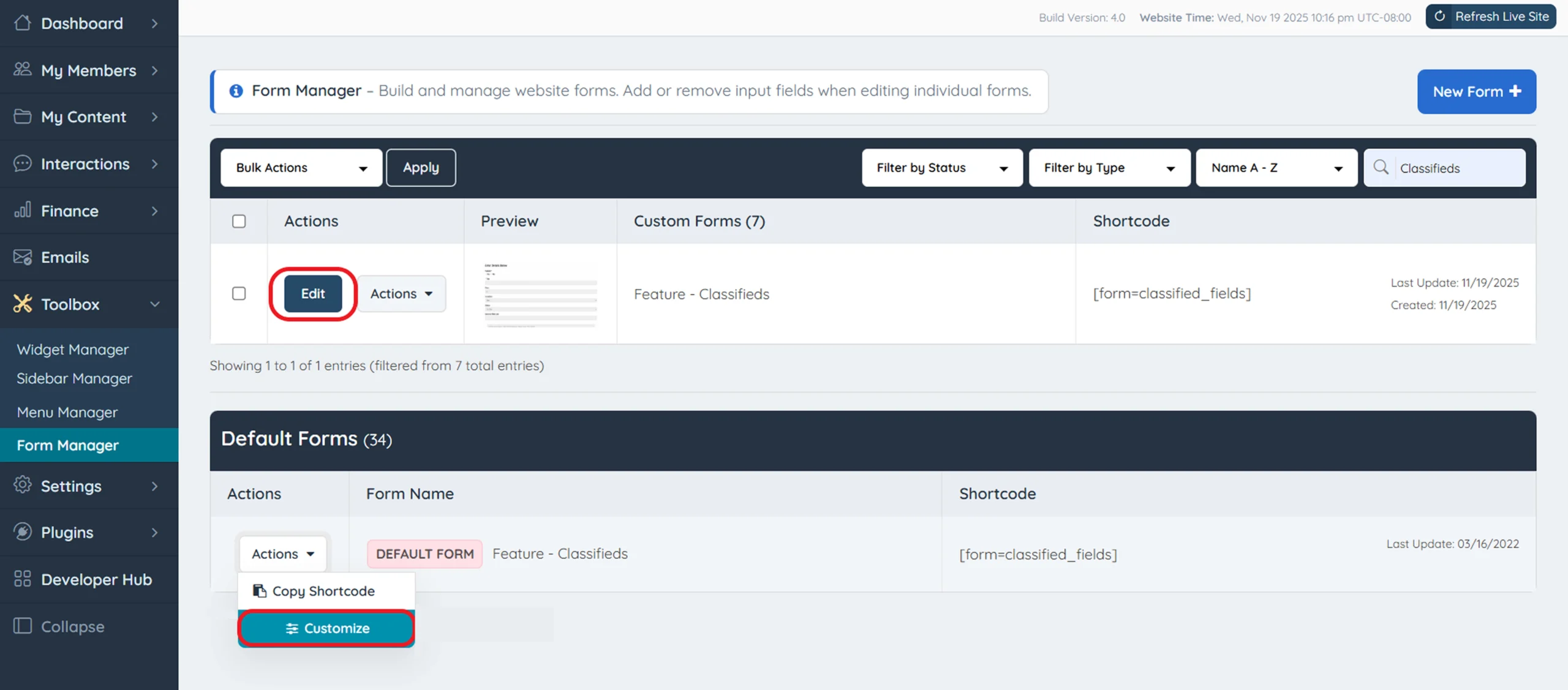
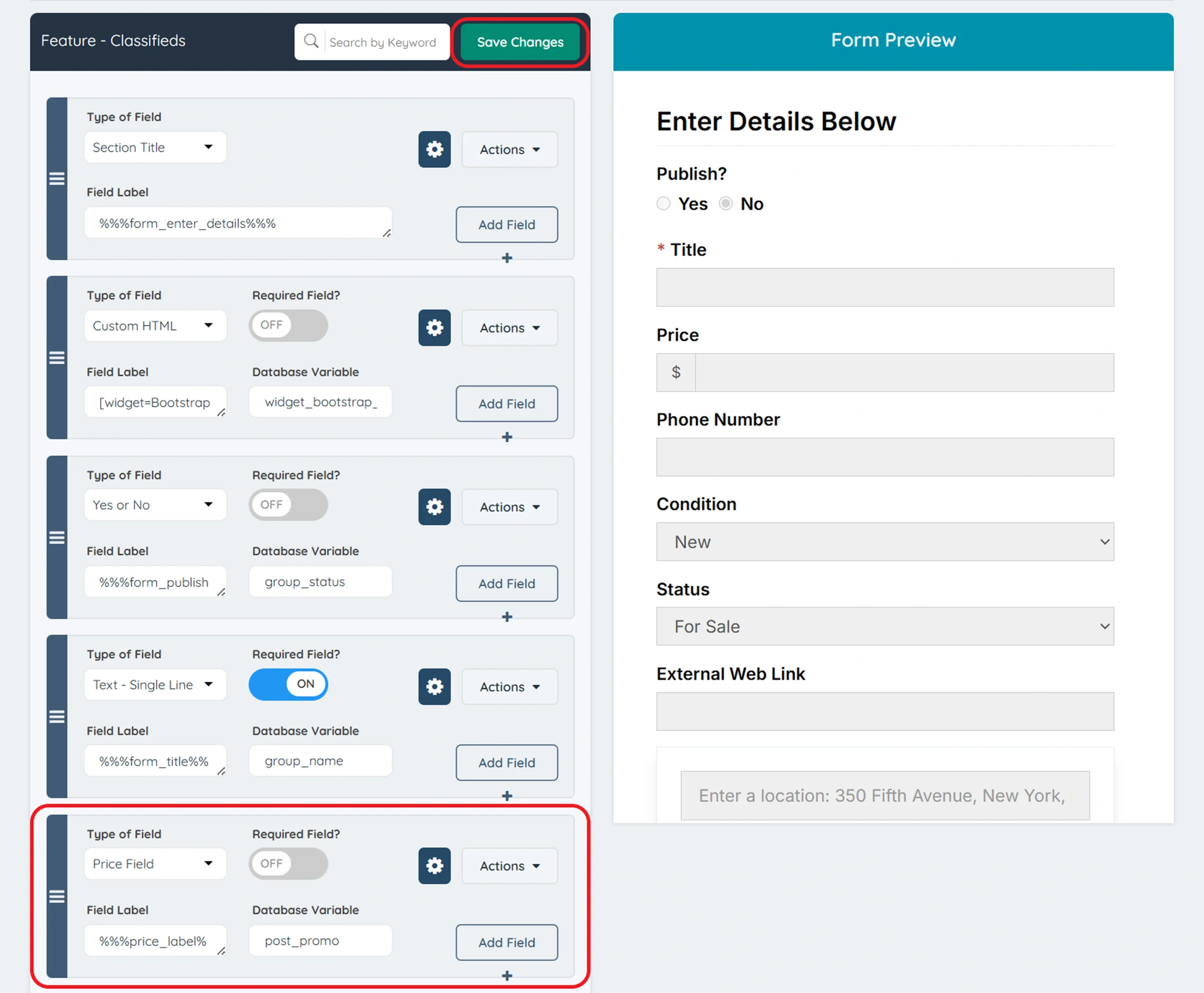
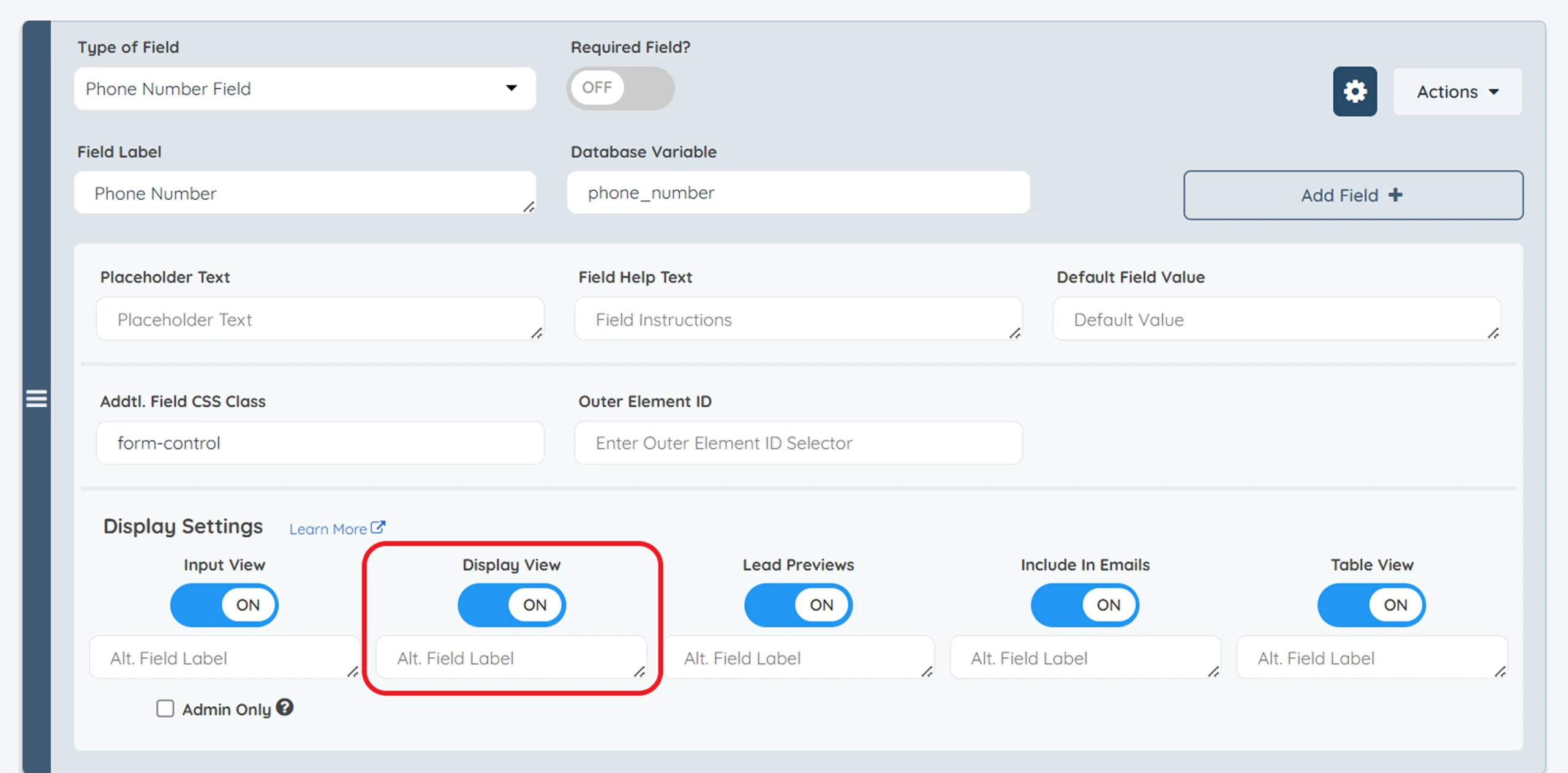
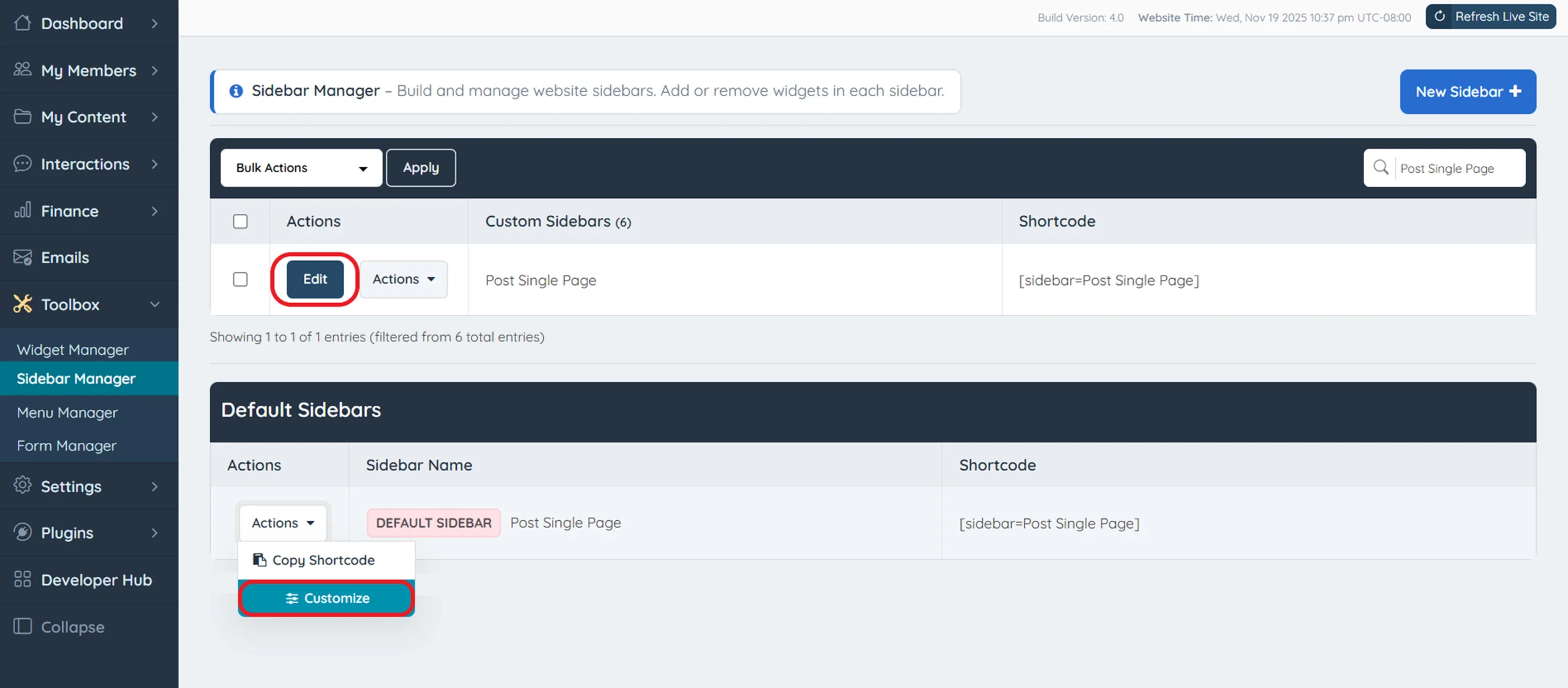
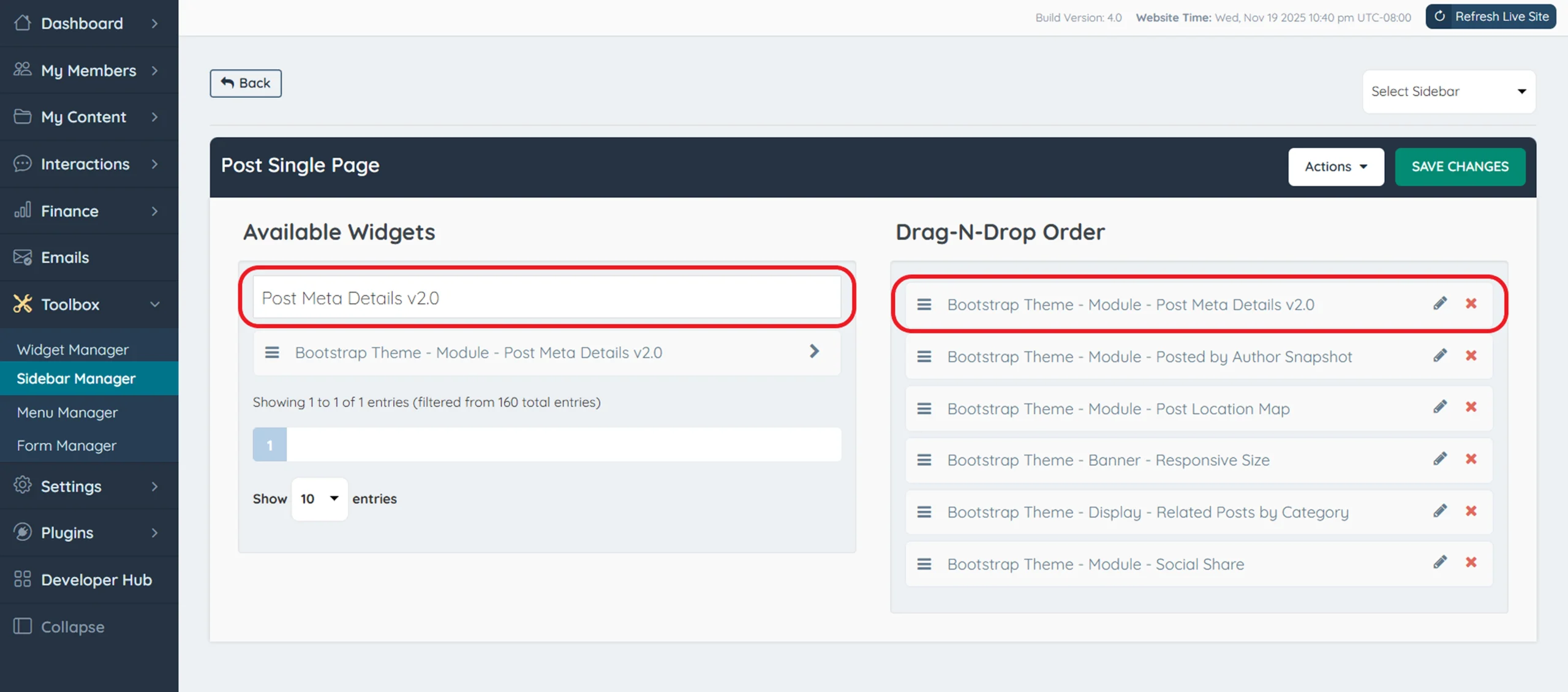
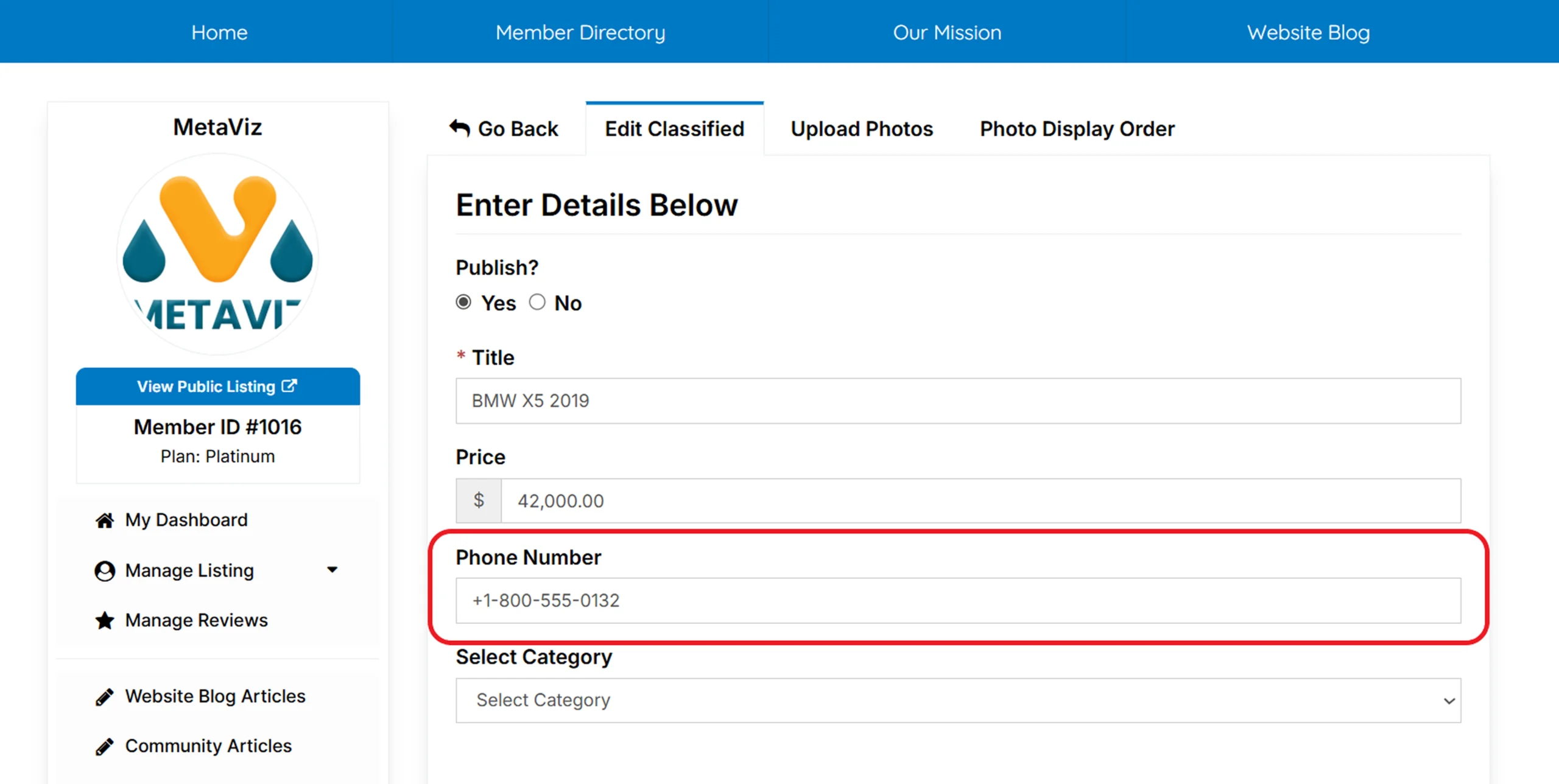
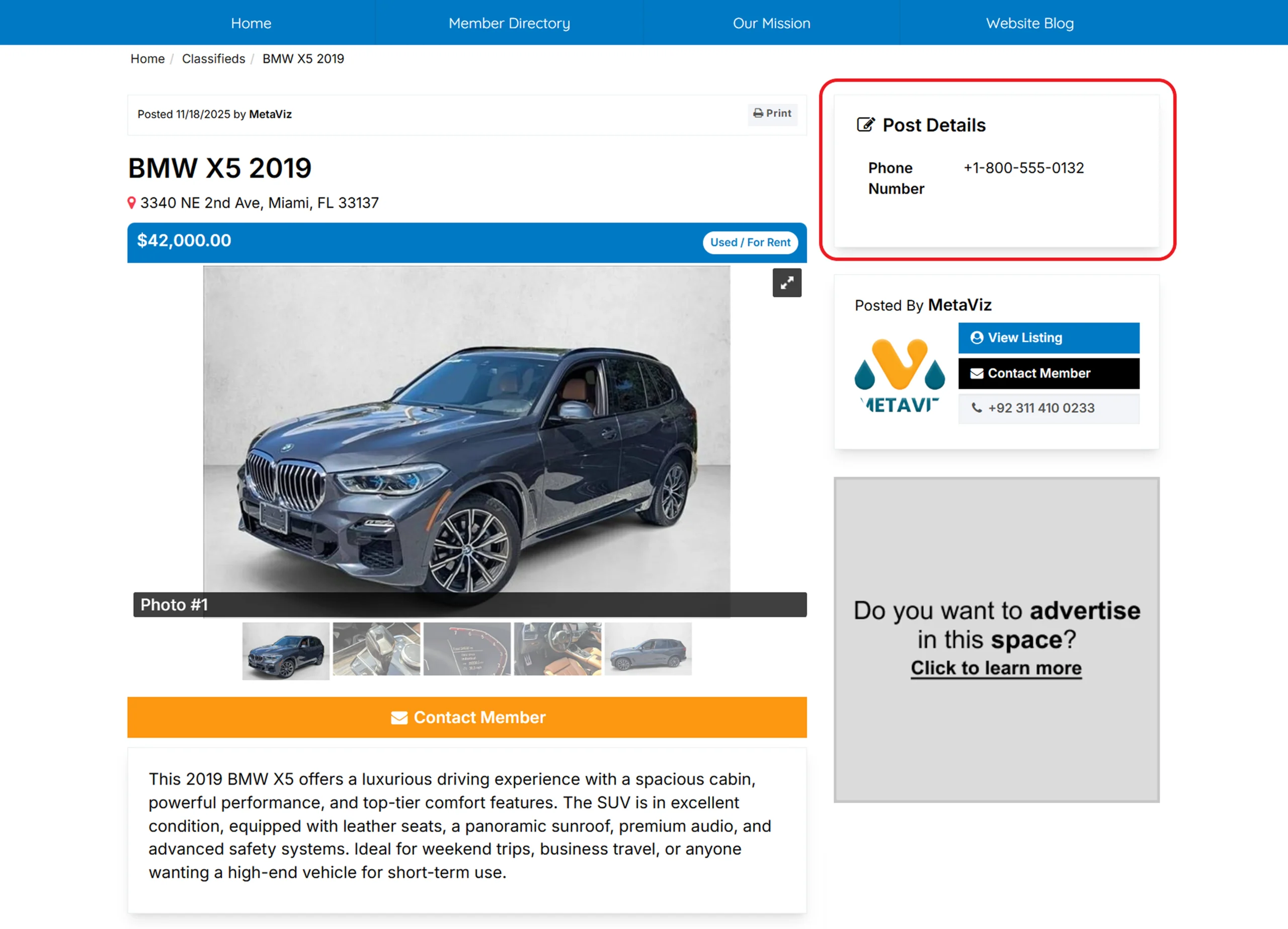
[widget=Bootstrap Theme - Module - Post Meta Details v2.0]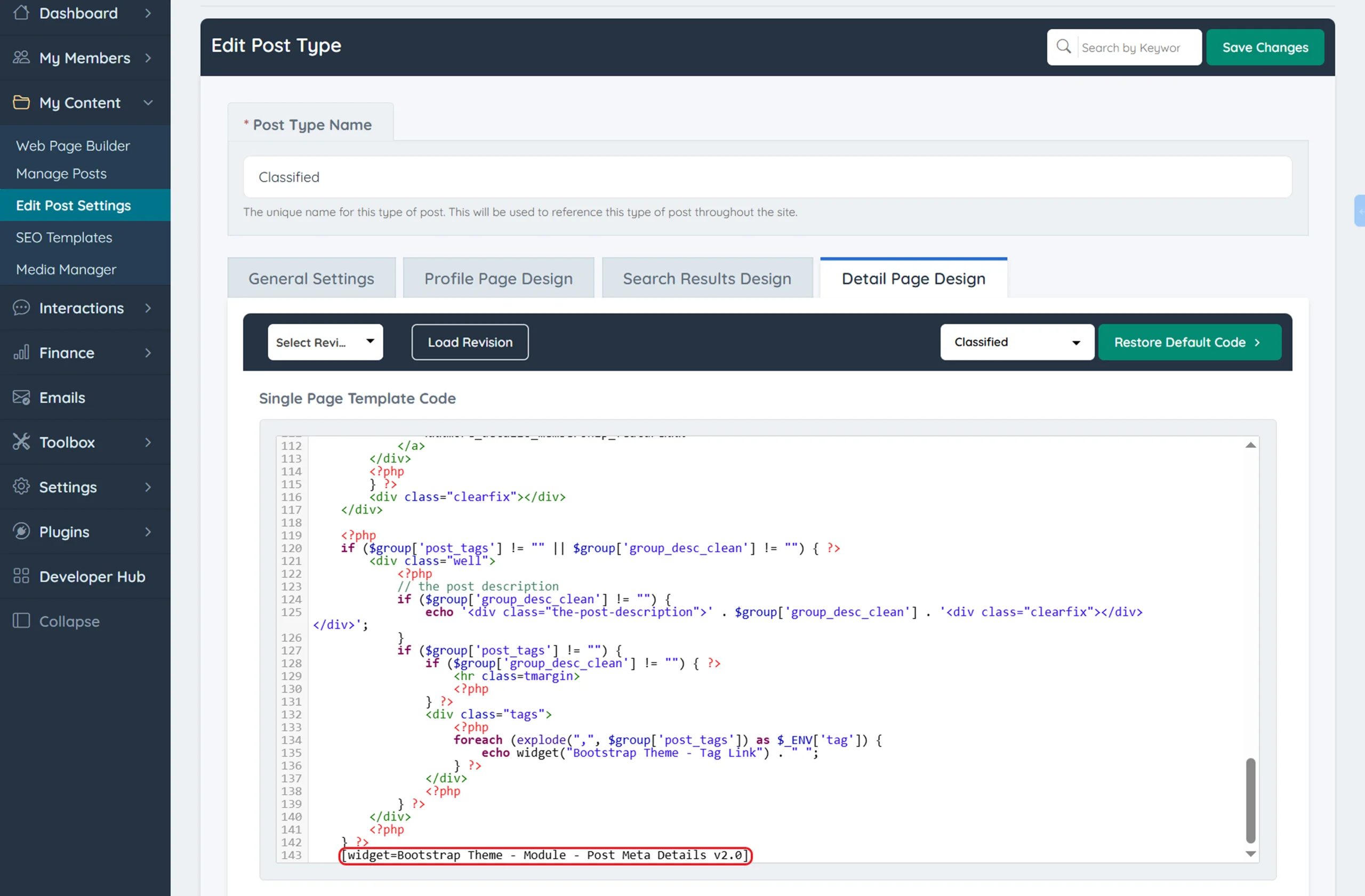
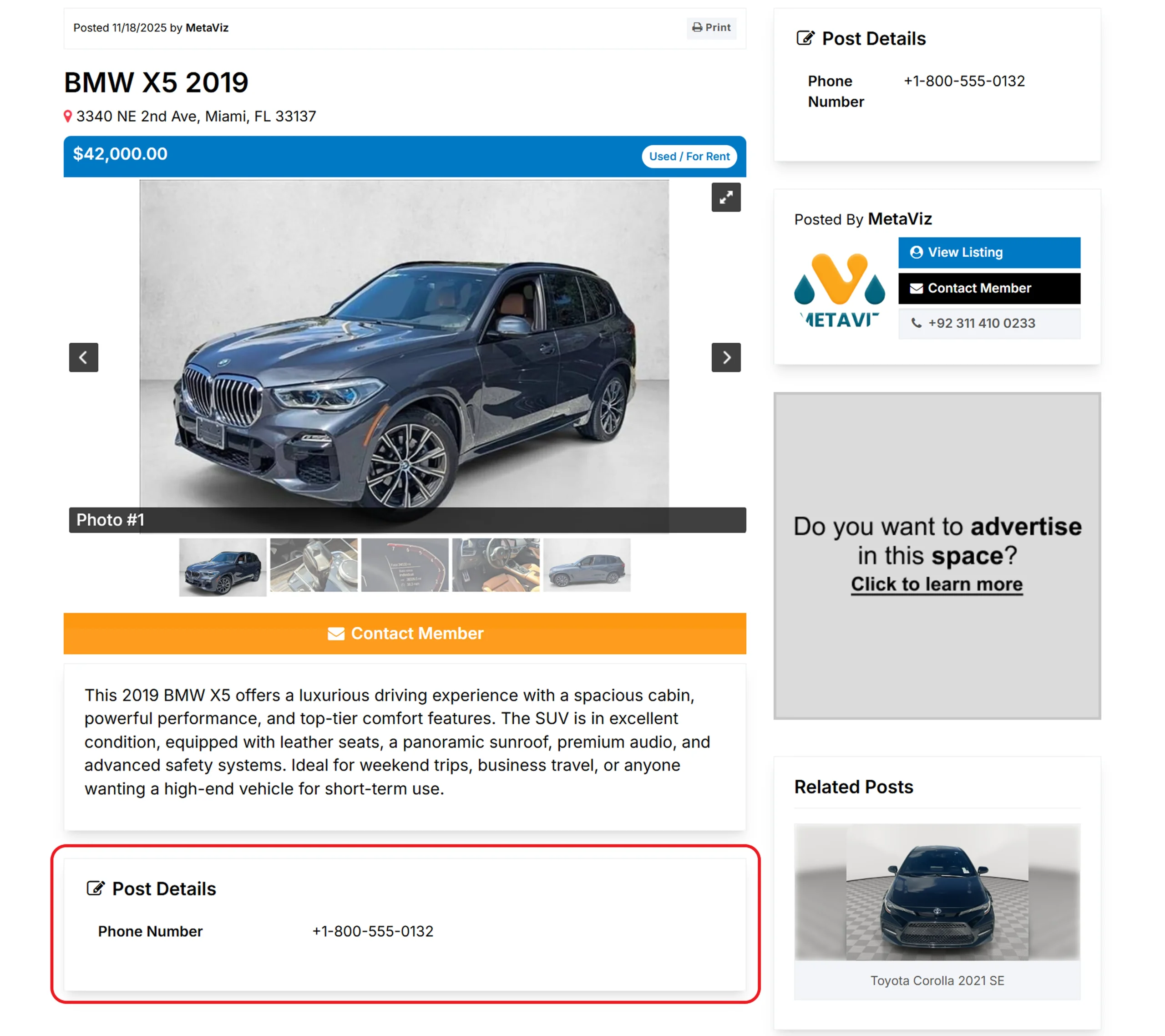
Common Issues When Displaying Custom Post Fields in Brilliant Directories
The custom post field doesn’t appear on the Post Details page.
Best Practices for Displaying Custom Post Fields in Brilliant Directories
- Use Clear Field Labels: Name your custom fields clearly to keep forms organized and easy to manage.
- Enable Display View Always: Turn on Display View for every custom field to ensure it appears on Post Details pages.
- Customize the Correct Sidebar: Update the Post Single Page sidebar before adding the Post Meta Details widget.
- Use the Shortcode When Needed: Insert the widget shortcode for placing custom fields below the post body instead of the sidebar.
- Test With a Member Account: Create a sample post to confirm that all custom fields display properly on the front end.
Improve Your Post Setup
Conclusion: Why Displaying Custom Post Fields Matters in Brilliant Directories
Learning how to properly display custom post fields gives you more control over the structure and clarity of your Post Details pages. With the right setup, you can present richer information, improve user experience, and keep your content layout clean and consistent across your directory. This simple enhancement makes your posts more informative and visually polished.
Need Help Setting Up Custom Post Fields? Let’s Work Together!
If you want expert support adding, displaying, or optimizing custom fields in your Brilliant Directories website, our team is here to help. From sidebar configuration to shortcode placement, we can make your setup seamless and professional. Contact us today to get started!
Your posts deserve a cleaner, smarter layout!
Let’s refine your custom field display and enhance your Brilliant Directories post pages with a layout that looks great and works even better.
FAQs About Managing Post Type Sidebars in Brilliant Directories
How do I make custom post fields show on the Post Details page?
Why isn’t my custom field appearing on the frontend?
Which widget displays custom post fields in Brilliant Directories?
Can I show custom fields below the post body instead of the sidebar?
Do I need coding knowledge to display custom post fields?
Can members fill out the new custom fields automatically?
What should I do if the shortcode doesn’t work?
Share this post on social media:
Dev Bilal is a results-driven AI and web development expert specializing in Brilliant Directories, WooCommerce, and intelligent digital solutions. With deep expertise in AI integrations, data science, and full-stack development, he empowers businesses to build scalable, high-performing, and automation-driven platforms that deliver real results.