
How to Add a New Sidebar in a Static Page Using Web Page Builder in Brilliant Directories
- Brilliant Directories
- How to Add a New Sidebar in a Static Page Using Web Page Builder in Brilliant Directories



Why you can trust our content
The tech space is full of hype and difficult terms; we take the reliability standards to new heights. Our blog content is backed by:
Learn more
- Experienced tech professionals, developers, and product engineers
- First-hand data from real projects and in-house case studies
- Verified standards from trusted sources like Statista and BD
Let’s Work Together
A well-placed sidebar can completely transform how visitors interact with your website. Whether you want to display navigation links, banner ads, or key widgets, adding a sidebar to a static page in Brilliant Directories helps you keep content organized and accessible. In just a few steps, you can enhance both functionality and design making your web pages more engaging and user-friendly.Whether you want to tweak an existing layout or create a brand-new sidebar, this guide will walk you through every step of the process so you can make your pages more functional and visually balanced.
“Great website design isn’t just about looks, it’s about structure, and every well-placed sidebar brings that structure to life.”
Co-Founder & CTO
Key Information Summary: Adding a Sidebar to a Static Page
| Section | Key Takeaways |
|---|---|
|
Why Add a Sidebar to a Static Page? |
A sidebar improves page functionality and layout by displaying important widgets, links, or ads alongside main content. |
|
How Do You Access Static Page Settings? |
Go to Content » Edit Web Pages and choose Edit for an existing page or click New Web Page to create one. |
|
Where Are Sidebar Settings Located? |
Sidebar options are found under the Display Options tab in the page editor. |
|
What Can You Do in Display Options? |
You can choose to show or hide elements like headers, footers, menus, and banners for a more customized look. |
|
How to Choose Sidebar Placement? |
Use the Sidebar Position setting to decide whether the sidebar appears on the left or right side of the page. |
|
What Is the Breadcrumb Option For? |
The breadcrumb trail helps users navigate your website easily and understand their location on the page. |
|
What Layout Customizations Are Available? |
Options like Full-Width Page and Disable Default CSS allow full design control and flexibility. |
|
How Does the Page Look Before Adding a Sidebar? |
Without a sidebar, the page layout is wider and less structured, showing only the main content. |
|
How Does It Look After Adding a Sidebar? |
Once saved, the new sidebar displays widgets neatly beside your main content, enhancing user experience. |
Enhance Your Static Pages with a Functional Sidebar Today!
Step-by-Step Process to Add a Sidebar to a Static Page
Adding a sidebar to your static page in Brilliant Directories helps you organize content, display key widgets, and create a more engaging layout. Follow these steps to easily add and customize your sidebar for a professional look.
ESSENTIAL STEPS TO ADD A SIDEBAR
Step 1: Open the Page Editor
Navigate to Content » Edit Web Pages in your admin dashboard. Click Edit for an existing page or select New Web Page to create a fresh one.
Step 2: Go to Display Options
Inside the editor, open the Display Options tab. This section contains all sidebar and layout customization settings for your static page.
Step 3: Enable and Configure the Sidebar
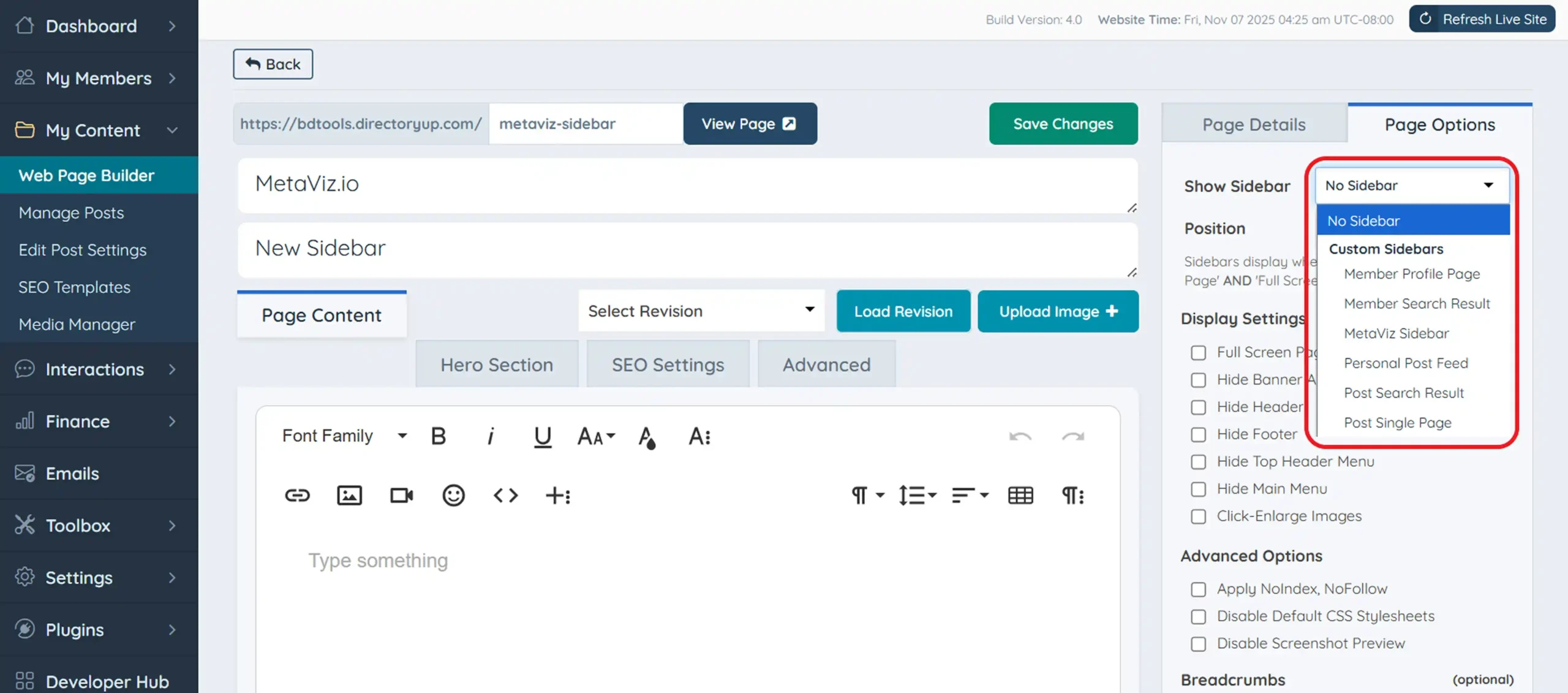
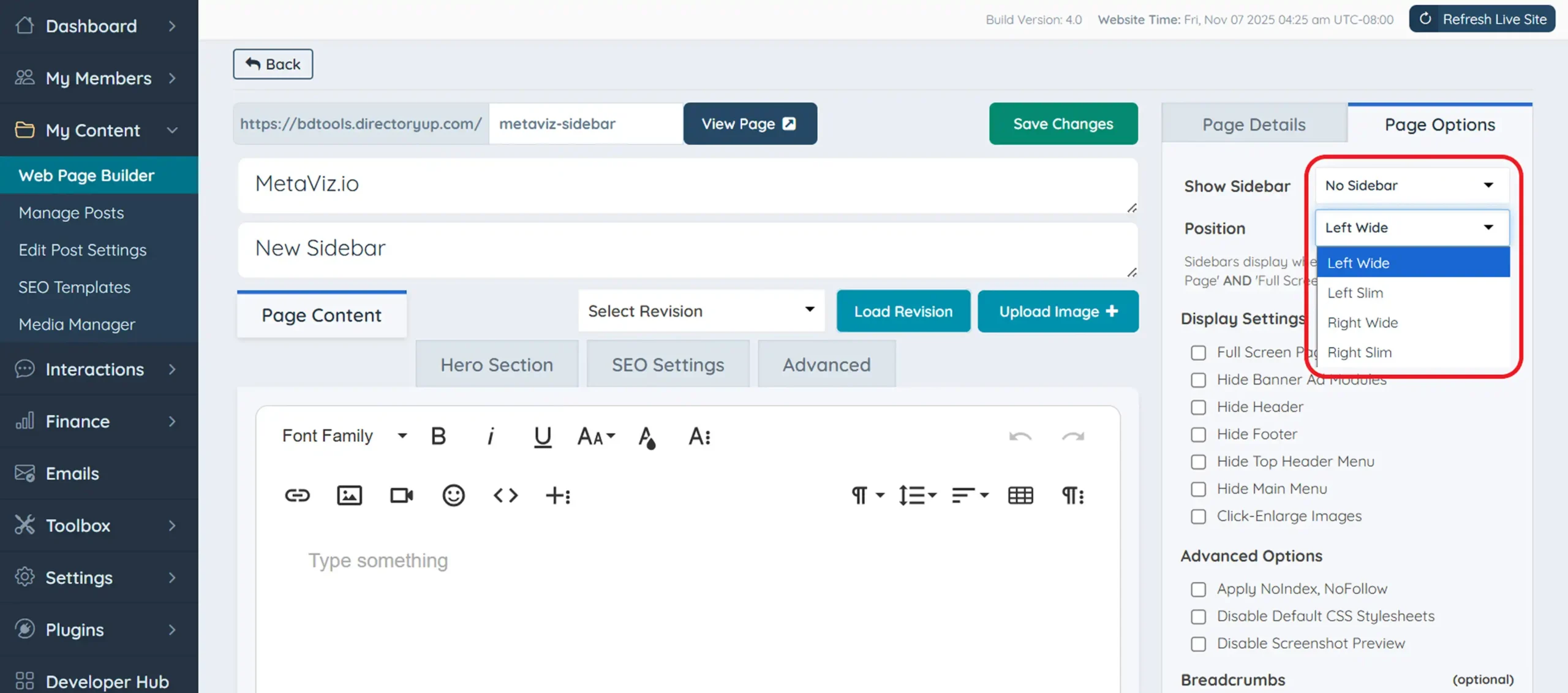
Under Show Sidebar, choose which sidebar to display. Then, use the Sidebar Position option to decide whether it appears on the left or right side of the page.
Step 4: Adjust Page Display Settings
You can further customize your page by hiding or showing elements like headers, footers, menus, or banners to create a cleaner look.
Step 5: Save and Preview the Page
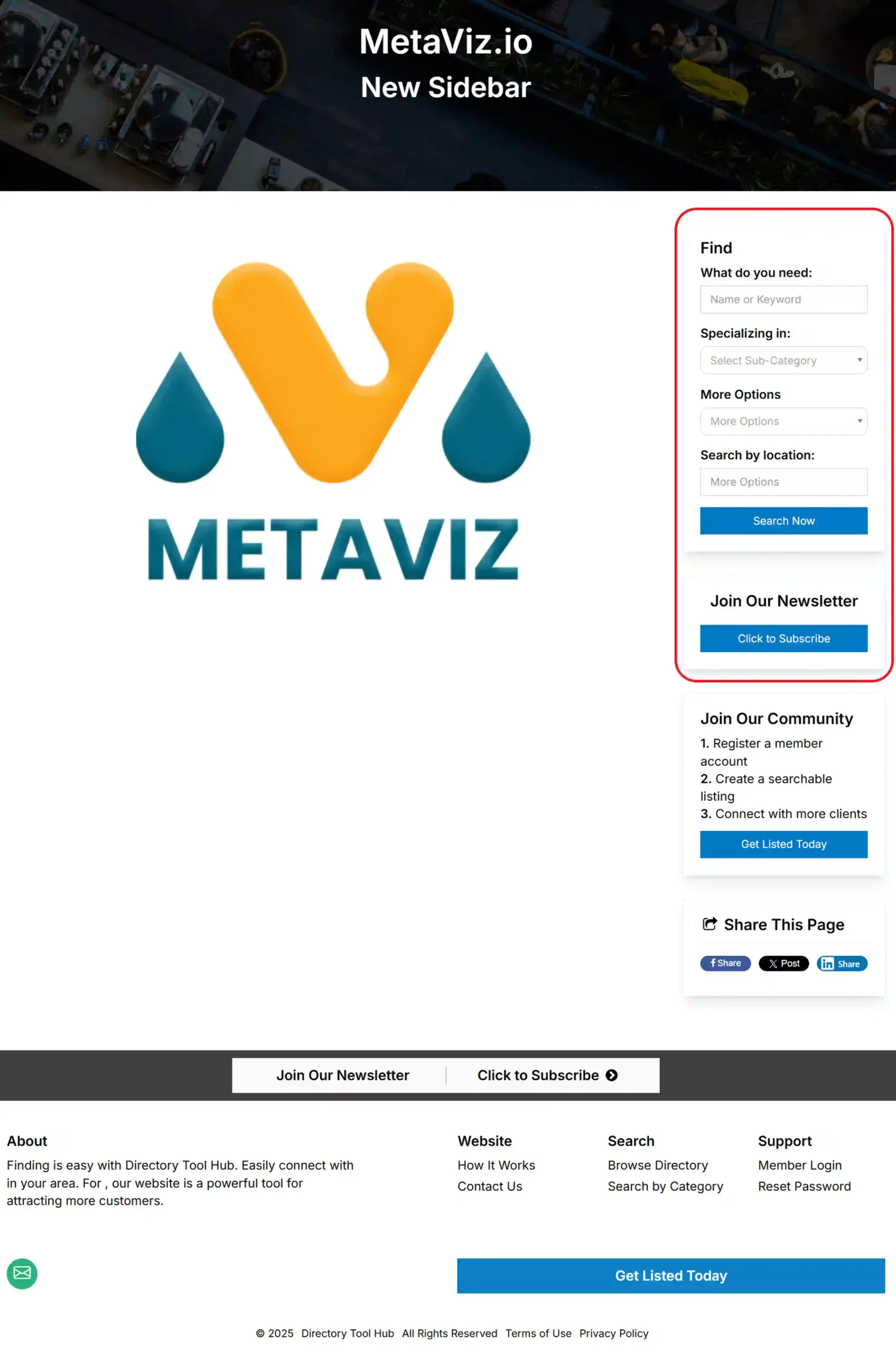
After adjusting your settings, click Save and preview your page. You’ll now see the new sidebar displayed beside your main content area.
Pro Tip
Use a sidebar layout that complements your content balance visuals and functionality to keep your page clean and easy to navigate.
How to Add a Sidebar to a Static Page
To include a sidebar on a static page, go to Content> Edit Web Pages. From there, you can either click “Edit” next to an existing page or select the “New Web Page” button to create a fresh page.
How to Create a New Static Page
Once you open the page editor, locate the sidebar options under the Display Options tab.
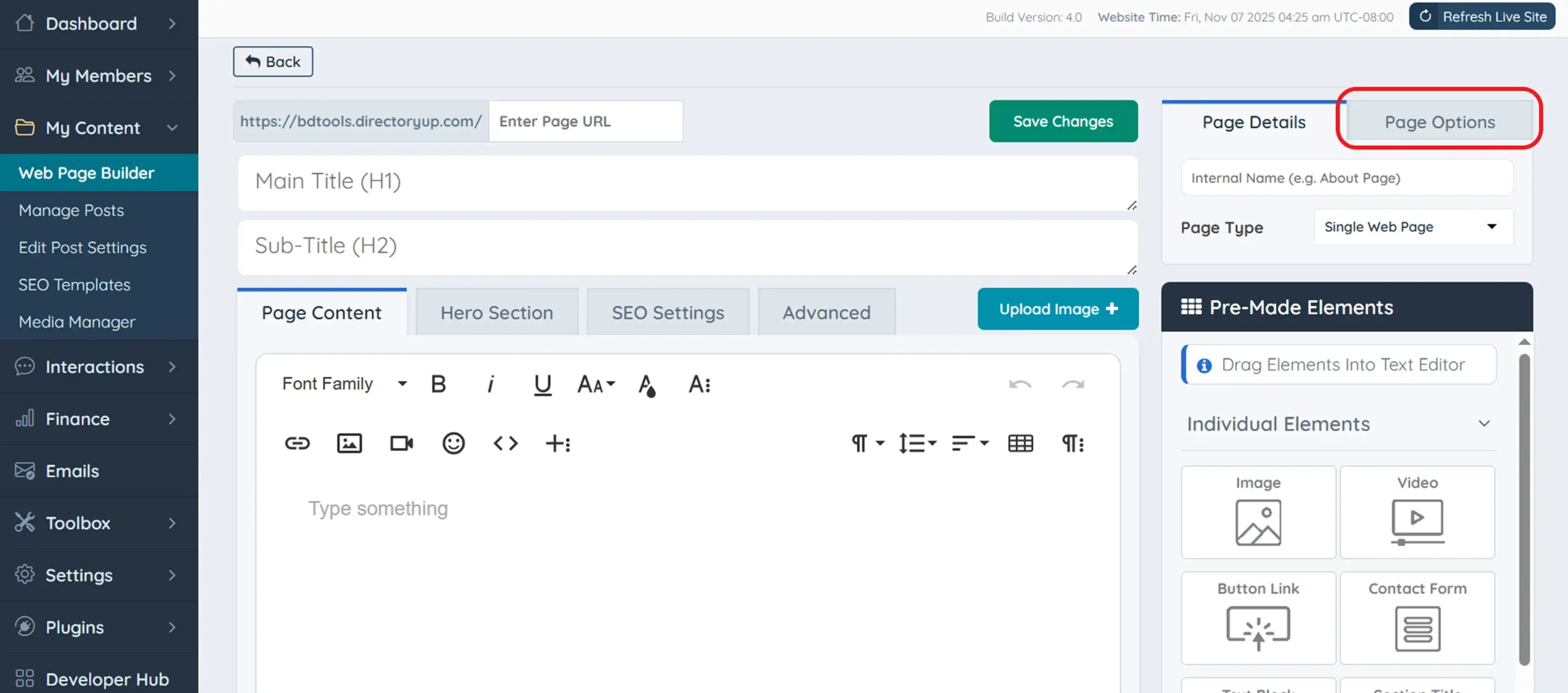
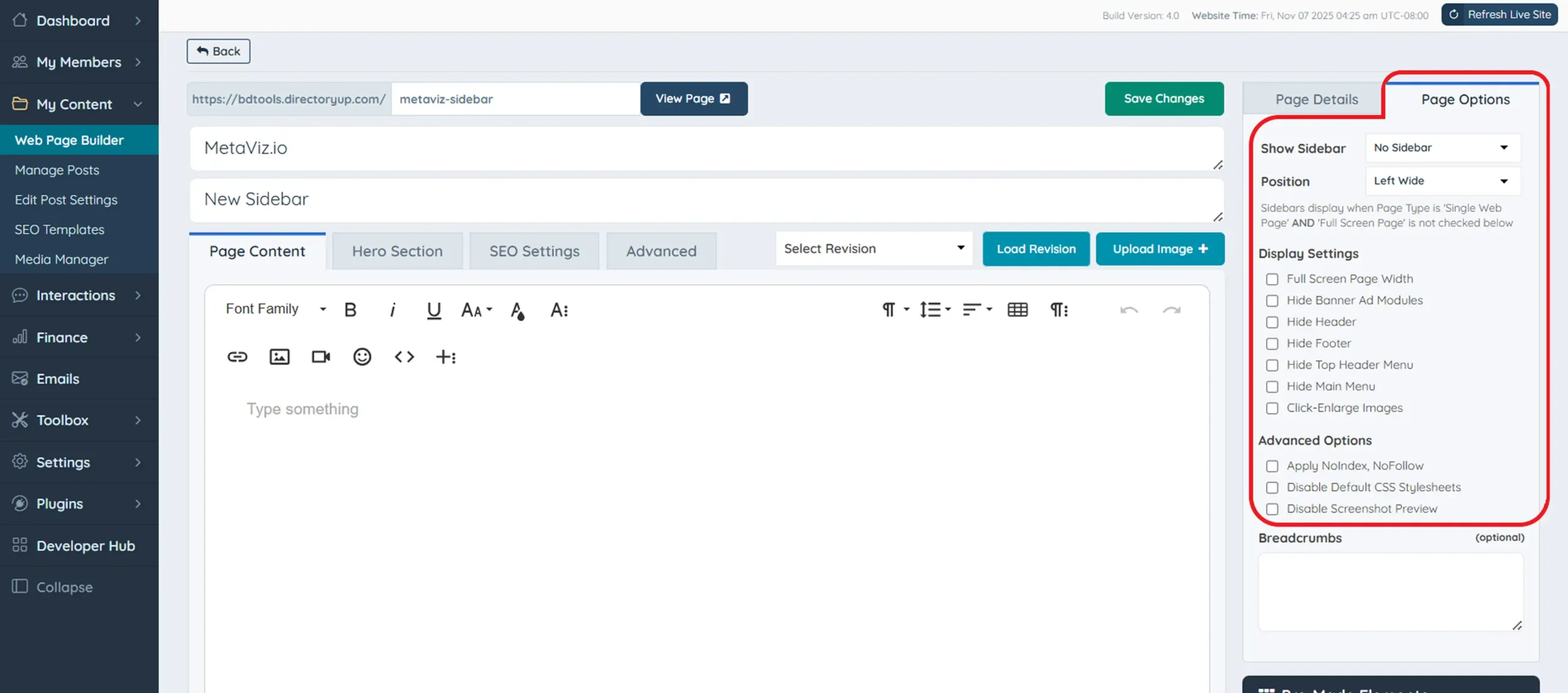
Display Options:
Show Sidebar – Choose the type of sidebar you want this page to display.
Sidebar Position – Decide which side of the page the sidebar should appear on.
Breadcrumb – Add a breadcrumb trail for better navigation.
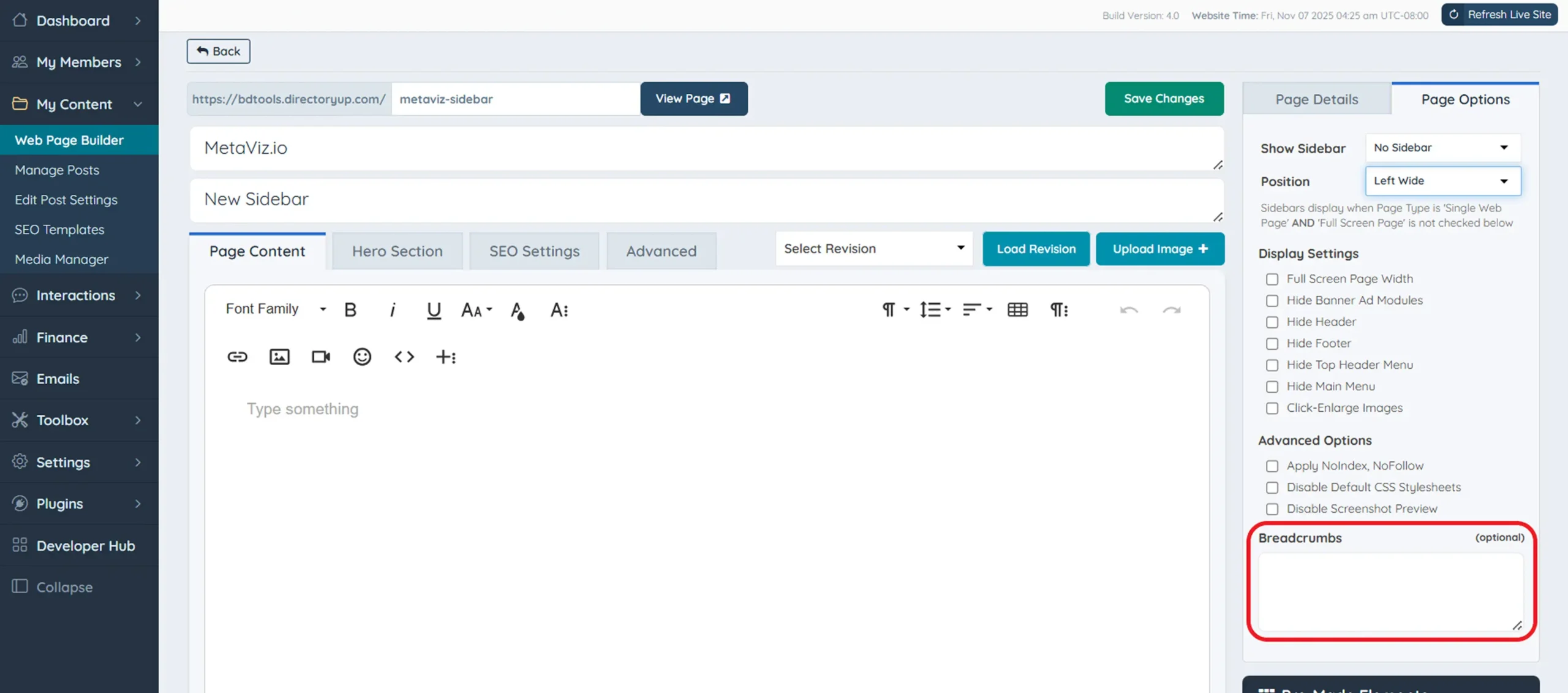
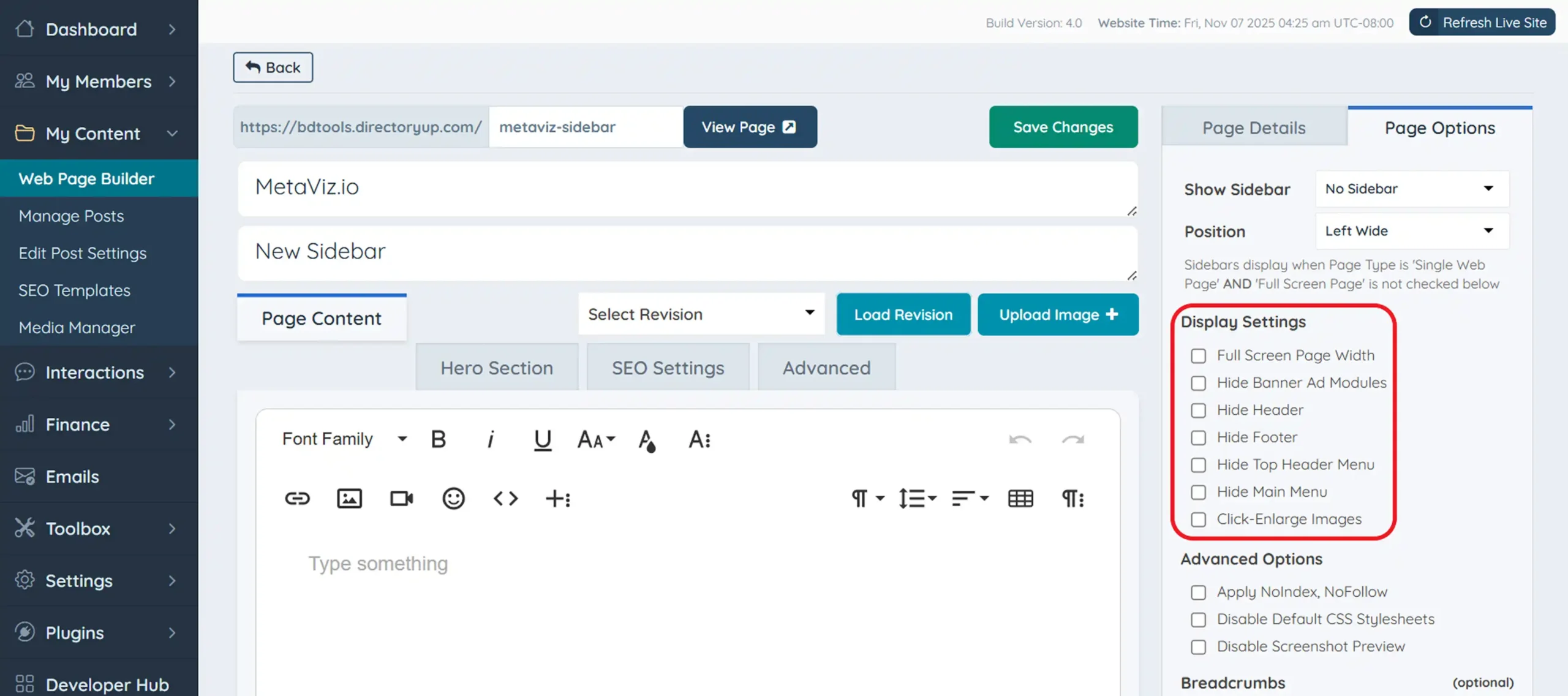
Additional Display Options – Here, you can customize the layout by selecting from the following:
- Hide Header
- Hide Footer
- Hide Header Links
- Hide Main Menu
- Hide Banner Ads
- NoIndex, NoFollow
- Full-Width Page
- Disable Default CSS Stylesheets
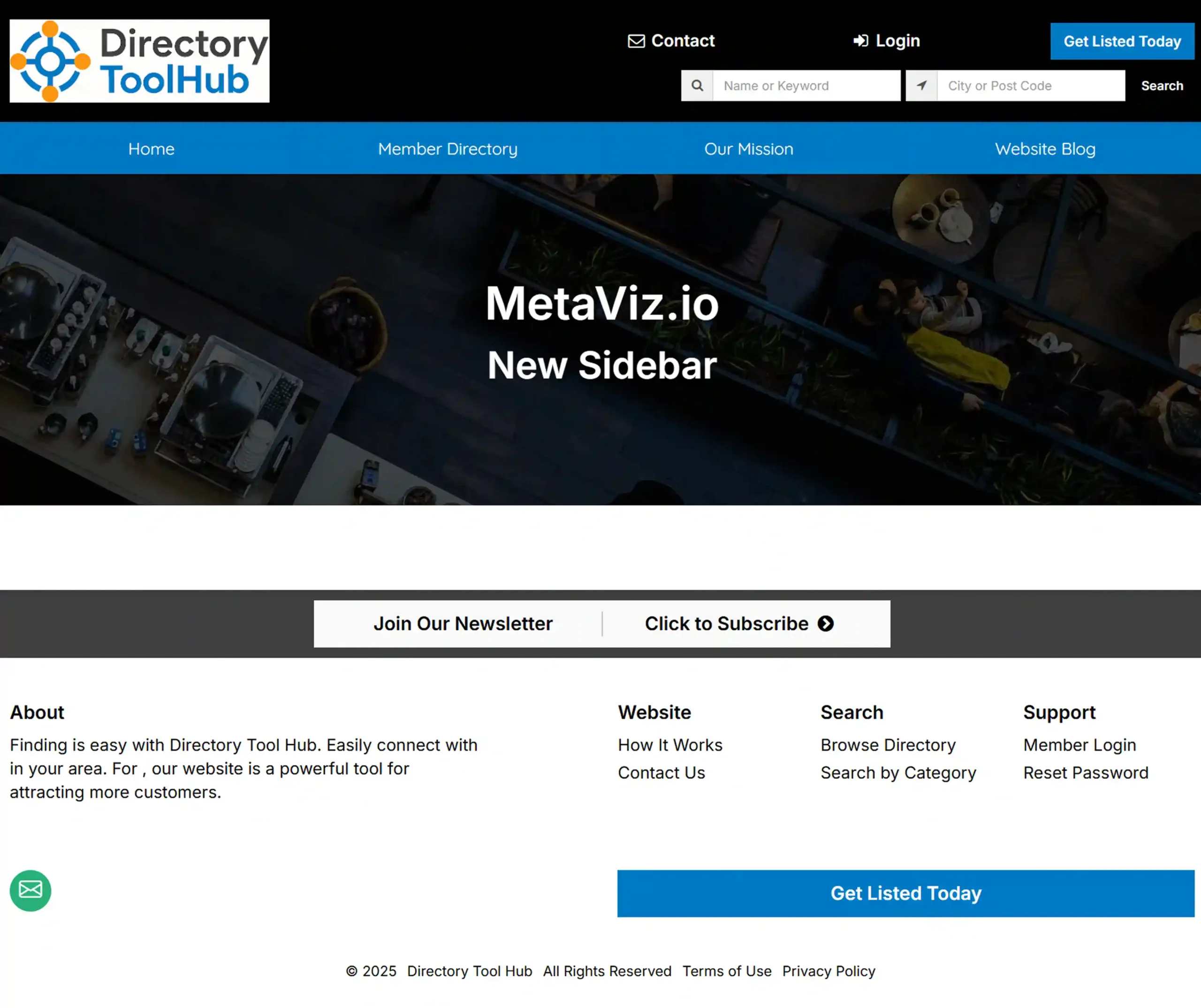
This is how the page appears before adding a sidebar:
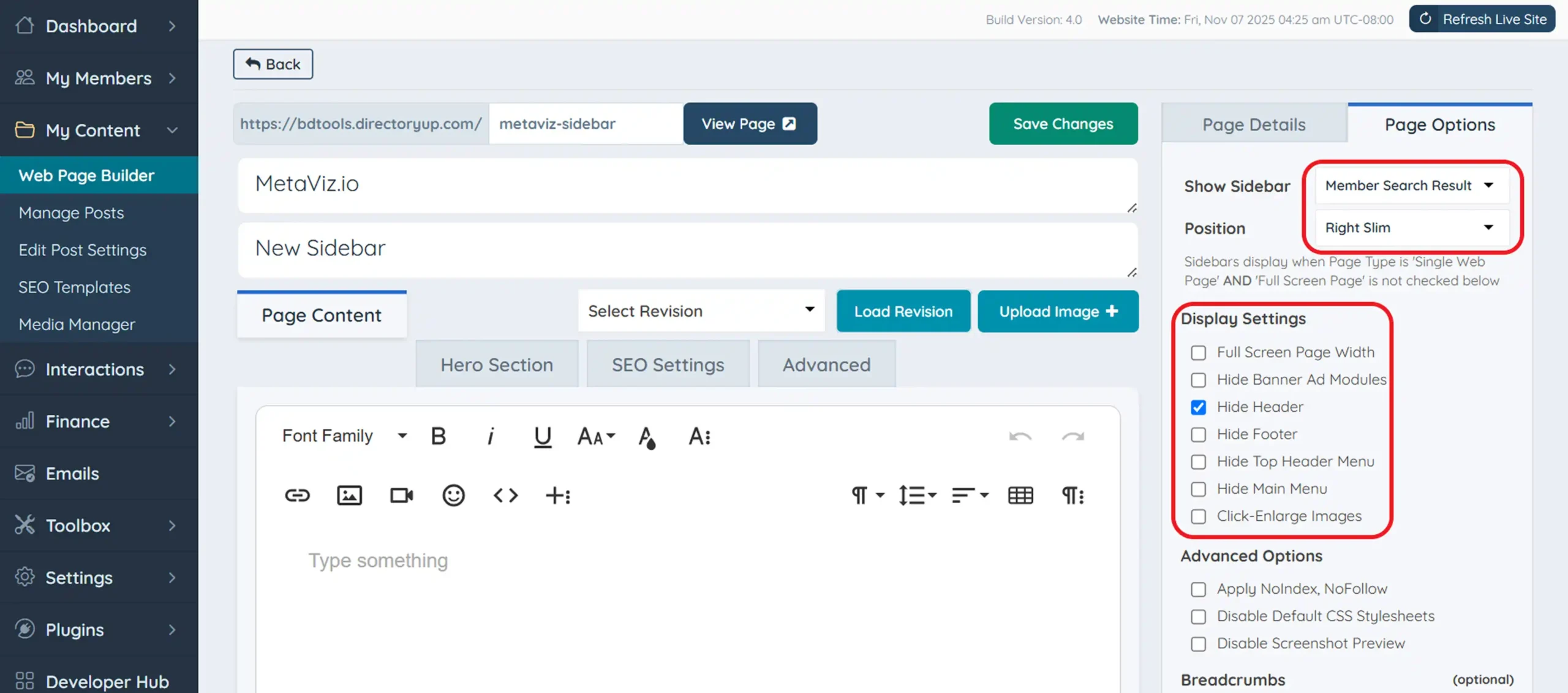
And this is how the page looks after saving your new Sidebar display settings:
Common Problems When Adding Sidebars to Static Pages in Brilliant Directories and Their Solutions
Sidebar Not Appearing
Sometimes the sidebar doesn’t show up on the static page after saving changes.
Fix: Double-check the Show Sidebar setting and ensure the correct sidebar is selected under Display Options.
Wrong Sidebar Position
Your sidebar may appear on the wrong side of the page.
Fix: Go to Sidebar Position under Display Options and select the correct side before saving your changes.
Page Layout Issues
The page layout might look uneven or cluttered after adding the sidebar.
Fix: Review your Display Options settings and adjust elements like header, footer, and banners to balance the page layout.
Pro Tip:
Always preview your static page after adding or adjusting a sidebar to ensure the layout, alignment, and visibility look perfect before publishing.
Best Practices for Adding Sidebars to Static Pages in Brilliant Directories
Use a Relevant Sidebar: Choose a sidebar that complements the content on your static page for better engagement and readability.
Keep Layouts Balanced: Maintain equal spacing between your sidebar and main content to create a clean, professional look.
Preview Before Publishing: Always preview your page after adding a sidebar to ensure proper alignment and visibility across devices.
Avoid Overcrowding: Add only essential widgets to your sidebar too many can distract users and slow down page loading.
Update Sidebars Regularly: Refresh banners, modules, or widgets periodically to keep your sidebar content current and appealing.
Enhance Your Brilliant Directories Static Pages Today!
Conclusion: Why Adding Sidebars to Static Pages in Brilliant Directories Matters
Adding a sidebar to your static pages in Brilliant Directories is more than a design upgrade; it’s a way to make your website more functional, user-friendly, and visually appealing. By customizing sidebars smartly, you can highlight key content, improve navigation, and deliver a better browsing experience across your site.
Need Help Setting Up Sidebars on Your Brilliant Directories Website?
If you’re looking for expert guidance to create, edit, or optimize sidebars in Brilliant Directories, our team is ready to assist. We specialize in building clean, functional, and well-structured layouts that enhance engagement and usability. Contact us today to get your website sidebar set done right!
Your Brilliant Directories website deserves perfectly designed sidebars!
Let’s work together to create professional, customized sidebars that organize content beautifully and give your website the polished structure it deserves.
FAQs – Everything You Need to Know About Adding Sidebars to Static Pages in Brilliant Directories
How can I add a sidebar to a static page in Brilliant Directories?
Go to Content » Edit Web Pages, click Edit on your chosen page, then open the Display Options tab to select and enable your preferred sidebar.
Where do I find the sidebar settings for my page?
Sidebar settings are located under the Display Options tab in the page editor, where you can configure sidebar type, position, and visibility preferences.
Can I choose which side the sidebar appears on?
Yes, the Sidebar Position option lets you choose whether your sidebar appears on the left or right side of your static page layout.
Why is my sidebar not appearing after saving changes?
Check that the correct sidebar is selected in the Show Sidebar option and ensure the changes were saved before previewing your page.
Can I hide specific sections like the header or footer on a static page?
Absolutely. Under Display Options, you can hide elements like the header, footer, banner ads, or menus to create a cleaner page layout.
How do I preview my static page after adding a sidebar?
After saving your settings, click Preview to see how the sidebar appears on your page and confirm that it aligns properly with your main content.
Will the sidebar affect my page design or width?
Yes, adding a sidebar may slightly adjust your page width. Use Full-Width Page or CSS styling to balance the layout and maintain a professional look.
Share this post on social media:
Dev Bilal is a results-driven AI and web development expert specializing in Brilliant Directories, WooCommerce, and intelligent digital solutions. With deep expertise in AI integrations, data science, and full-stack development, he empowers businesses to build scalable, high-performing, and automation-driven platforms that deliver real results.