
How Sidebars Work Differently on Post, Static, and Member Pages
- Brilliant Directories
- How Sidebars Work Differently on Post, Static, and Member Pages



Why you can trust our content
The tech space is full of hype and difficult terms; we take the reliability standards to new heights. Our blog content is backed by:
Learn more
- Experienced tech professionals, developers, and product engineers
- First-hand data from real projects and in-house case studies
- Verified standards from trusted sources like Statista and BD
Let’s Work Together
Have you ever visited a website that felt effortlessly organized, where every banner, search bar, and signup box seemed perfectly placed? That smooth experience isn’t a coincidence; it’s the power of a well-managed sidebar at work. Sidebars are the quiet design heroes that shape how visitors interact with your pages, guiding attention exactly where it matters most.
In Brilliant Directories, mastering sidebars goes beyond simple design tweaks; it’s about building structure, enhancing navigation, and creating a balanced visual flow across your site. By the end of this guide, you’ll know how to set up, customize, and optimize your sidebars with confidence, turning every page into an engaging, conversion-ready experience.
“Great web design isn’t about filling space, it’s about placing every element with purpose, and a well-crafted sidebar is where that purpose comes to life.”
Co-Founder & CTO
Summary of Key Information
| Section | Key Takeaways |
|---|---|
|
What Is the Purpose of a Sidebar in Brilliant Directories? |
A sidebar acts as a container for widgets like banners, search modules, and sign-up forms, keeping your web pages structured and visually balanced. |
|
How Do Sidebars Improve Website Design and Usability? |
They organize key features in one place, helping users navigate easily while enhancing both design consistency and overall user experience. |
|
What Makes Sidebars Different from Widgets? |
Sidebars don’t move or style widgets; they simply group them logically, serving as flexible containers for better layout control. |
|
How Can You Add a Sidebar to Static or Custom Pages? |
Use the shortcode [sidebar=sidebar_name] and position it where needed on the page, then style it with CSS for seamless visual integration. |
|
What’s Important When Using Search Modules? |
Only one dropdown search module should be active per sidebar to prevent functionality issues on the front end. |
|
What Are the Actions Available for Custom Sidebars? |
Options include Disable, Clone, Copy Shortcode, and Delete—each providing quick control over sidebar management and duplication. |
|
How Do Bulk Actions Work? |
You can select multiple sidebars, choose a bulk action such as delete or disable, and apply it to all selected items at once. |
|
Why Is CSS Important for Sidebar Placement? |
CSS determines whether a sidebar appears on the left or right, giving you control over positioning and alignment across various page types. |
|
What Should You Do When a Page Doesn’t Support Sidebars? |
Manually insert the custom sidebar shortcode and adjust its appearance to match other pages for a consistent site layout. |
|
Why Might Sidebars Look Different on Separate Pages? |
Each page uses its own CSS rules, so even the same sidebar can appear differently depending on the layout and design applied. |
Build a Smarter, More Organized Directory Website Today!
Step-by-Step Process to Set Up and Manage Sidebars in Brilliant Directories
Creating and organizing your sidebars the right way helps your website look cleaner, perform better, and provide a smoother browsing experience for your visitors. Follow these essential steps to manage your sidebars confidently and effectively.
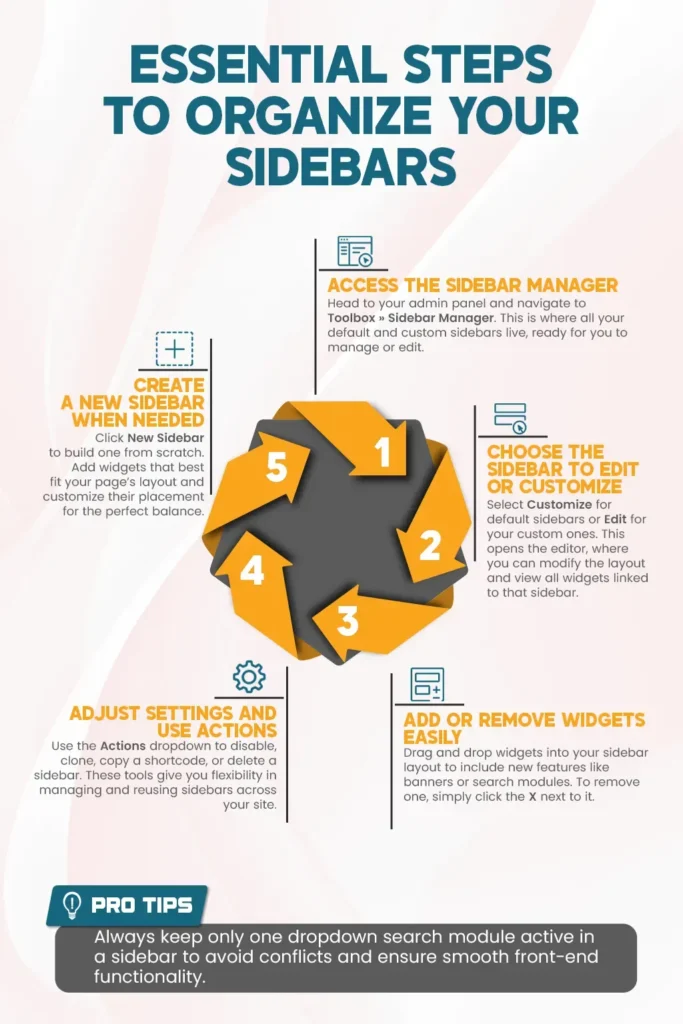
What is a Sidebar
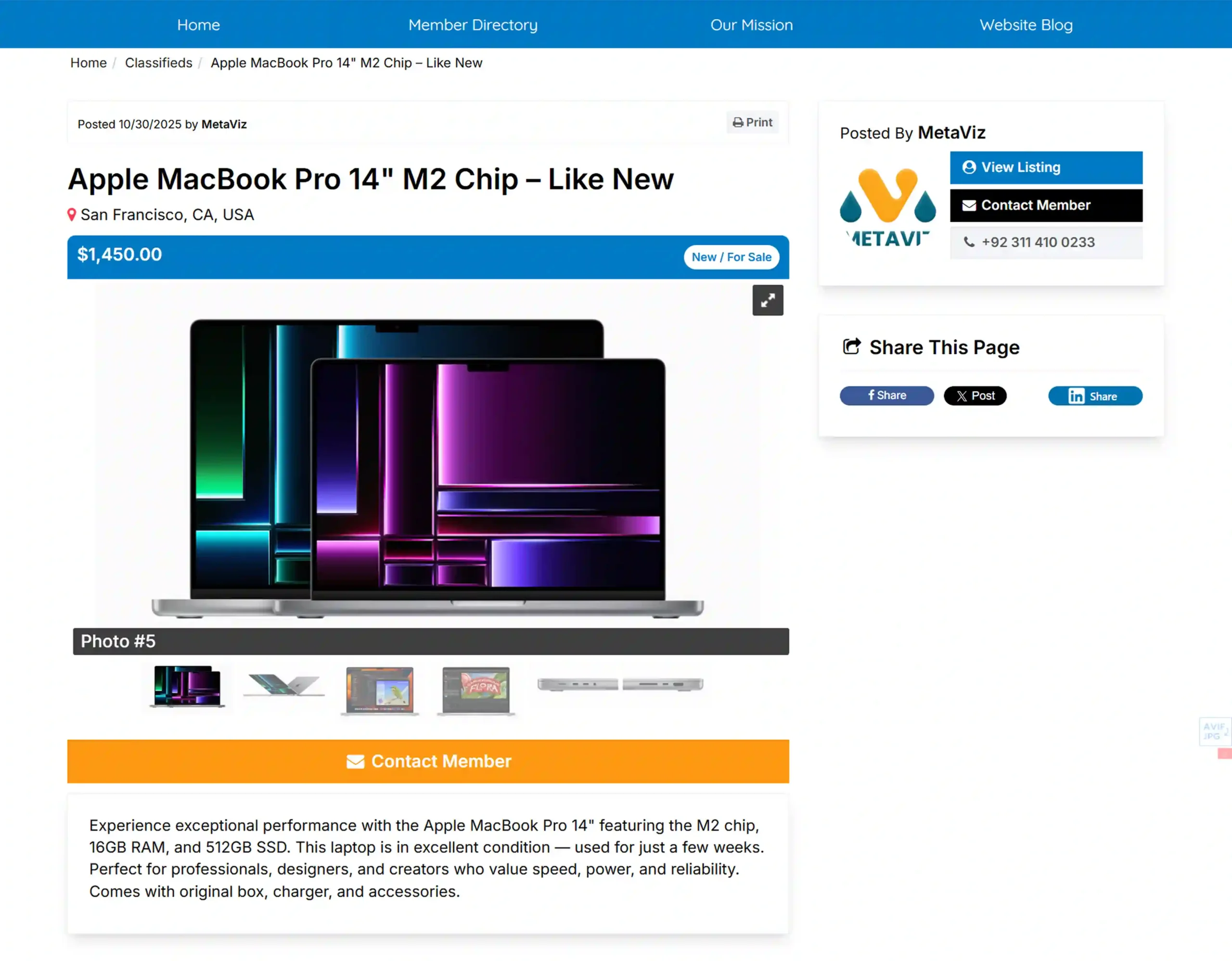
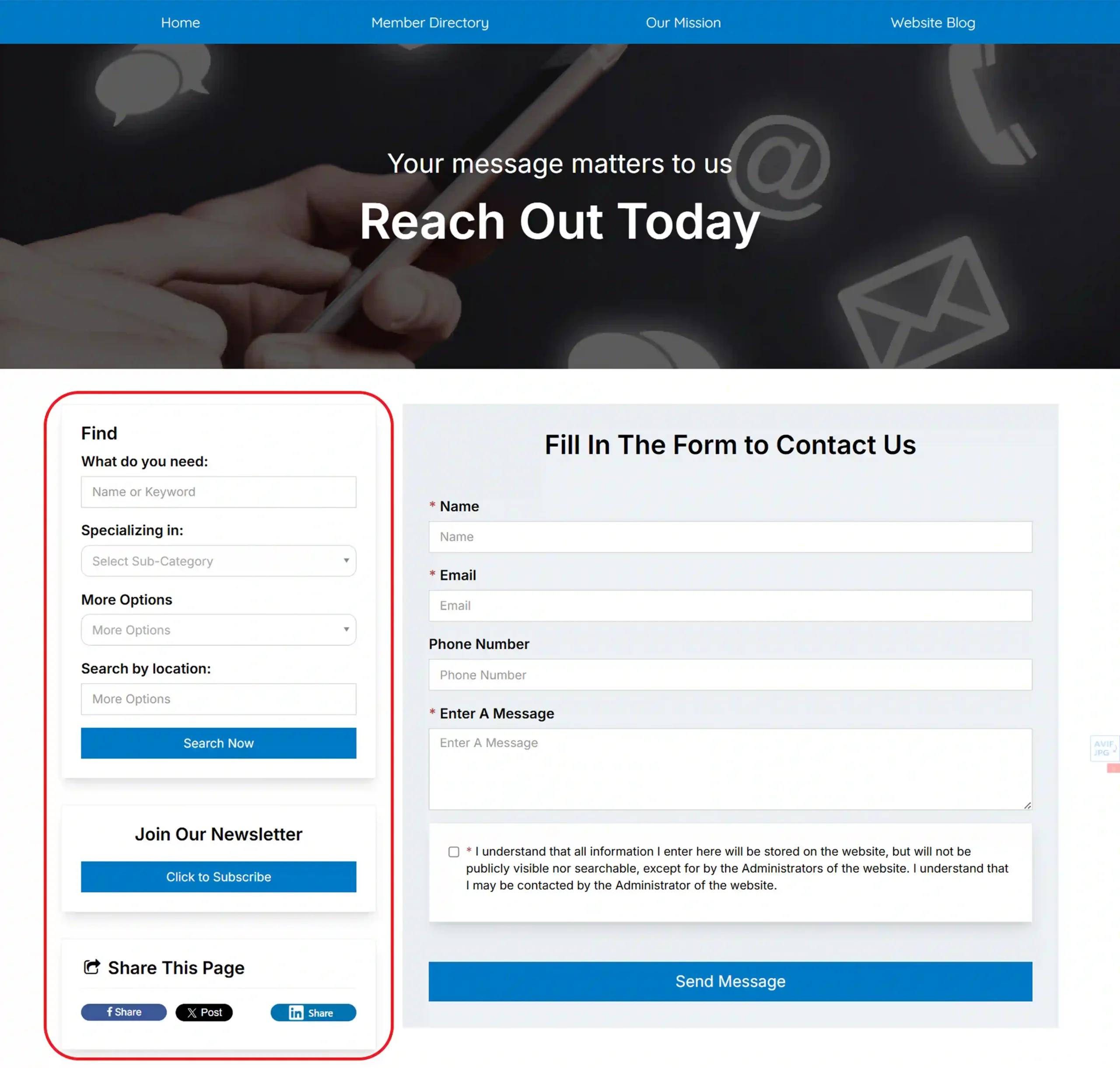
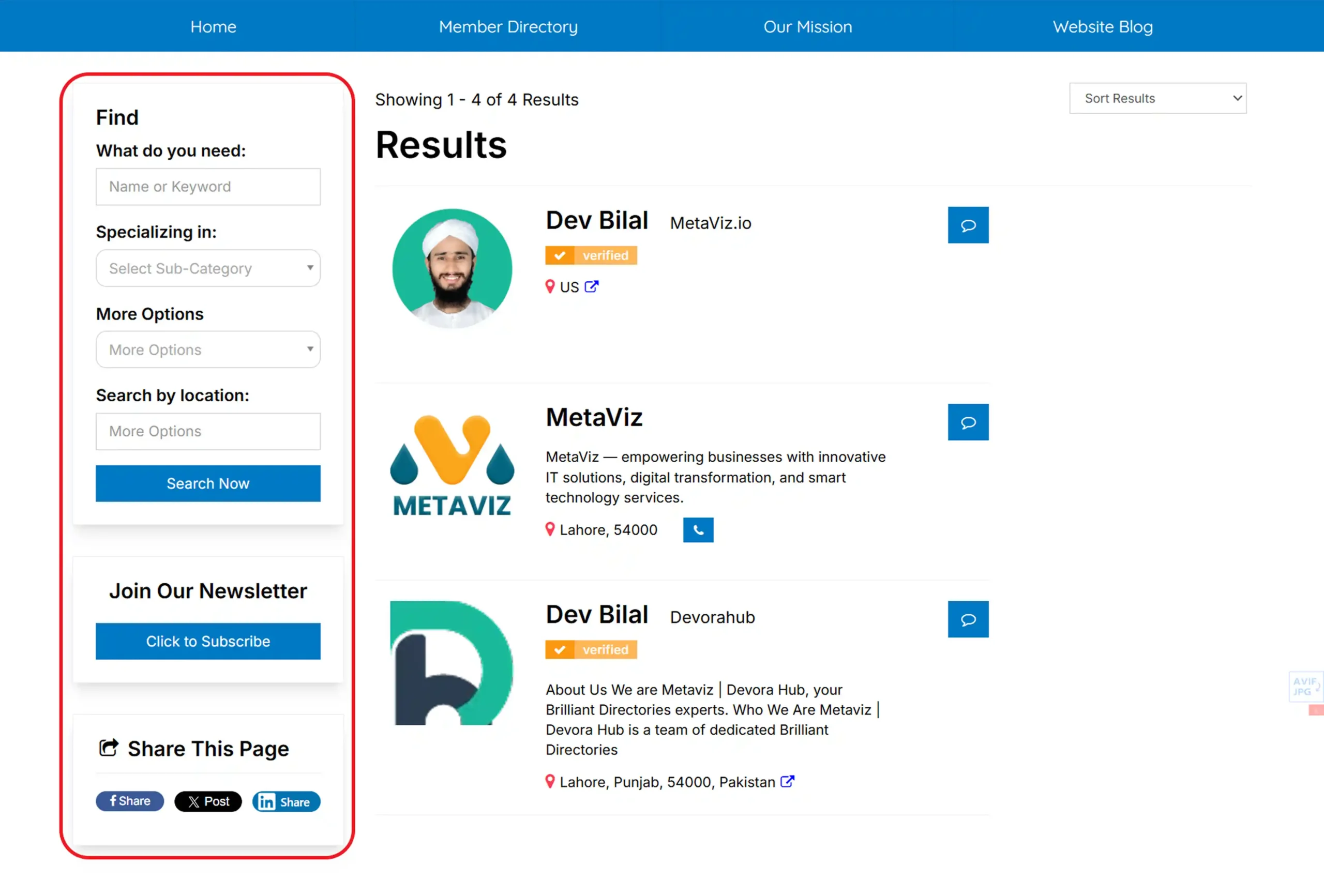
A sidebar serves as a container designed to hold various widgets. It typically includes elements such as banner ads, search modules, and newsletter sign-up forms that appear alongside the main content of a webpage. Within the Brilliant Directories platform, you’ll find several pre-configured sidebars that can easily be customized or updated to suit the specific needs of your website.
Sidebar Examples
Post Details Pages:
Static Pages:
Member Search Results:
Additional Information:
Sidebar Setup Steps for Membership Features / Post Types
How to Add a Sidebar to a Static Page
How to Create a Sidebar
Important Information About Sidebars
Sidebars act purely as containers that group widgets together. They are not widgets themselves and do not move other widgets around a page. Instead, they organize a collection of widgets that are intended to function as a set. Each widget on your website should be placed within a sidebar to maintain structure and consistency.
To display a sidebar on a static page, use the shortcode:
[sidebar=name_sidebar]
Keep in mind that the word SIDEBAR doesn’t determine whether its widgets appear on the left or right side of the page. The sidebar’s position is controlled by CSS, which moves the entire container (and its contents) to the desired side.
If you wish to use a sidebar on a page that doesn’t natively support sidebar options (for instance, certain membership features), you can manually add it with custom code. For example, for a sidebar called myCustomSidebar, insert this shortcode where you want it to appear:
[sidebar=myCustomSidebar]
Once added, you can adjust its appearance using CSS to match the design or mimic the style of another existing sidebar.
Lastly, remember that sidebars may not look identical across different pages. Since they function as containers rather than styled components, their appearance depends on the CSS applied to each page layout.
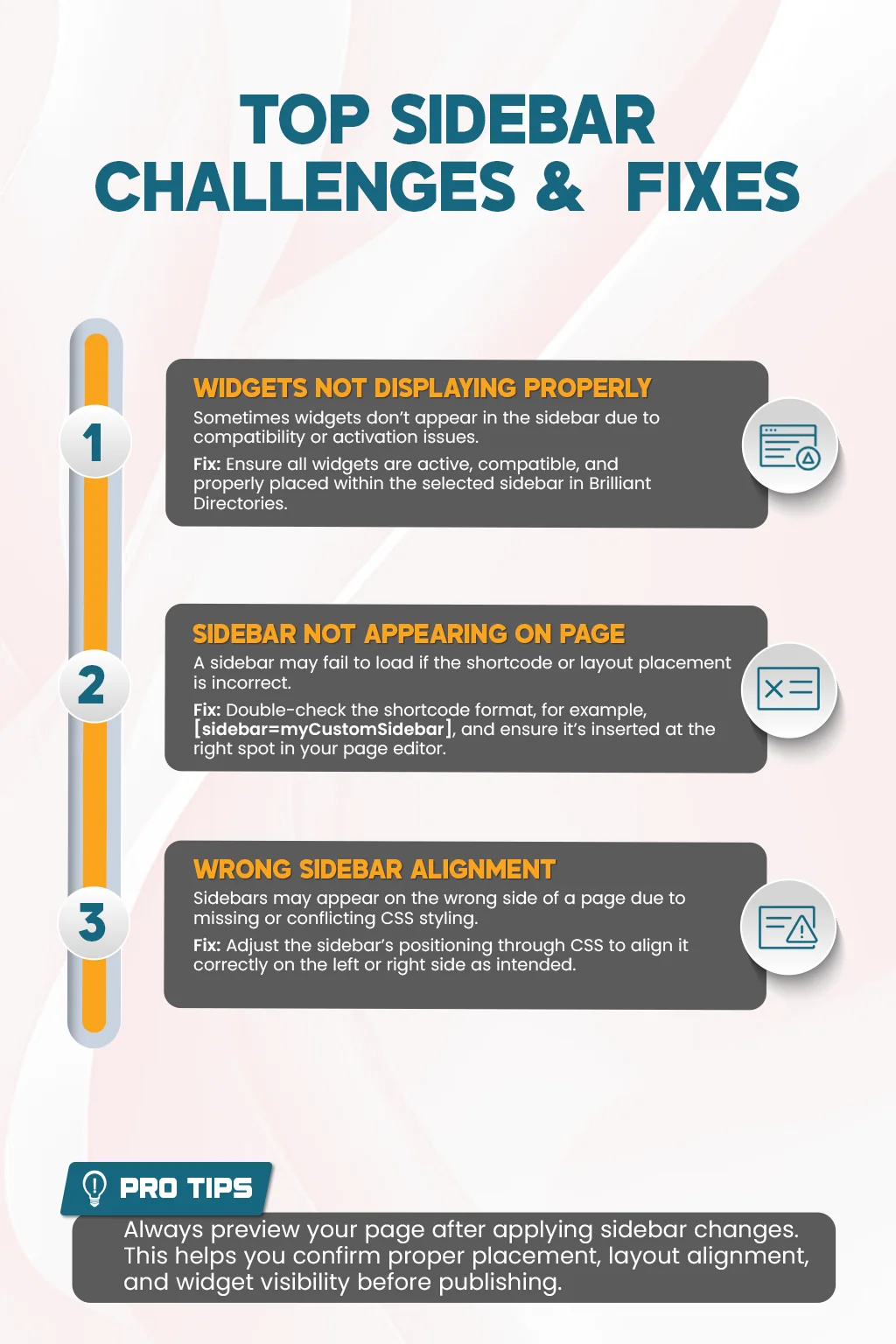
Common Problems When Managing Sidebars in Brilliant Directories and Their Solutions
Best Practices for Managing Sidebars in Brilliant Directories
- Name Your Sidebars Clearly: Use short, descriptive names so you can easily identify and manage them in the Sidebar Manager later.
- Keep Layouts Consistent: Maintain a uniform sidebar style across all pages to create a clean, professional, and cohesive website experience.
- Add Widgets Strategically: Only include widgets that add real value, such as search modules or banners avoid overcrowding your sidebar.
- Preview Before Publishing: Always review your sidebar layout on the front end to check alignment, visibility, and functionality before making it live.
- Use Shortcodes Correctly: Double-check every [sidebar=name_sidebar] shortcode to ensure your sidebar displays in the right location.
- Update Regularly: Refresh widgets, links, and banners periodically to keep your Brilliant Directories website up to date and engaging.
- Test After Changes: After editing, test the sidebar’s performance to confirm all widgets and styles work as expected across devices.
Optimize Your Brilliant Directories Sidebars for Better Performance!
Conclusion: Why Sidebar Management in Brilliant Directories Matters
Learning how to create, customize, and manage sidebars in Brilliant Directories helps you bring structure, clarity, and purpose to every page. A well-designed sidebar improves navigation, highlights key content, and keeps your website professional and user-friendly, turning every visit into a better experience for your audience.
Need Help Managing Your Brilliant Directories Sidebars? Let’s Work Together!
Our team specializes in optimizing Brilliant Directories’ websites with customized, high-performing sidebar layouts. Whether you’re refining widget placement, improving alignment, or creating new sidebars from scratch, we’re here to help. Contact us today to make your website more organized and visually impactful!
Your website deserves powerful, well-structured sidebars!
Start enhancing your Brilliant Directories website today. Let’s collaborate to build clean, optimized sidebars that improve performance, design consistency, and user satisfaction.
FAQs – Everything You Need to Know About the Sidebar Manager in Brilliant Directories
What is a sidebar in Brilliant Directories?
A sidebar in Brilliant Directories is a container that holds widgets such as banners, search modules, and newsletter signups. It helps organize and display important features alongside your main page content.
How can I add a sidebar to a static page?
You can add a sidebar to any static page using the shortcode [sidebar=sidebar_name]. Place it where you want the sidebar to appear, and adjust its look with CSS if needed.
Why is my sidebar not showing correctly on some pages?
This often happens due to missing shortcodes, inactive widgets, or conflicting CSS. Double-check your widget settings and ensure the sidebar is enabled and styled properly.
Can I choose whether my sidebar appears on the left or right side of a page?
Yes, you can control sidebar placement using CSS. By adjusting the CSS code, you can move the entire sidebar and its contents to the left or right side as desired.
What types of widgets can I use in sidebars?
You can add widgets labeled as “Module,” “Dynamic Category Filter,” or “Banner,” as well as custom widgets, to enhance sidebar functionality in Brilliant Directories.
How do I create a new sidebar in Brilliant Directories?
Go tothe Toolbox » Sidebar Manager in your admin panel and click New Sidebar. From there, you can drag and drop widgets to design a layout that fits your page perfectly.
Why do sidebars look different on separate pages?
Each page may use unique CSS or layout settings, causing the same sidebar to appear differently. Adjusting the CSS ensuresa consistent design and alignment across your website.
Share this post on social media:
Dev Bilal is a results-driven AI and web development expert specializing in Brilliant Directories, WooCommerce, and intelligent digital solutions. With deep expertise in AI integrations, data science, and full-stack development, he empowers businesses to build scalable, high-performing, and automation-driven platforms that deliver real results.