
How to Add a Video to Any Sidebar in Brilliant Directories
- Brilliant Directories
- How to Add a Video to Any Sidebar in Brilliant Directories



Why you can trust our content
The tech space is full of hype and difficult terms; we take the reliability standards to new heights. Our blog content is backed by:
Learn more
- Experienced tech professionals, developers, and product engineers
- First-hand data from real projects and in-house case studies
- Verified standards from trusted sources like Statista and BD
Let’s Work Together
Adding a video to your website’s sidebar is one of the simplest ways to grab attention, boost engagement, and highlight content that deserves the spotlight. Whether you’re showcasing a new property, featuring a member’s promotion, or offering premium ad space, embedding a video can instantly make your sidebar more dynamic and impactful. In this guide, you’ll learn exactly how to add a video to any Brilliant Directories sidebar, step by step, so you can enhance your page layout and create a more interactive experience for your visitors.
Co-Founder & CTO
Key Information Summary for Adding a Video to Sidebars
| Section | Key Takeaways |
|---|---|
|
Why Add a Video to a Sidebar? |
A video instantly boosts engagement and highlights important content. It helps promote listings, ads, or updates more effectively within your page layout. |
|
How Do You Create the Video Widget? |
By building a new widget and inserting the video’s embed code, you can display dynamic media inside any sidebar. Text and links can also be added for extra context. |
|
What HTML Setup Is Required? |
A simple div container houses the embed code, ensuring the video fits cleanly in the sidebar without breaking layout styling. |
|
Where Do You Place the Video Widget? |
Select the right sidebar from Sidebar Manager and drop your new widget into its structure for quick display. |
|
How Does Drag-and-Drop Help? |
The drag-and-drop editor makes arranging sidebar widgets easy, letting you position the video exactly where it adds the most value. |
|
What Happens After Adding the Widget? |
Once the widget is placed, saving the changes updates the sidebar instantly on the front end. |
|
Why Choose Posts Search Result Sidebar? |
It’s commonly used for showcasing featured media, making it ideal for promotional videos or key property highlights. |
|
How Can This Benefit Advertisers? |
Video placements can be sold as premium ad spots, allowing profiles or businesses to feature their promotions visually. |
|
What Overall Impact Does This Have? |
A video-enhanced sidebar creates a richer user experience, improves attention, and elevates the professionalism of your site. |
Upgrade Your Sidebar Design With Video!
Step-by-Step Process to Add a Video to Your Sidebar
ESSENTIAL STEPS TO EMBED A VIDEO WIDGET
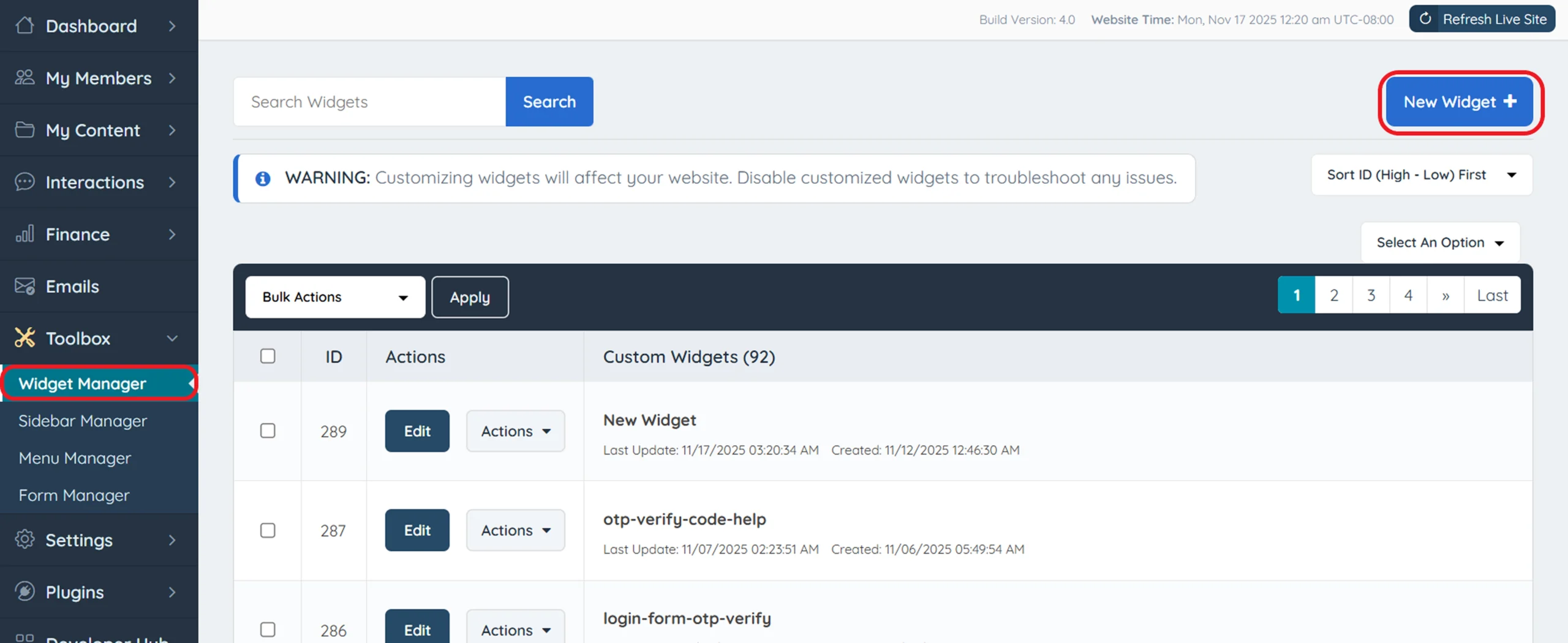
Step 1: Create a New Widget
Step 2: Insert the Video Embed Code
Step 3: Add Optional Text or Links
Step 4: Select the Correct Sidebar
Step 5: Drag-and-Drop the Video Widget
Pro Tip
How to Add a Video in a Sidebar
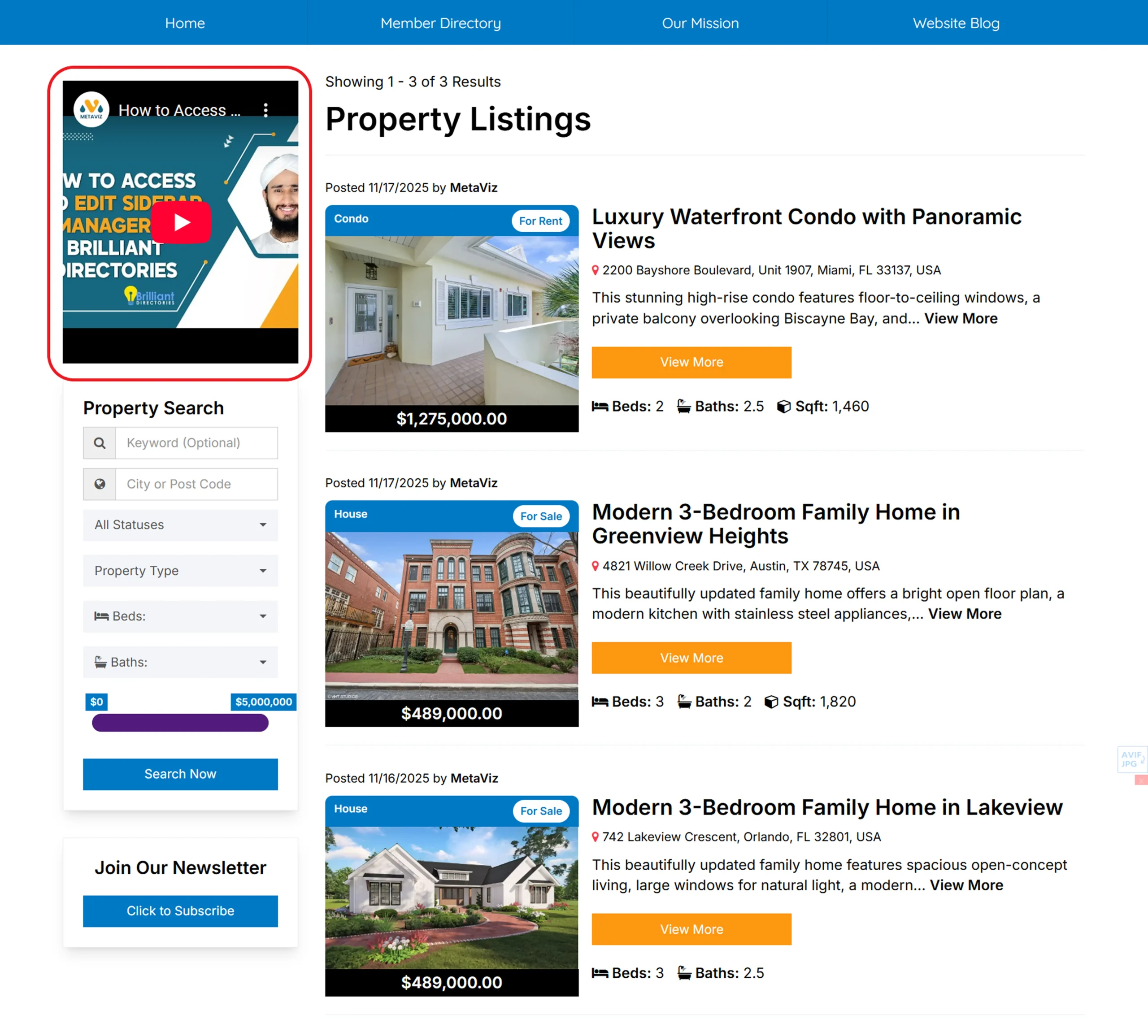
Results:
Step 1 – Create a New Widget
In the HTML tab, insert the video’s EMBED code directly below the <div style=…> section:
<div style="margin: 10px 0px 10px 0px;">INSERT EMBED CODE HERE</div>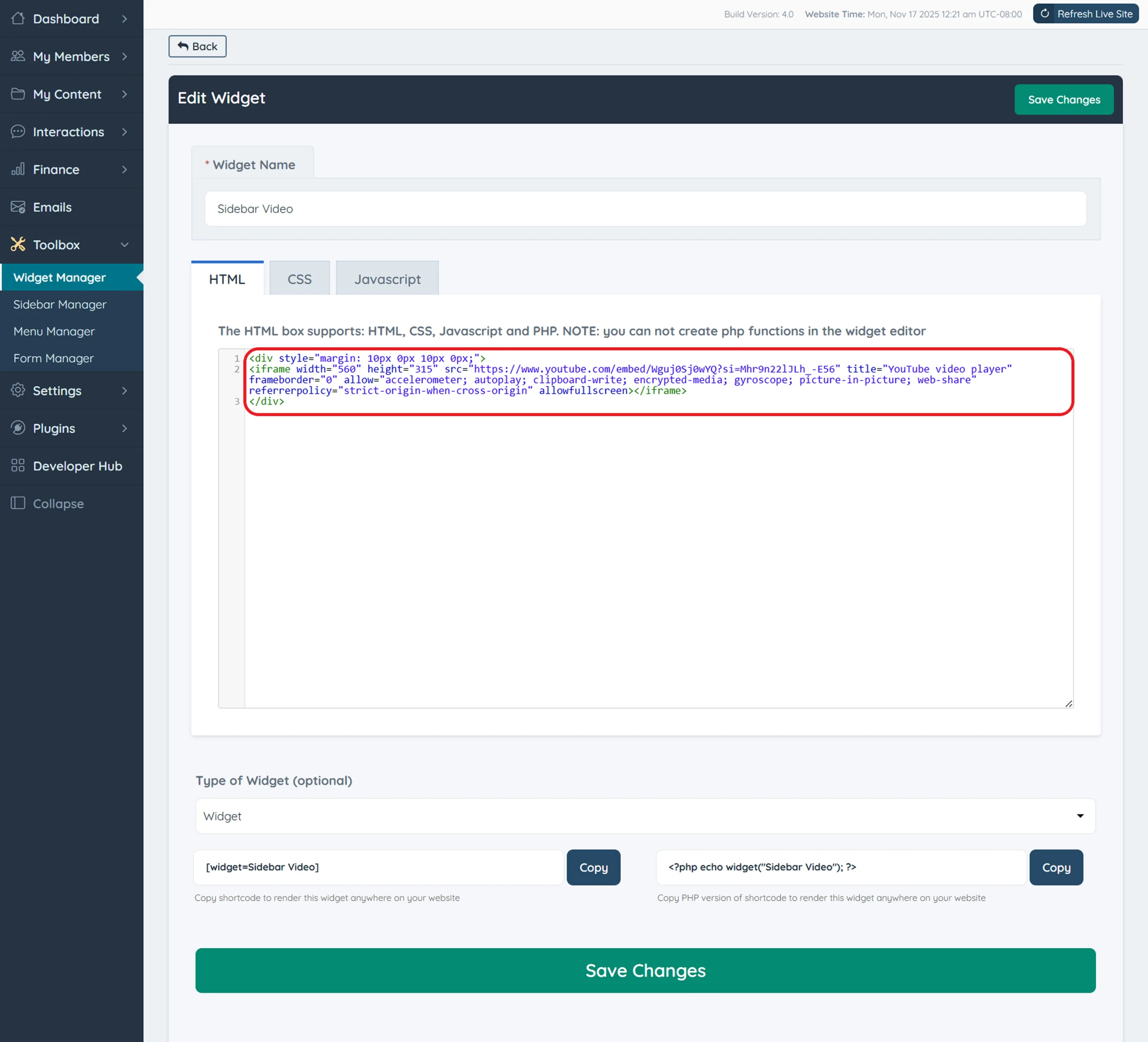
<h3>
Watch on Metaviz YouTube
	</h3>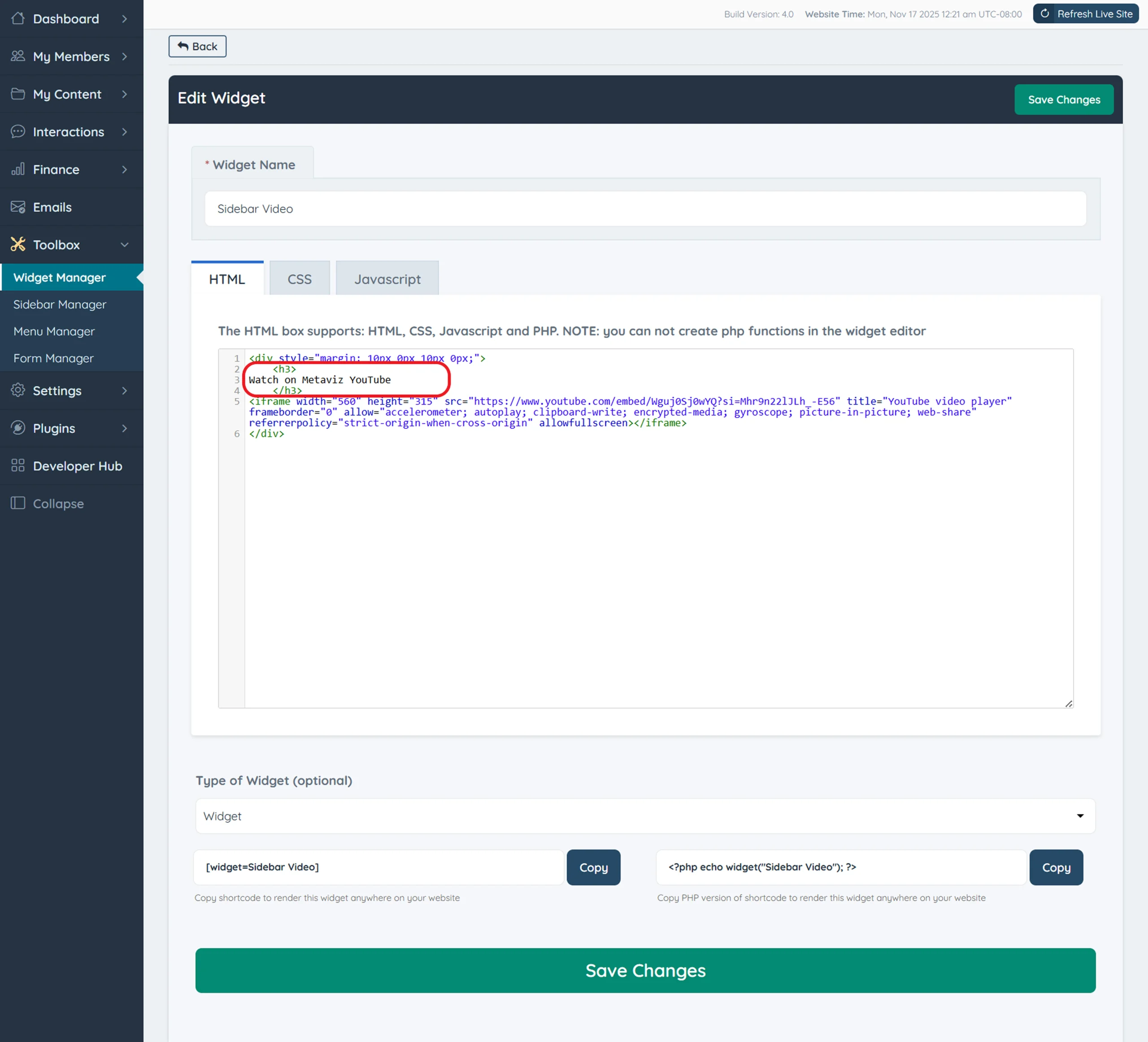
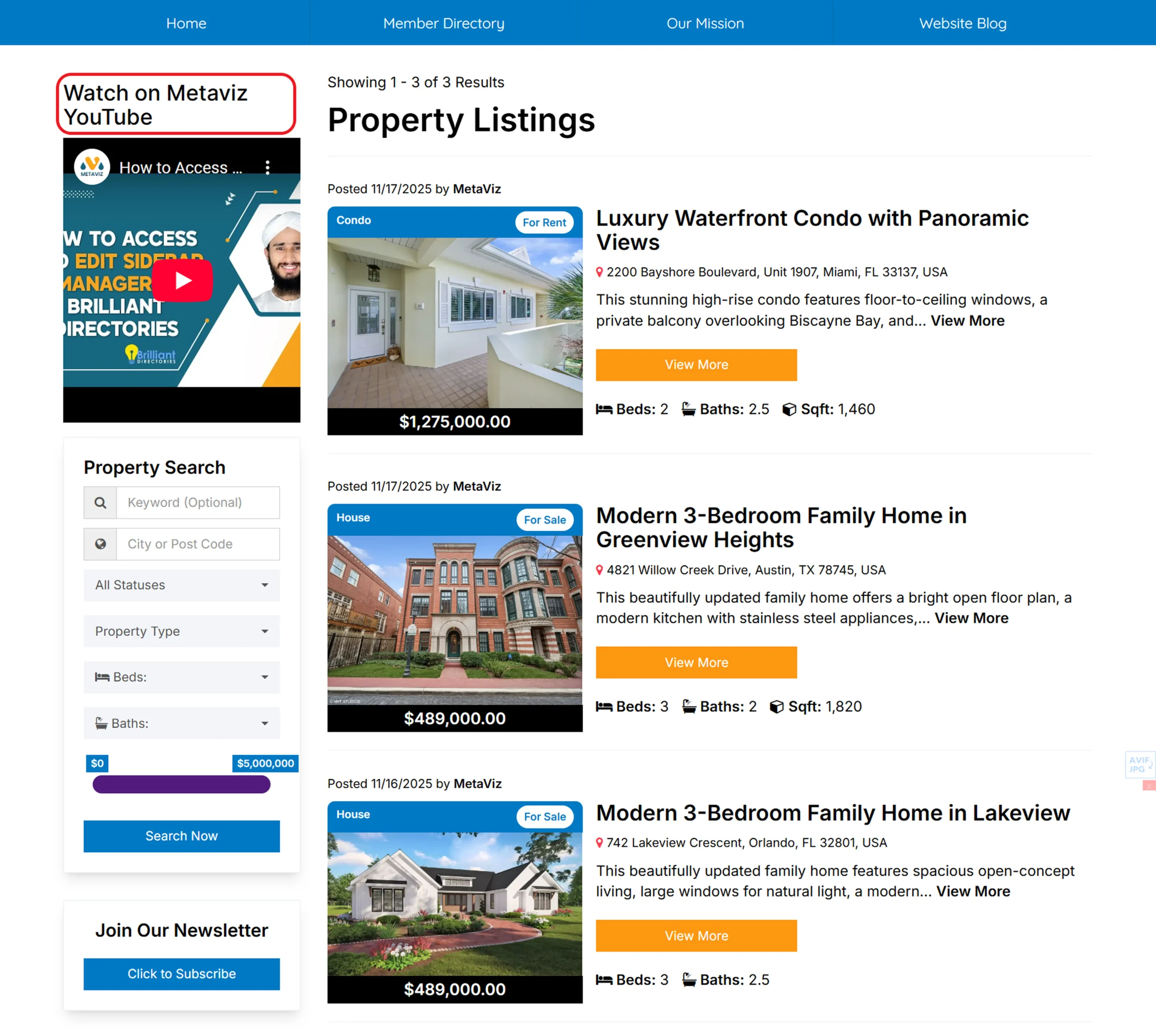
Step 2 – Locate the Sidebar Where the Video Will Appear
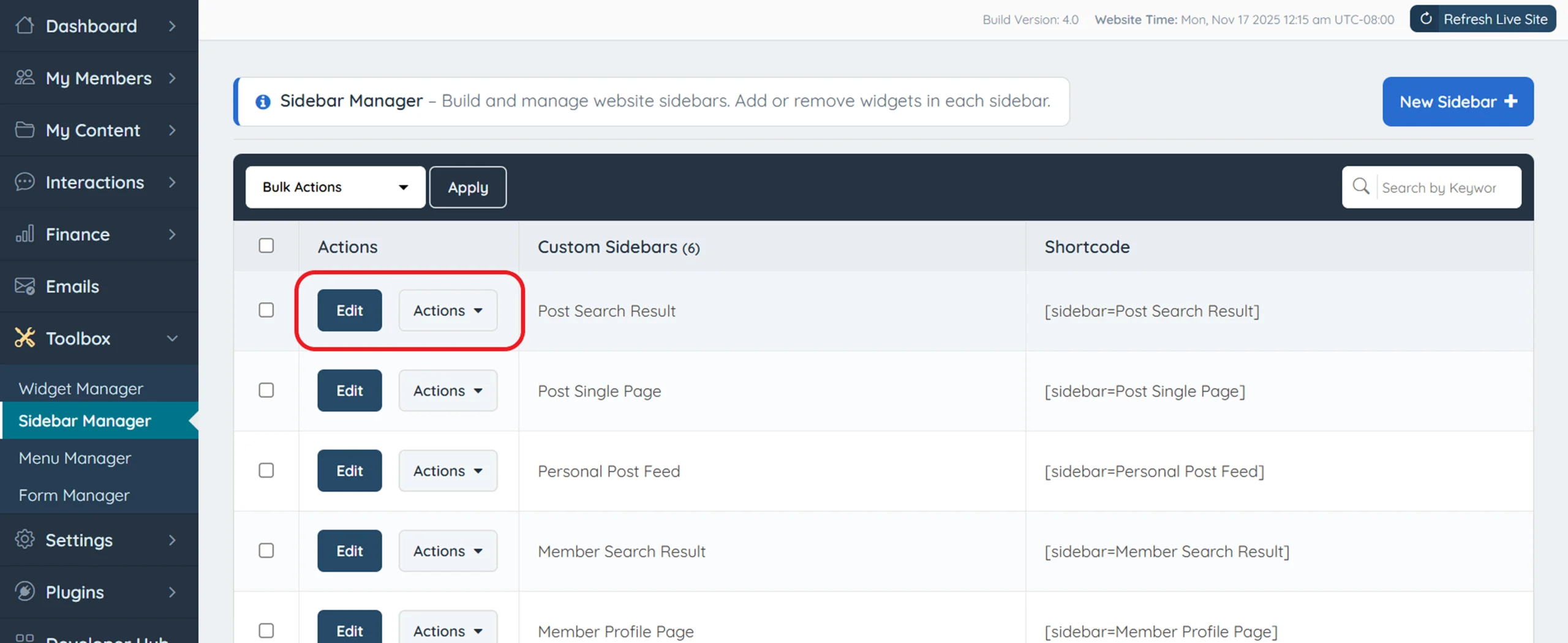
For this tutorial, we’re using the Posts Search Result Sidebar. Inside the sidebar editor, locate your newly created widget and simply drag and drop it into the layout.
How to Check if Your Facebook Page is Public
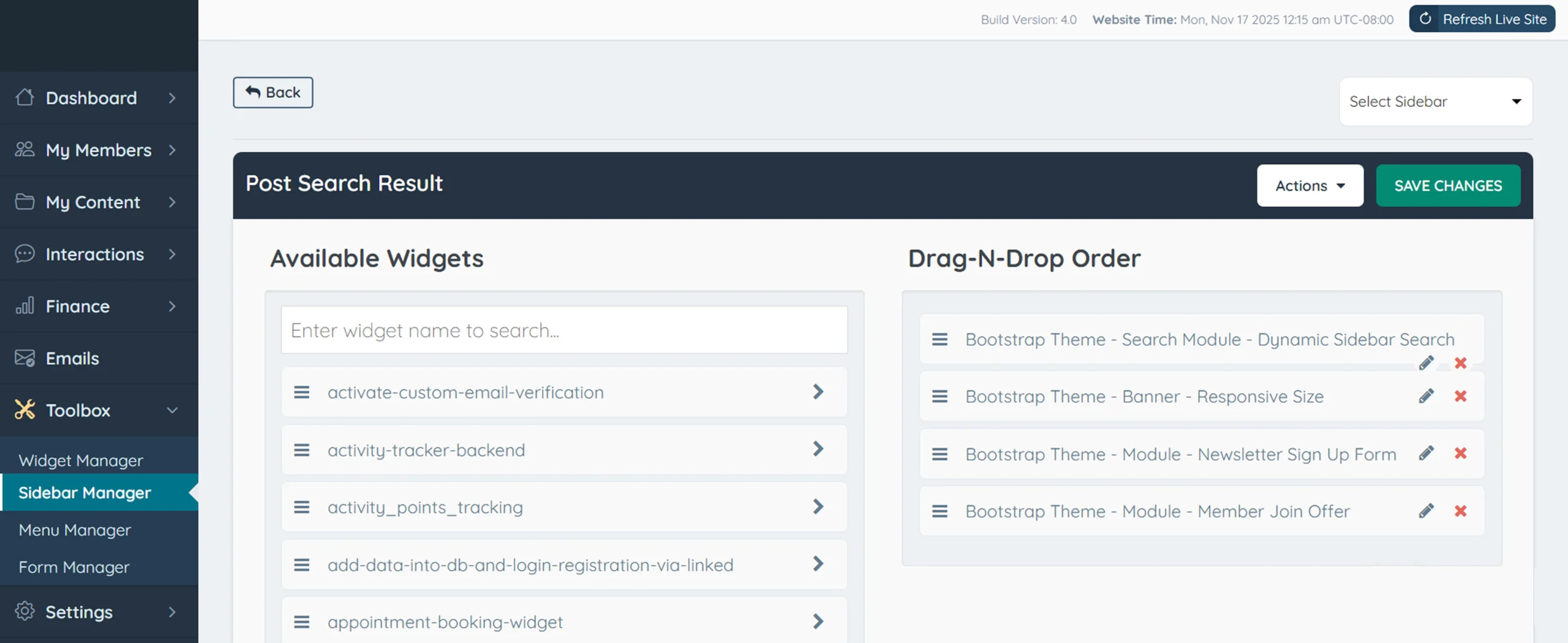
Finish by clicking Save Changes to publish your updates.
Common Issues When Adding Videos to Sidebars in Brilliant Directories
Place your video widget near the top of the sidebar to maximize visibility and engagement, especially for promotions or featured content.
Best Practices for Adding Video Widgets in Brilliant Directories Sidebars
- Use Clean, Reliable Embed Code: Add only verified embed code to ensure your video loads smoothly and displays correctly in the sidebar.
- Place the Video Strategically: Position your video near the top of the sidebar so it immediately captures user attention.
- Add Supportive Context Text: Include a short headline or link above the video to guide viewers and increase interaction.
- Keep the Sidebar Layout Balanced: Avoid overcrowding your sidebar to ensure the embedded video remains the primary focus.
- Preview Changes Before Publishing: Always check the front-end view to confirm the video aligns properly and plays without issues.
Enhance Your Sidebar Experience
Conclusion: Why Adding Video Widgets Enhances Your BD Sidebars
Embedding a video into your Brilliant Directories sidebar is a simple yet powerful way to make your pages more engaging, informative, and visually appealing. By creating a custom widget, inserting clean embed code, and placing it strategically, you can highlight promotions, listings, or featured content more effectively. This small enhancement can significantly elevate your site’s user experience and overall presentation.
Need Help Adding Video Widgets to Your Sidebars?
If you’d like support setting up, customizing, or improving your video widgets in Brilliant Directories, our team is here to help. From widget creation to optimal sidebar placement, we can guide you through every step. Contact us today to enhance your sidebar with dynamic video content!
Make your sidebars more interactive and impactful!
FAQs - About Adding Video Widgets to Brilliant Directories Sidebars
How do I add a video to a sidebar in Brilliant Directories?
What type of video embed code works best in Brilliant Directories' sidebars?
Why isn’t my video showing in the sidebar after saving?
Can I add text or links around the video widget?
Which sidebar should I use for featured or promotional videos?
Will embedding videos affect my website's loading speed?
Can I replace or update the video later?
Share this post on social media:
Dev Bilal is a results-driven AI and web development expert specializing in Brilliant Directories, WooCommerce, and intelligent digital solutions. With deep expertise in AI integrations, data science, and full-stack development, he empowers businesses to build scalable, high-performing, and automation-driven platforms that deliver real results.