
How to Add Confidence Boosters to Checkout Sign-Up Pages in Brilliant Directories
- Brilliant Directories
- How to Add Confidence Boosters to Checkout Sign-Up Pages in Brilliant Directories



Why you can trust our content
The tech space is full of hype and difficult terms; we take the reliability standards to new heights. Our blog content is backed by:
Learn more
- Experienced tech professionals, developers, and product engineers
- First-hand data from real projects and in-house case studies
- Verified standards from trusted sources like Statista and BD
Let’s Work Together
Table of Contents
Creating a smooth and reassuring checkout experience is one of the most effective ways to increase conversions in Brilliant Directories. When visitors reach the final step of signing up, even a small moment of doubt can stop them from completing the process. That’s where Confidence Boosters come in, simple yet powerful elements that remind users of your secure payment methods, reliable support, and the real value they gain when they join. By adding these trust-building components to your checkout sign-up pages, you can reduce hesitation, build credibility, and encourage more users to confidently move forward. In this guide, we’ll walk through how to implement a Confidence Booster step-by-step so you can create a more trusted and high-converting checkout experience.
“Confidence at checkout isn’t built by chance, it’s crafted through trust, clarity, and the assurance that every step is secure.”
Co-Founder & CTO
Key Information Summary for Checkout Confidence Boosters
| Section | Key Takeaways |
|---|---|
|
Why Do Confidence Boosters Matter on Checkout Pages? |
They reduce last-minute hesitation and build trust at the crucial purchase step, helping more users complete their signup. |
|
How Does Reassurance Improve Checkout Completion Rates? |
Secure payment reminders and benefit highlights keep users confident and prevent drop-offs during checkout. |
|
What Role Do Visual Trust Signals Play? |
Security badges and testimonials instantly boost credibility and reassure users they’re making a safe choice. |
|
How Does a Custom Widget Enable Better Presentation? |
A custom widget lets you organize trust messages, icons, and testimonials cleanly in one purposeful section. |
|
Why Add the Widget to a Sidebar? |
Placing it in a sidebar keeps the Confidence Booster visible throughout checkout without interrupting the form. |
|
How Does Assigning a Sidebar Improve Page Layout? |
Assigning the sidebar blends reassurance content smoothly into the checkout flow for a cleaner, guided experience. |
|
What Makes Testimonials Effective in Reducing Doubt? |
Real user feedback builds confidence, helping new customers trust your platform and move forward. |
|
How Do Clear Benefits Encourage Users to Complete Signup? |
Listing key perks reminds users of the value they’ll receive instantly after joining, motivating them to finish. |
|
How Does This Entire Setup Support Higher Conversions? |
With trust elements placed strategically, the checkout becomes more reassuring, increasing the likelihood of completed signups. |
Improve Your Checkout with Confidence Boosters Today!
Step-by-Step Process to Add Confidence Boosters to Checkout Sign-Up Pages
Adding confidence-building elements to your checkout pages helps reassure users at the final decision point, making them far more likely to complete their purchase. Follow these simple steps to set up an effective Confidence Booster.
ESSENTIAL STEPS TO BOOST TRUST ON CHECKOUT PAGES
Step 1: Upload the Required Images
Download the provided images and upload them to your Image Manager. These visuals create instant trust signals that support your message.
Step 2: Create a Custom Widget
Set up a new custom widget and paste the provided code into it. This widget will hold your entire Confidence Booster layout, including badges, benefits, and testimonials.
Step 3: Add the Widget to a Sidebar
Create a custom sidebar and insert the widget you just made. This keeps your trust elements organized and ready to display on checkout pages.
Step 4: Assign the Sidebar to the Checkout Page
Open the membership plan under Finance » Membership Plans, click Edit, and assign the custom sidebar to the checkout section. This ensures your Confidence Booster appears where it matters most.
Step 5: Save and Preview Your Changes
After applying the sidebar, preview the checkout page to ensure everything displays correctly. This final check helps maintain a smooth and professional user experience.
Pro Tip
Position your testimonial image and trust badges prominently they often influence the user’s final decision more than text alone.
How to Add Confidence Boosters to Checkout Sign-Up Pages
Confidence Boosters play an important role during the final moments of checkout, especially when a user may hesitate before confirming their purchase. A gentle reminder about secure payments and the valuable features they’ll gain can ease doubts, reduce drop-offs, and encourage more users to complete their transactions.
By reassuring visitors that your platform is trustworthy and highlighting what they receive once they join, you can significantly lower bounce rates on checkout pages and improve overall conversions.
In this step-by-step guide, you’ll find the exact instructions and code needed to add a Confidence Booster to your checkout pages for better results.
The Confidence Booster:
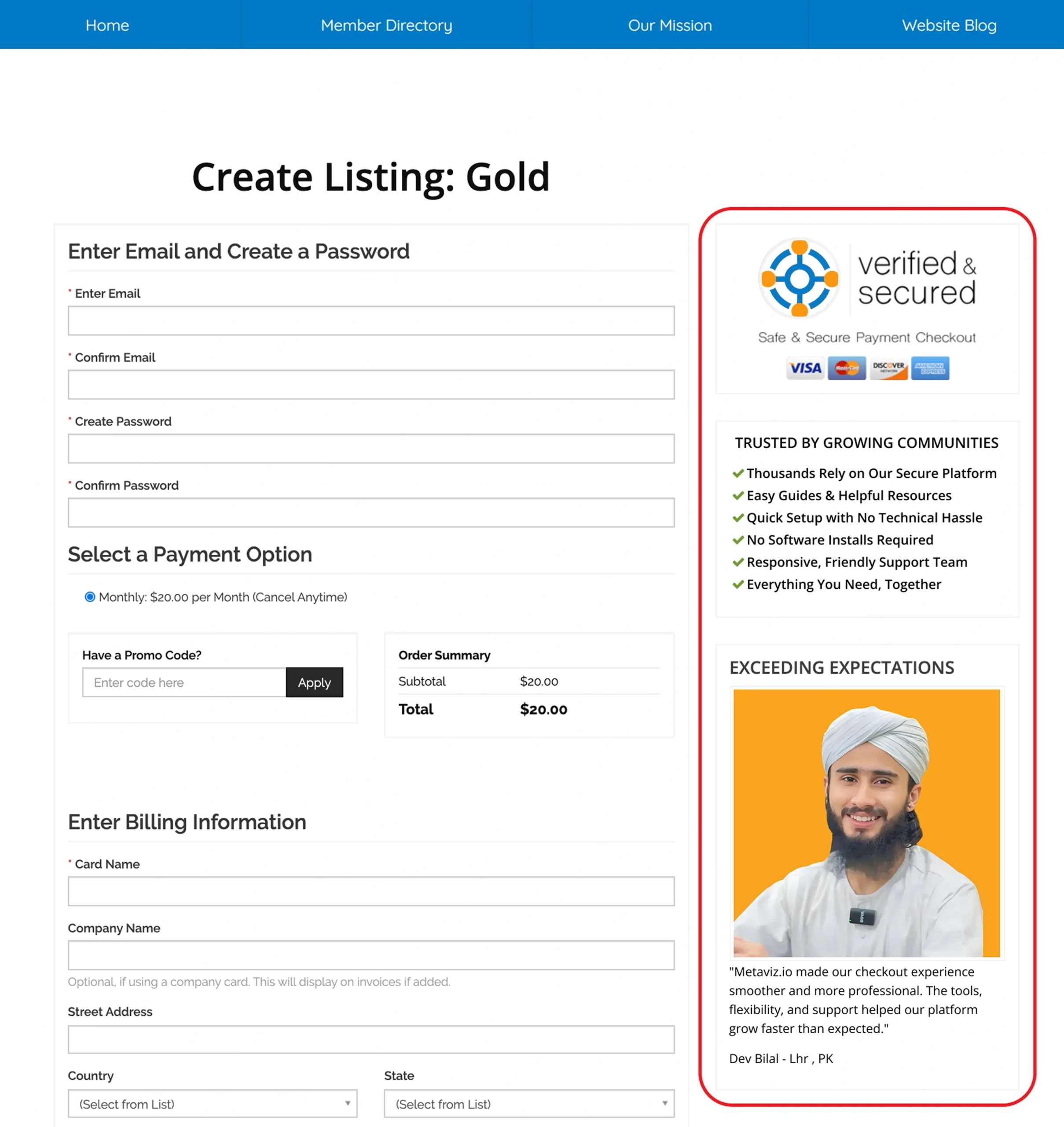
Step 1 – Add the Images
Begin by downloading the images included at the end of this article. Upload all files to your Image Manager so they can be used inside the widget.
Step 2 – Create a Custom Widget
Next, create a new custom widget and paste the following code inside it:
- Go to Toolbox » Sidebar Manager » Member Profile Page Sidebar.
🌐
filename.html
<div class="module" style="background:white;">
  <center><img src="/images/secure-checkout-mv.jpg" alt="Secure Checkout - Metaviz.io"></center>
</div>

<div class="module">
    <h4>TRUSTED BY GROWING COMMUNITIES</h4>
    <ul style="list-style:none;" class="nopad font-lg line-height-xl">
        <li><i class="fa fa-check fa-fw text-primary"></i>Thousands Rely on Our Secure Platform</li>
        <li><i class="fa fa-check fa-fw text-primary"></i>Easy Guides & Helpful Resources</li>
        <li><i class="fa fa-check fa-fw text-primary"></i>Quick Setup with No Technical Hassle</li>
        <li><i class="fa fa-check fa-fw text-primary"></i>No Software Installs Required</li>
        <li><i class="fa fa-check fa-fw text-primary"></i>Responsive, Friendly Support Team</li>
        <li><i class="fa fa-check fa-fw text-primary"></i>Everything You Need, Together</li>
    </ul>
</div>

<div class="module">
    <h4 class="nomargin">EXCEEDING EXPECTATIONS</h4>
    <div class="tmargin line-height-xl">
        <img src="/images/testimonial-mv.jpg" class="pull-right img-thumbnail lmargin" alt="Metaviz.io Testimonial">
        <span>"Metaviz.io made our checkout experience smoother and more professional. The tools, flexibility, and support helped our platform grow faster than expected."</span>
        <p></p>
        <p>Dev Bilal - Lhr , PK</p>
    </div>
    <div class="clearfix"></div>
</div>
Step 3 – Add the Widget to a Sidebar
Create a new custom sidebar and insert the custom widget you just built. This will allow you to place the Confidence Booster on your checkout pages easily.
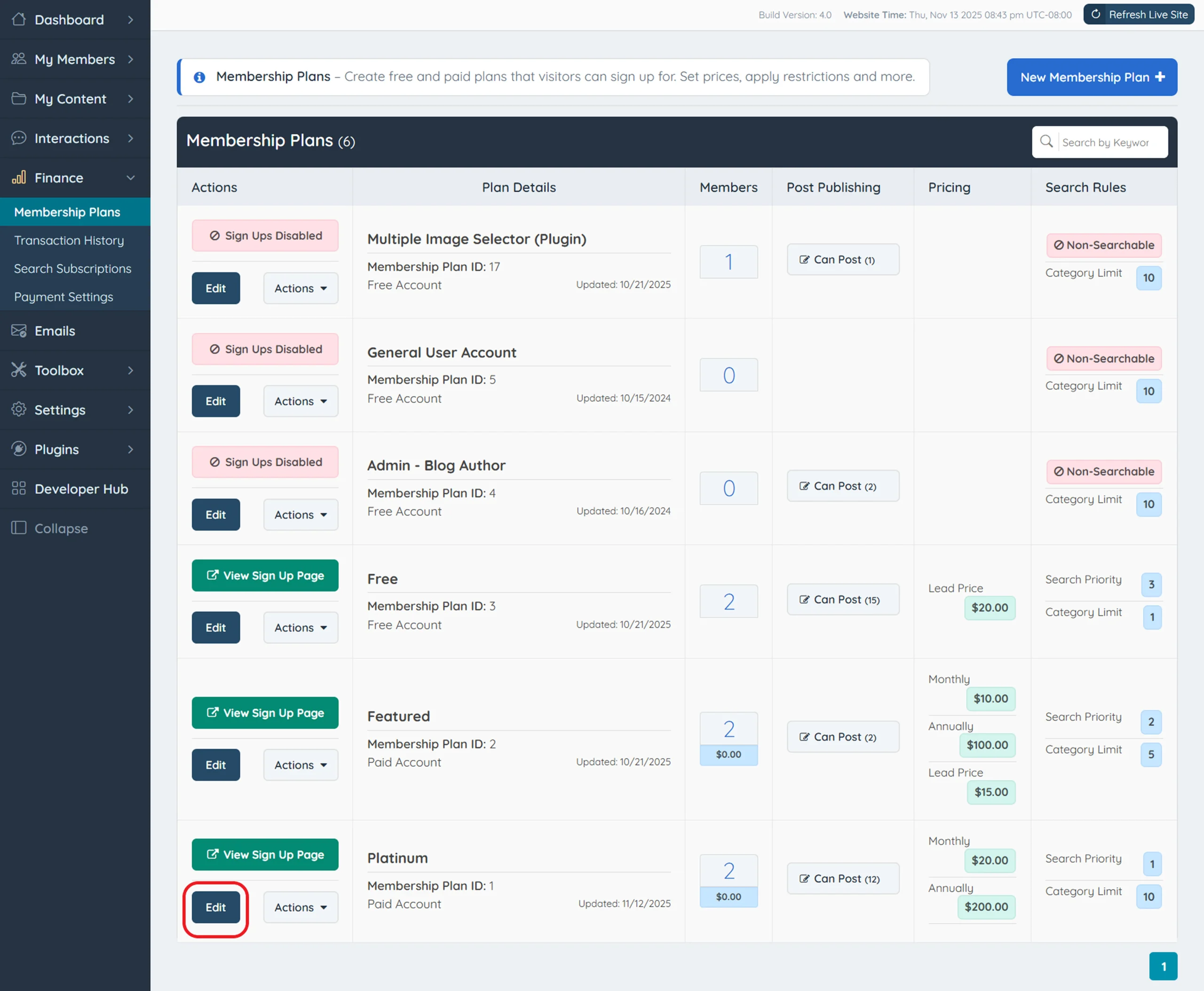
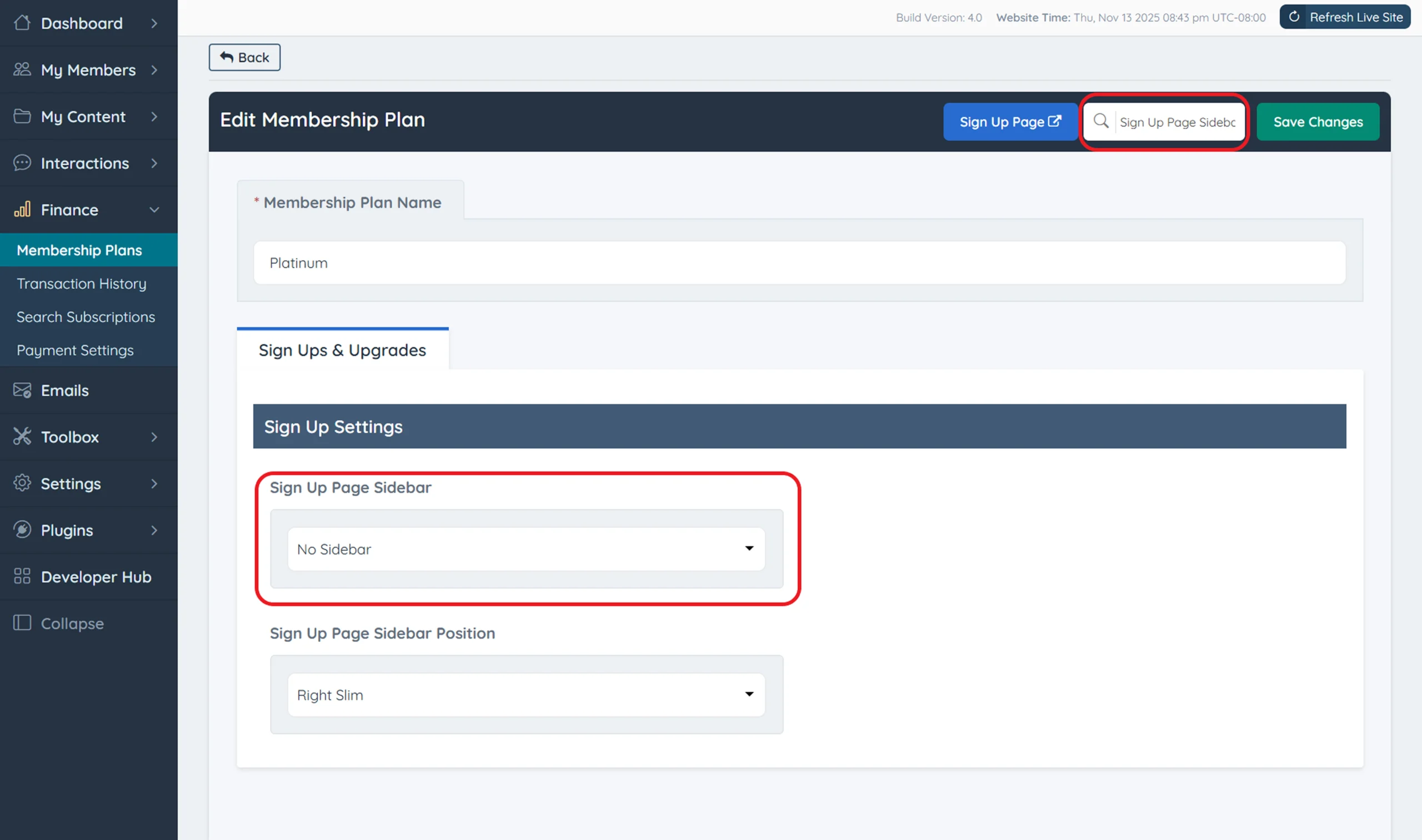
Step 4 – Assign the Sidebar to the Checkout Page
Go to Finance » Membership Plans, locate the plan you want to update, and click Edit. Once inside, assign the newly created sidebar to the checkout page. This ensures that every user sees your Confidence Booster during sign-up.
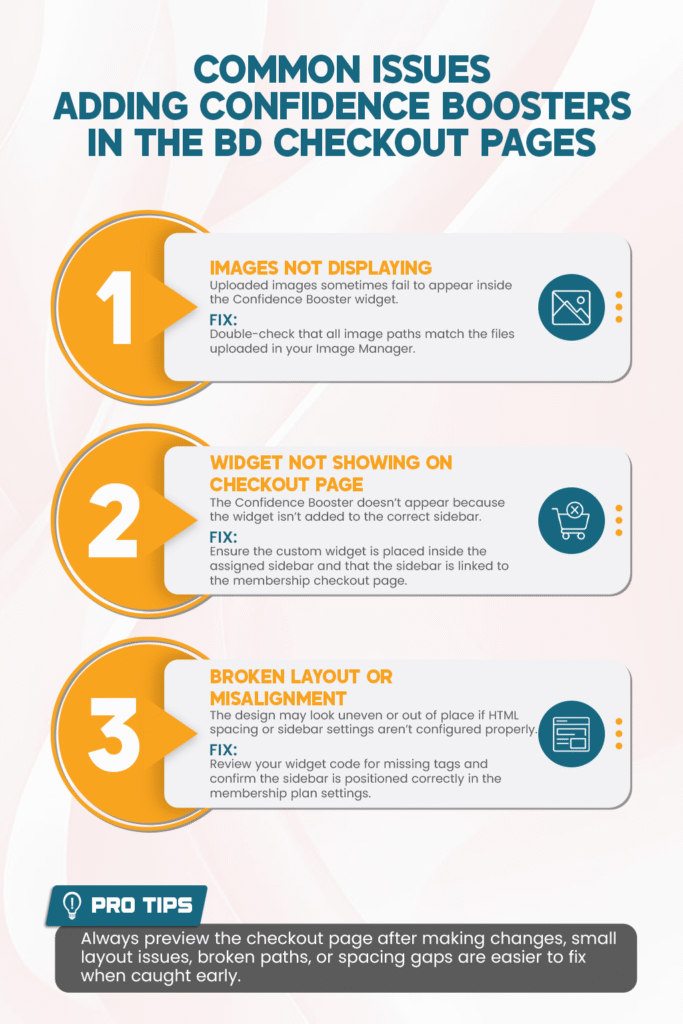
Common Issues Adding Confidence Boosters in the BD Checkout Pages
Best Practices for Confidence in Brilliant Directories Checkout Pages
- Use Clear, Trust-Focused Messaging: Keep your confidence booster content simple and reassuring so users instantly feel secure during checkout.
- Display High-Quality Visuals: Add sharp, well-optimized images for trust badges, testimonials, and security icons to build credibility at a glance.
- Organize Your Widget Cleanly: Maintain tidy HTML and spacing inside your custom widget to ensure the layout appears polished on all devices.
- Place the Sidebar Strategically: Position your Confidence Booster in a visible sidebar spot to guide users smoothly through the signup flow.
- Preview Before Publishing: Test your checkout page after every update to confirm correct alignment, responsive design, and image display.
- Refresh Content Periodically: Update testimonials, benefits, and visuals regularly to keep your checkout experience relevant and impactful.
Improve Your Brilliant Directories Checkout Today!
Conclusion: Why Confidence Boosters Strengthen Brilliant Directories' Checkout Pages
Adding Confidence Boosters to your Brilliant Directories checkout pages helps reduce hesitation and reassure users right when they’re ready to complete their purchase. By showcasing trust signals, clear benefits, and real testimonials, you create a smoother, more credible checkout experience that supports higher conversions and stronger user confidence.
Need Help Adding Confidence Boosters to Your Checkout Pages?
If you’d like support implementing trust-building elements or optimizing your Brilliant Directories checkout layout, our team is ready to help. From widget setup to sidebar placement, we’ll make sure your checkout page looks polished and performs effectively. Contact us today to get started!
Your checkout deserves a trusted, conversion-ready experience!
Let’s work together to enhance your Brilliant Directories checkout page and guide more users confidently through their signup process.
FAQs About Adding Confidence Boosters to Brilliant Directories' Checkout Pages
What is a Confidence Booster in Brilliant Directories?
A Confidence Booster is a trust-building element added to your checkout page, usually containing security badges, benefits, or testimonials to reassure users and improve conversions.
Why should I add a Confidence Booster to my checkout page?
Including a Confidence Booster reduces last-minute hesitation by reminding users of secure payments, platform reliability, and the value of joining your membership plan.
How do I display a Confidence Booster in Brilliant Directories?
You can show it by creating a custom widget, placing it inside a custom sidebar, and assigning that sidebar to the specific membership plan checkout page.
Do I need coding knowledge to create a Confidence Booster widget?
Only basic copy-paste HTML is needed. The provided code can be inserted directly into a custom widget, and Brilliant Directories handles the rest.
Why isn’t my Confidence Booster showing on the checkout page?
This usually happens when the widget isn’t added to the correct sidebar, or the sidebar isn’t assigned to the membership plan. Double-check both settings to fix it.
Can I customize the images and text inside the Confidence Booster?
Yes, you can adjust all text, images, and icons to fit your branding. Just make sure your images are uploaded correctly and paths match the widget code.
Does adding a Confidence Booster actually increase conversions?
Yes, trust signals have been proven to improve checkout completion rates by reducing doubt. Users feel safer and more confident when making a purchase decision.
Share this post on social media:
Facebook
X (Twitter)
LinkedIn
Dev Bilal is a results-driven AI and web development expert specializing in Brilliant Directories, WooCommerce, and intelligent digital solutions. With deep expertise in AI integrations, data science, and full-stack development, he empowers businesses to build scalable, high-performing, and automation-driven platforms that deliver real results.