
How to Add a Facebook Feed to Member Profile Pages in Brilliant Directories
- Brilliant Directories
- How to Add a Facebook Feed to Member Profile Pages in Brilliant Directories



Why you can trust our content
The tech space is full of hype and difficult terms; we take the reliability standards to new heights. Our blog content is backed by:
Learn more
- Experienced tech professionals, developers, and product engineers
- First-hand data from real projects and in-house case studies
- Verified standards from trusted sources like Statista and BD
Let’s Work Together
Co-Founder & CTO
Key Information Summary: Add Facebook Feed to Member Profiles
| Section | Key Takeaways |
|---|---|
|
What Is the Facebook Feed Feature in Brilliant Directories? |
It allows business members to display their public Facebook posts directly on their profile sidebar, keeping their content fresh and engaging. |
|
How Does the Facebook Feed Improve Member Profiles? |
It helps showcase social activity, builds credibility, and connects visitors with a member’s brand through real-time Facebook updates. |
|
Where Can You Access the Facebook Feed Widget? |
The widget is available in **Toolbox » Sidebar Manager** under the **Member Profile Page Sidebar** section. |
|
How to Add the Facebook Feed Widget to a Profile? |
Search for **“Member Facebook Feed”**, then drag and drop the **“Bootstrap Theme – Module – Member Facebook Feed”** widget into your sidebar display area. |
|
What Type of Facebook Accounts Are Supported? |
Only **public Facebook company pages or fan pages** can stream posts; personal profiles are not supported due to Facebook’s restrictions. |
|
Why Won’t a Personal Facebook Account Work? |
Facebook limits content streaming from personal profiles. Using one will cause an error or a blank widget on the member’s page. |
|
What Are the Common Reasons a Feed Might Not Show? |
Invalid or unpublished links, non-public pages, or requiring login access will prevent the feed from displaying properly. |
|
How Can You Confirm If a Page Is Public? |
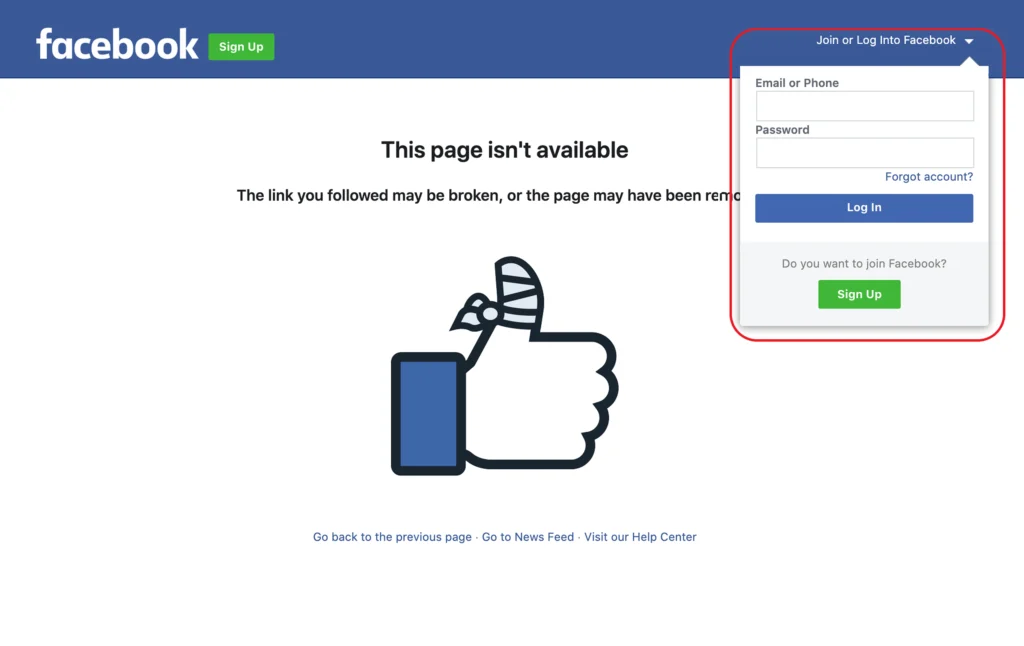
Check if the page is viewable without logging into Facebook. If it’s accessible publicly, the feed will stream successfully. |
|
How Has the Widget Been Optimized for Speed? |
The **Facebook Activity Feed** now loads after the page finishes rendering, improving site performance and page speed scores. |
Bring Your Member Profiles to Life with a Facebook Feed!
Step-by-Step Process to Add Facebook Feed on Member Profile Pages
ESSENTIAL STEPS TO ADD A FACEBOOK FEED
Step 1: Access the Sidebar Manager
Step 2: Locate the Member Profile Sidebar
Step 3: Add the Facebook Feed Widget
Step 4: Save and Apply Changes
Step 5: Verify the Facebook Link
Pro Tip
How to Add a Facebook Feed to Member Profile Pages
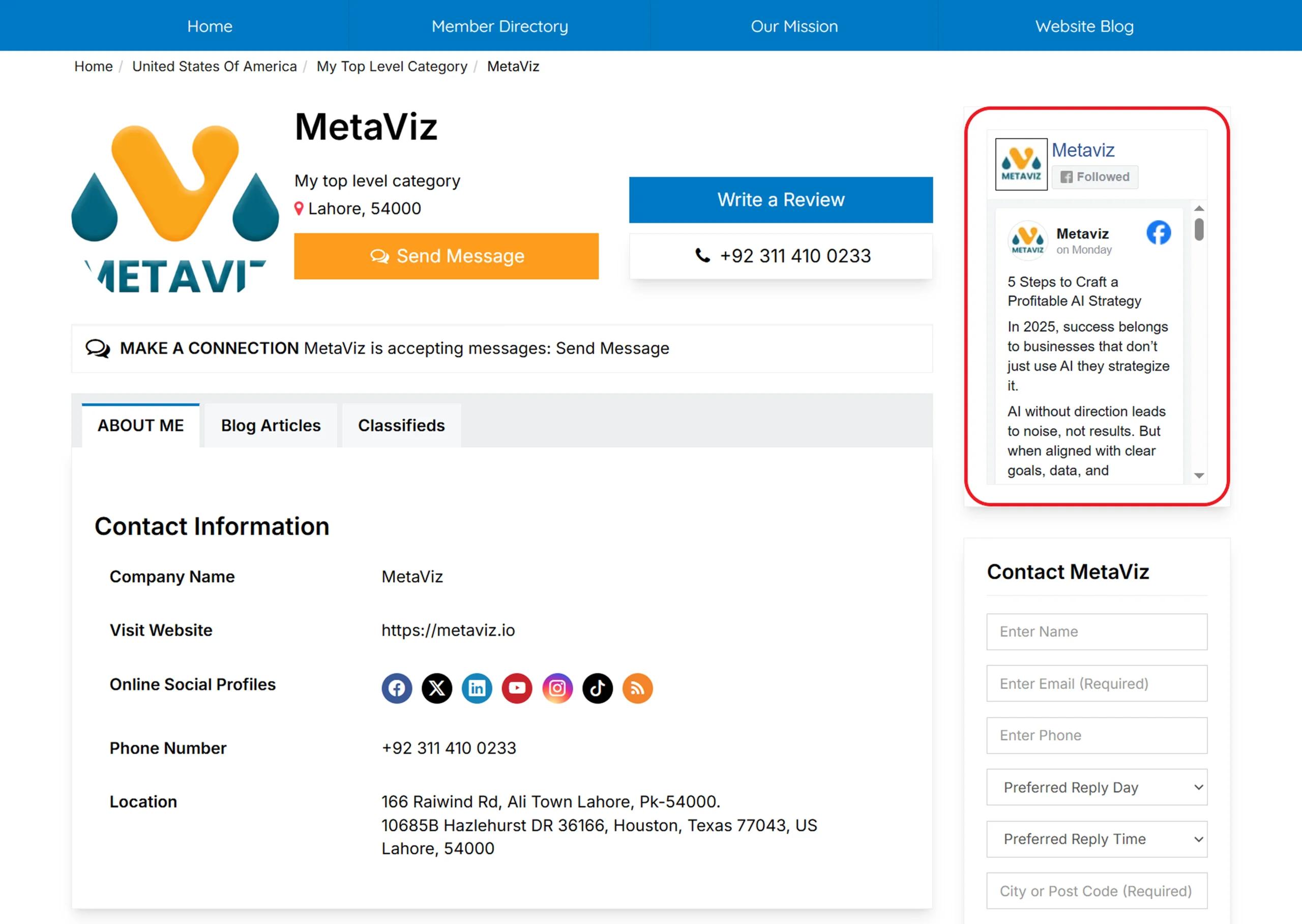
Important Information
How to Add the Facebook Feed to Member Profile Pages
- Go to Toolbox » Sidebar Manager » Member Profile Page Sidebar.
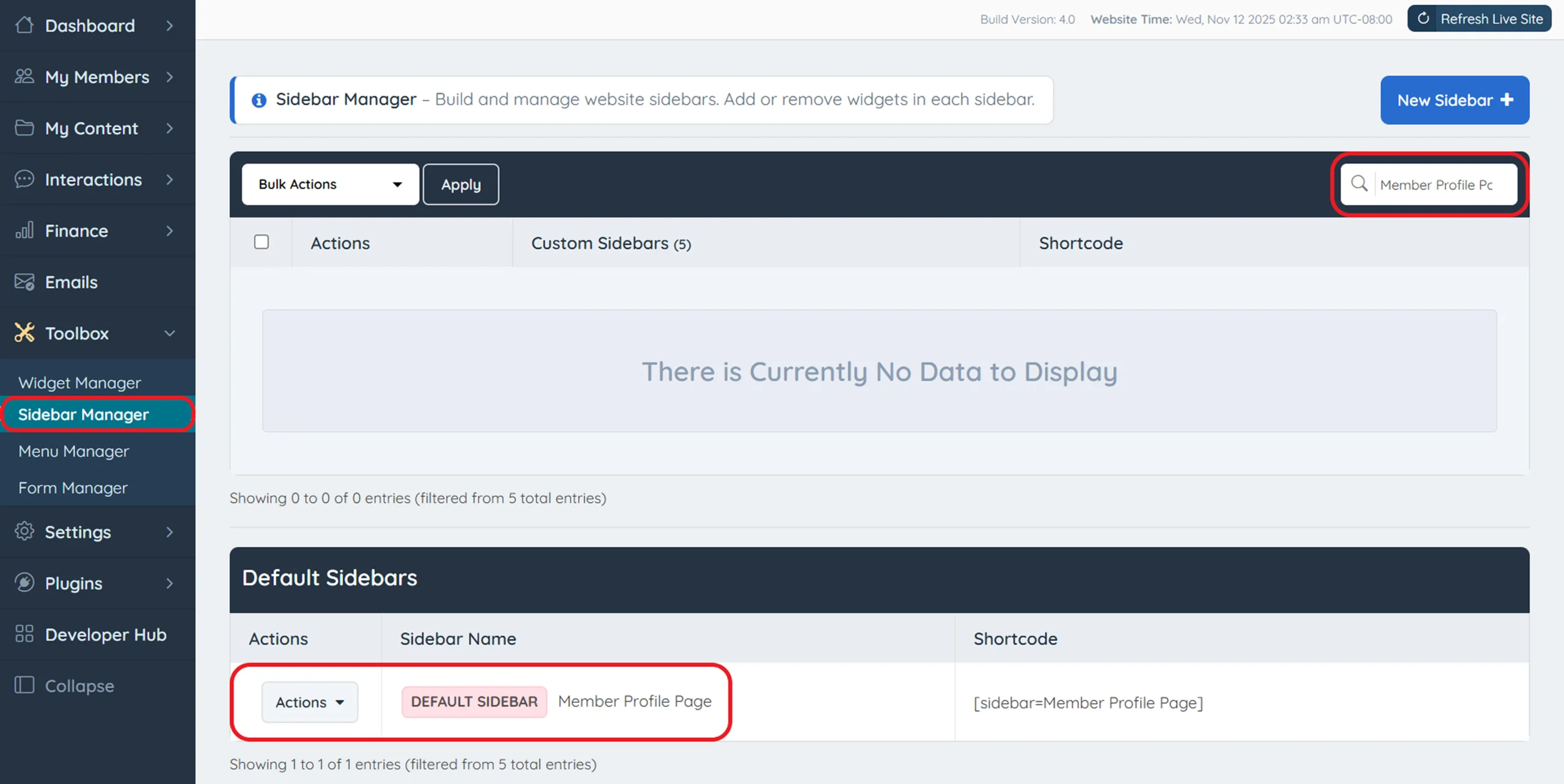
2. Search for “Member Facebook Feed” in the Member Profile Page sidebar.
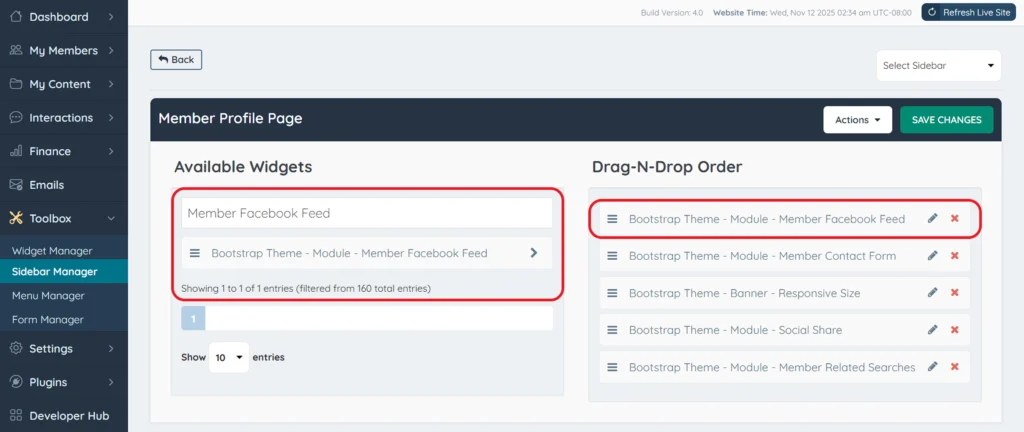
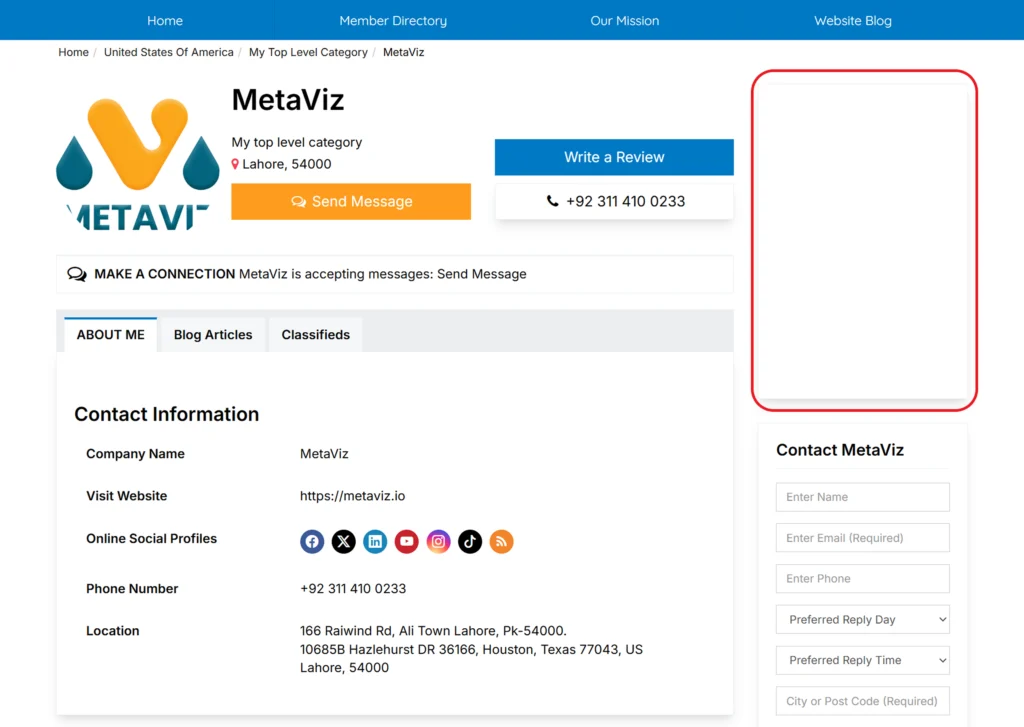
3. Drag the “Bootstrap Theme – Module – Member Facebook Feed” widget into the display position on the Member Profile Page sidebar:
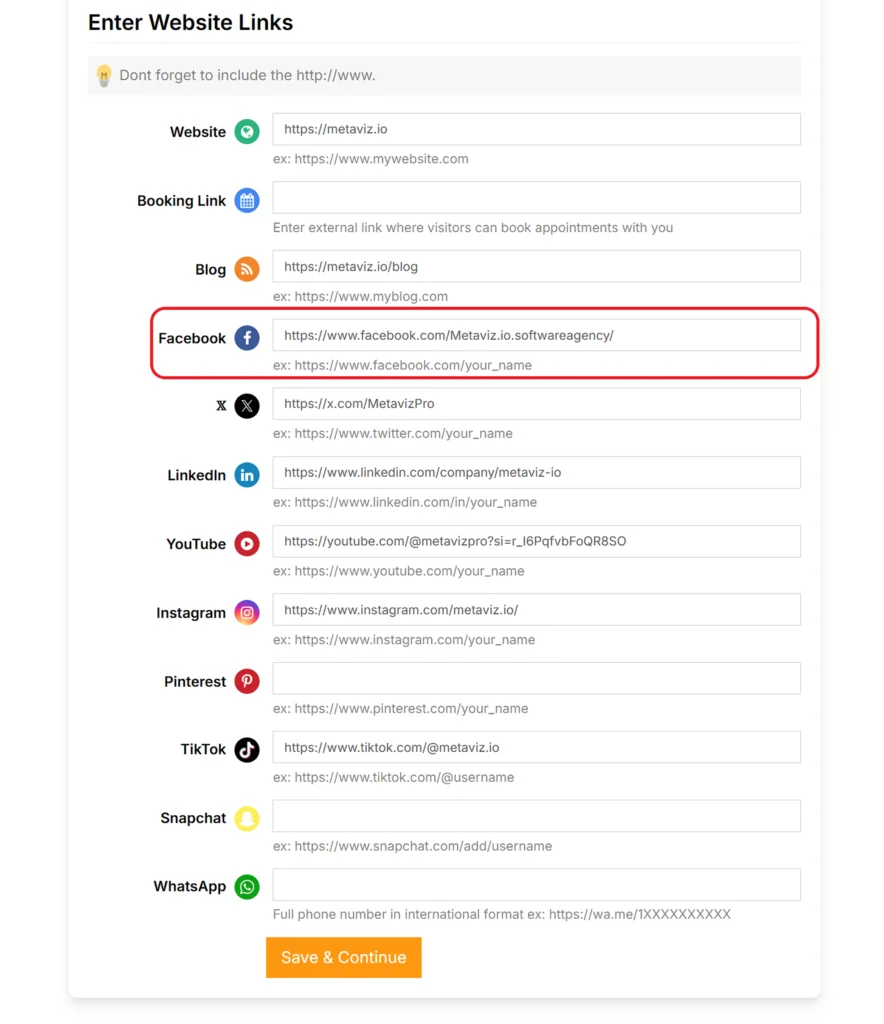
Facebook Company Page Requirements
- The account is a personal Facebook profile (not a business page).
- The company page is not public (requires users to log in to view posts).
- The provided Facebook link is invalid.
- The company Facebook page is unpublished.
How to Check if Your Facebook Page is Public
Common Problems When Adding a Facebook Feed in Brilliant Directories
Sometimes the widget shows an empty box or an error message.
Fix: Double-check that the “Member Facebook Feed” widget is correctly added in the Sidebar Manager and the company page is publicly accessible.
Using a broken or unpublished Facebook URL prevents the feed from loading.
Fix: Test the Facebook link in a private browser; if it asks for login credentials, it’s not public and needs updating.
Pro Tip:
Always test your Facebook Feed with a public company page before publishing. This ensures the widget displays smoothly and enhances your Brilliant Directories member profiles without errors.
Best Practices for Adding a Facebook Feed to Member Profile Pages in Brilliant Directories
- Use a Public Facebook Page: Always connect a public company or fan page; private or personal profiles won’t stream content.
- Verify the Facebook Link: Double-check the link before saving to make sure it doesn’t require login access.
- Place the Widget Strategically: Position the Member Facebook Feed widget in a visible spot on the sidebar for maximum engagement.
- Keep the Page Updated: Encourage members to post regularly on their Facebook pages so their feeds stay fresh and relevant.
- Test Before Publishing: Preview the page to confirm the feed displays correctly and loads smoothly.
Showcase Your Members’ Social Presence Today!
Conclusion: Why Adding a Facebook Feed to Member Profiles Matters
Integrating a Facebook Feed into member profile pages in Brilliant Directories brings your members’ online presence to life. It enhances engagement, boosts credibility, and keeps profiles updated with real-time content. By displaying active social feeds, you not only strengthen brand visibility but also build trust and connection with visitors.
Need Help Adding Facebook Feeds for Members? Let’s Work Together
If you’re looking to add, customize, or troubleshoot Facebook Feeds in Brilliant Directories, our experts are here to guide you. We specialize in helping businesses create interactive, dynamic member pages that stand out. Contact us today to get started with your setup.
Turn Every Member Profile into a Dynamic Social Hub!
FAQs – Adding a Facebook Feed to Member Profiles in Brilliant Directories
How do I add a Facebook Feed to member profile pages in Brilliant Directories?
What type of content can I add to a sidebar text box?
Can I use my personal Facebook profile link for the feed?
How do I know if my Facebook page is public?
Where can I find the Facebook Feed widget in Brilliant Directories?
What causes a blank or empty feed display?
Does the Facebook Feed affect page loading speed?
Share this post on social media:
Dev Bilal is a results-driven AI and web development expert specializing in Brilliant Directories, WooCommerce, and intelligent digital solutions. With deep expertise in AI integrations, data science, and full-stack development, he empowers businesses to build scalable, high-performing, and automation-driven platforms that deliver real results.