
How to Create a Custom Text Box for Sidebars in Brilliant Directories
- Brilliant Directories
- How to Create a Custom Text Box for Sidebars in Brilliant Directories



Why you can trust our content
The tech space is full of hype and difficult terms; we take the reliability standards to new heights. Our blog content is backed by:
Learn more
- Experienced tech professionals, developers, and product engineers
- First-hand data from real projects and in-house case studies
- Verified standards from trusted sources like Statista and BD
Let’s Work Together
Co-Founder & CTO
Key Information Summary: Creating a Custom Text Box for Sidebars in Brilliant Directories
| Section | Key Takeaways |
|---|---|
|
What Is the Purpose of a Text Box in a Sidebar? |
A text box allows you to display custom content, messages, or information directly inside your sidebar for better engagement and design flexibility. |
|
Where Can You Create a New Text Box? |
Use the Widget Manager under Toolbox to create and manage new text boxes efficiently within your Brilliant Directories website. |
|
How Do You Start Creating a New Widget? |
Click the New Widget button in the Widget Manager to begin setting up your custom text box. |
|
What Should You Include in the Widget Setup? |
Name your widget clearly and paste your custom HTML or code into the appropriate section before saving. |
|
How Does HTML Help in Designing the Text Box? |
HTML allows you to structure and style the text box content, adding headings, paragraphs, or other elements for a polished look. |
|
Can You Add Visual or Informational Content? |
Yes, you can include facts, quotes, or formatted text to make your sidebar informative and visually appealing. |
|
Why Should You Use the Widget Manager? |
It provides a centralized way to create, edit, and manage all widgets, ensuring full control over sidebar content. |
|
What Happens After Saving the Widget? |
The widget instantly becomes available for placement in any sidebar, making customization quick and seamless. |
|
How Does This Improve User Experience? |
A well-designed text box enhances readability, shares key insights, and keeps visitors engaged with relevant sidebar content. |
Enhance Your Sidebar with a Custom Text Box Today!
Step-by-Step Process to Create a Custom Text Box for Sidebars
ESSENTIAL STEPS TO CREATE A CUSTOM TEXT BOX
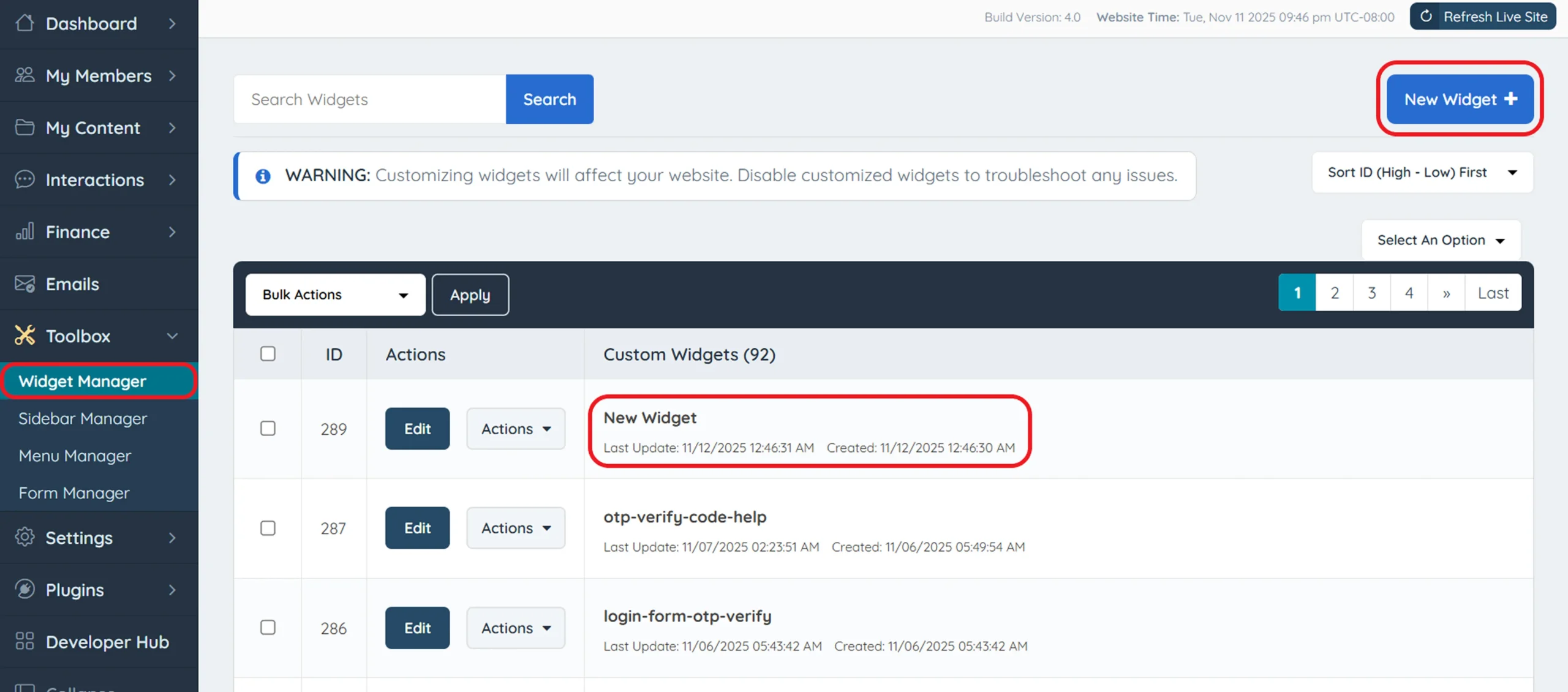
Step 1: Access the Widget Manager
Step 2: Click “New Widget”
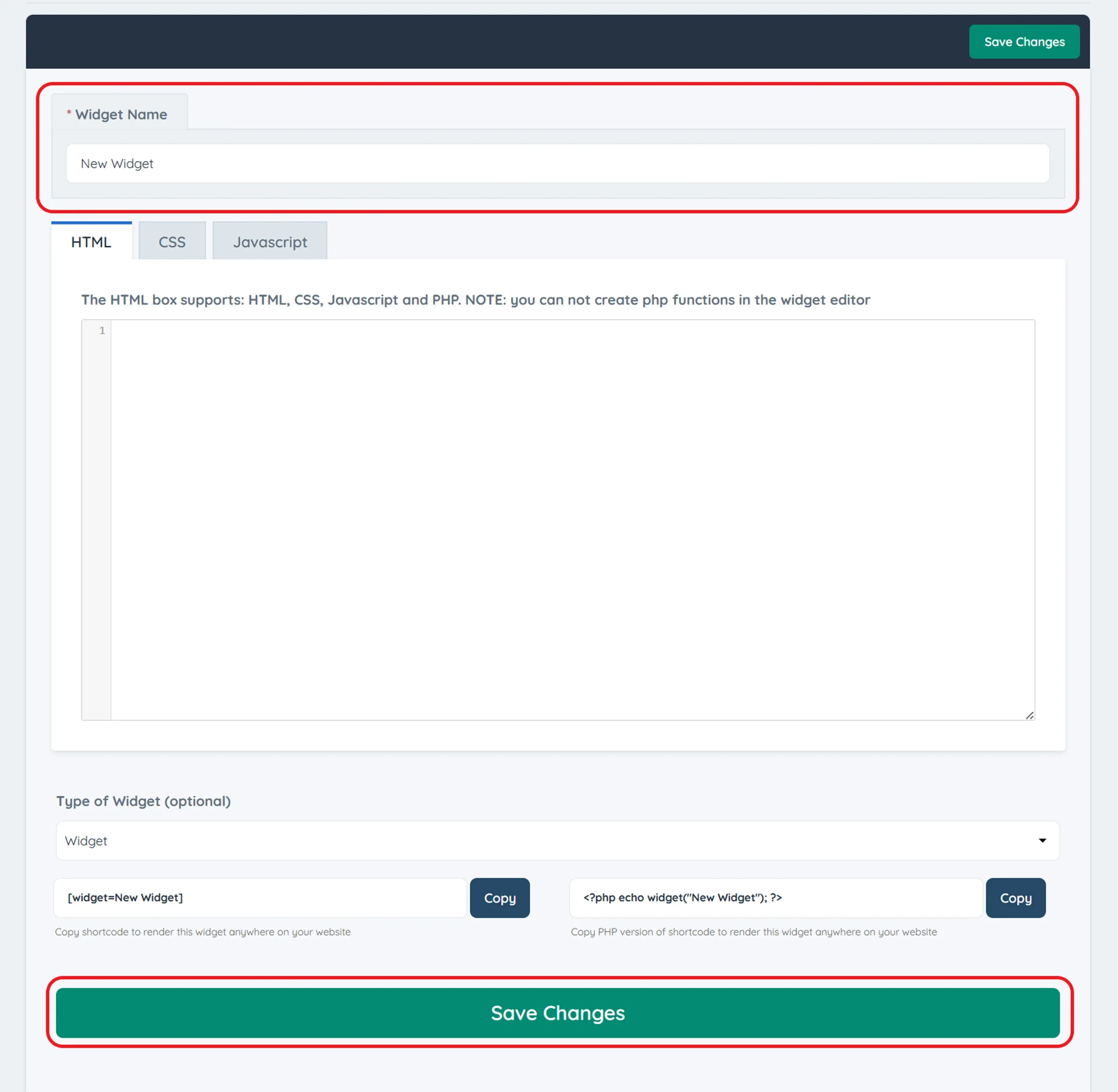
Step 3: Name Your Widget
Step 4: Add Custom HTML or Code
Step 5: Save and Apply the Widget
Pro Tip
How to Create a Text Box to Display Text in a Sidebar
Looking to add a simple text box within your Brilliant Directories sidebar? This guide will walk you through how to create and display a custom text box using the Widget Manager.
Start by going to the Toolbox » Widget Manager, then click the “New Widget” button to begin creating your custom widget.
<div class="module">

 <h3>Sidebar Tips:</h3>

 <p>Adding a custom text box to your sidebar helps highlight useful details, announcements, or promotional messages. It enhances user engagement and provides visitors with quick access to important information without disrupting the page layout.</p>

 <p>"A well-designed sidebar not only organizes your content but also improves navigation, making your website more interactive and user-friendly for every visitor."</p>

</div>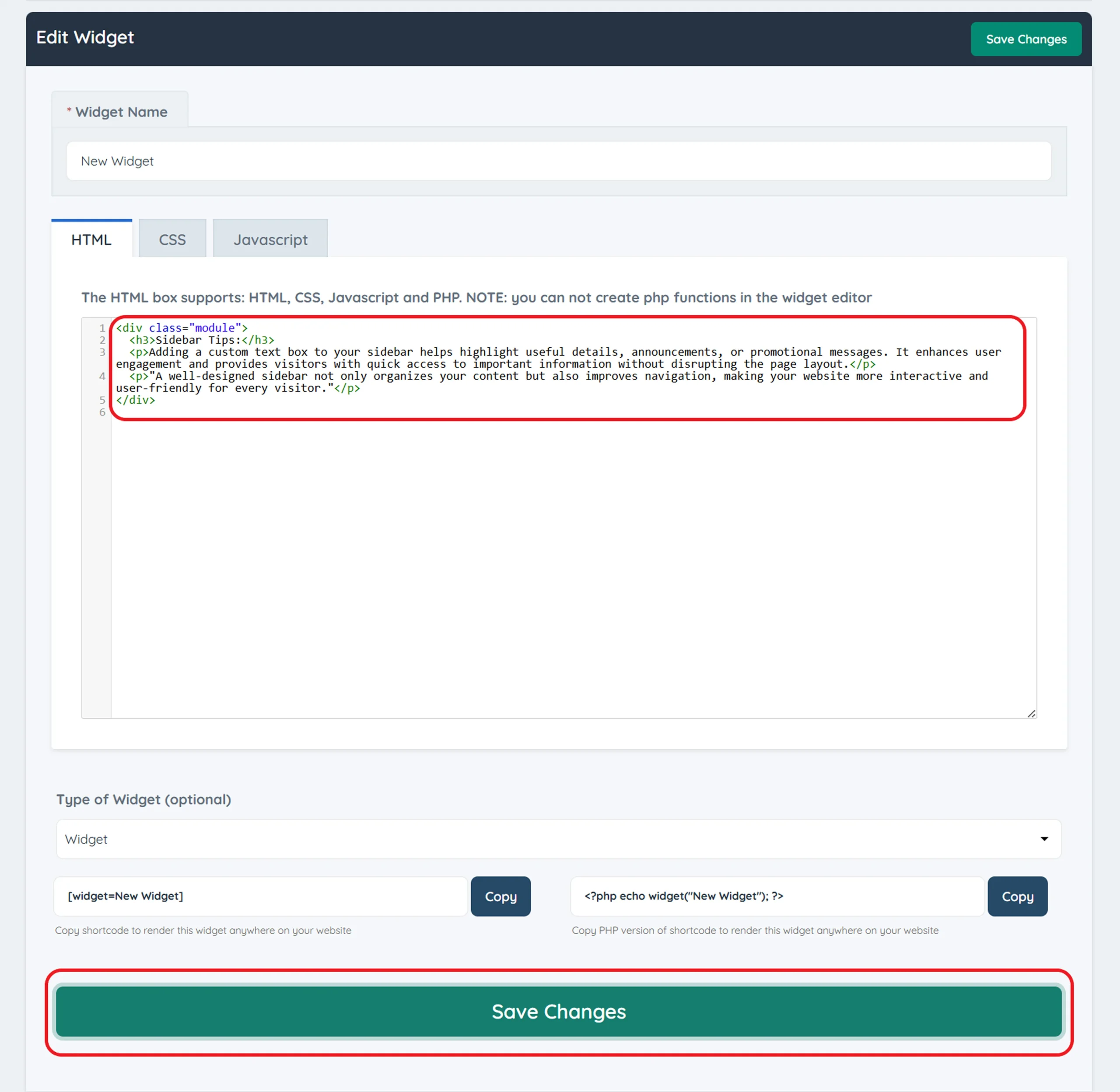
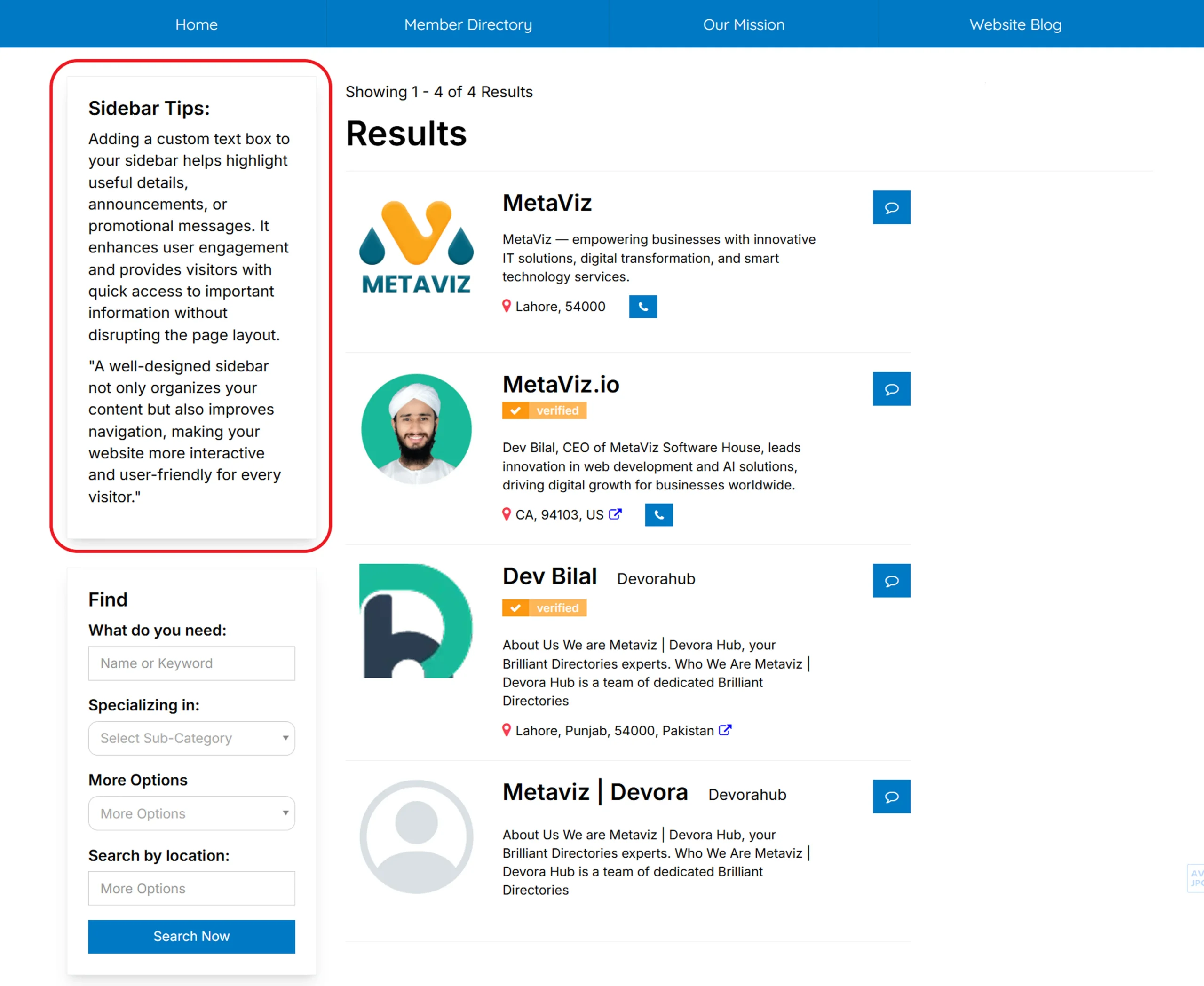
Final Output:
After saving, your sidebar will now display the new text box with the formatted content as shown below.
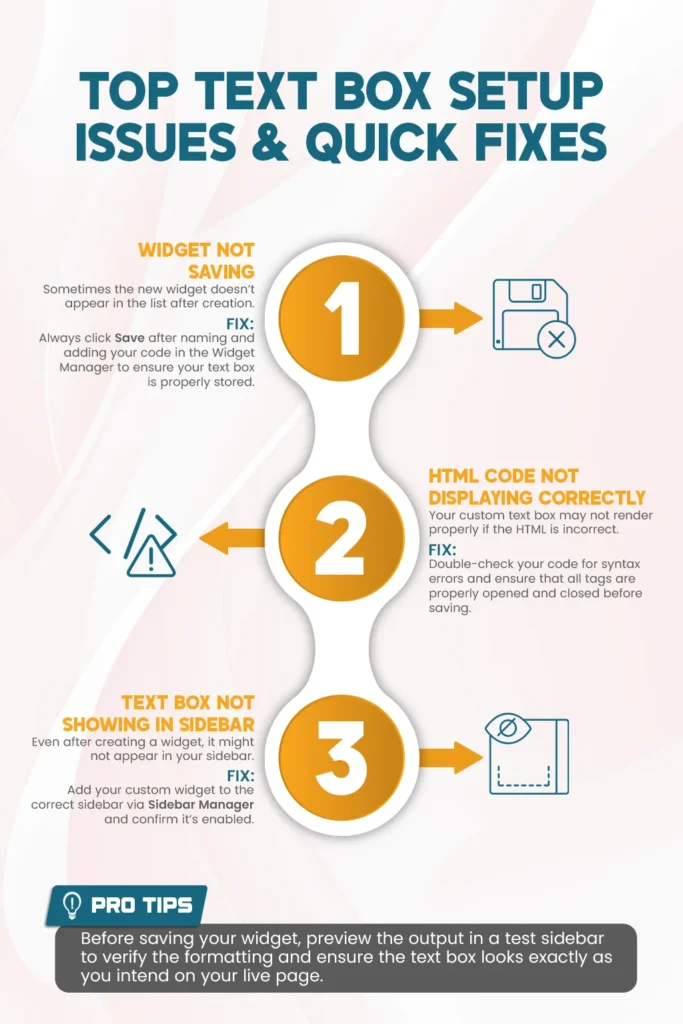
Common Problems When Creating a Custom Text Box in Brilliant Directories and Their Solutions
Best Practices for Creating a Custom Text Box in Brilliant Directories
- Name Widgets Clearly: Use short, descriptive names for your widgets so you can easily identify them later in the Widget Manager.
- Use Clean HTML Code: Keep your HTML structure simple and organized to ensure your text box displays correctly on all devices.
- Preview Before Saving: Always test your text box in a sidebar preview to confirm proper formatting and visual alignment.
- Keep Text Readable: Use concise, clear language with proper headings and spacing for a professional, easy-to-read design.
- Update Regularly: Refresh the content of your text box periodically to keep your sidebar engaging and relevant for visitors.
Enhance Your Brilliant Directories Sidebars Today!
Conclusion: Why Creating a Custom Text Box in Brilliant Directories Matters
Need Help Designing Custom Text Boxes for Your Sidebars?
Your Brilliant Directories sidebar deserves a personal touch!
FAQs – Everything You Need to Know About Creating a Custom Text Box in Brilliant Directories
How can I create a custom text box in Brilliant Directories?
What type of content can I add to a sidebar text box?
Why isn’t my text box showing up in the sidebar?
Can I use HTML to format my sidebar text box?
Is it possible to edit a text box after saving it?
How do I make my text box look more appealing?
Does adding a custom text box affect my website performance?
Share this post on social media:
Dev Bilal is a results-driven AI and web development expert specializing in Brilliant Directories, WooCommerce, and intelligent digital solutions. With deep expertise in AI integrations, data science, and full-stack development, he empowers businesses to build scalable, high-performing, and automation-driven platforms that deliver real results.