
How to Add and Display a Sidebar on the Homepage in Brilliant Directories
- Brilliant Directories
- How to Add and Display a Sidebar on the Homepage in Brilliant Directories



Why you can trust our content
The tech space is full of hype and difficult terms; we take the reliability standards to new heights. Our blog content is backed by:
Learn more
- Experienced tech professionals, developers, and product engineers
- First-hand data from real projects and in-house case studies
- Verified standards from trusted sources like Statista and BD
Let’s Work Together
Your homepage is the first impression visitors get of your website, so why not make it both functional and visually engaging? Adding a sidebar to your homepage in Brilliant Directories is a simple way to highlight key content like recent blog posts, member articles, or promotions. With just a few quick adjustments, you can transform your homepage into a more dynamic, user-friendly experience that keeps visitors exploring longer.
“A great homepage doesn’t just welcome visitors, it guides them, and a well-placed sidebar is the quiet tool that makes that guidance effortless.”
Co-Founder & CTO
Key Information Summary: Adding a Sidebar to the Homepage in Brilliant Directories
| Section | Key Takeaways |
|---|---|
|
What Is the Purpose of a Homepage Sidebar? |
A homepage sidebar helps display additional widgets or articles below the main banner, improving visibility and user engagement. |
|
Where Can You Find the Sidebar Settings? |
Access sidebar settings by going to Settings » Design Settings » Homepage Layout » Homepage Section Order |
|
How Do You Enable a Sidebar on the Homepage? |
Choose either “Show Recent Member Articles with Sidebar” or “Show Recent Blog Articles with Sidebar” from the dropdown menu. |
|
What Happens After Selecting the Sidebar Option? |
Once selected, Brilliant Directories automatically applies the sidebar layout beneath your homepage image and divider. |
|
How Do You Save the Sidebar Settings? |
Click Save Changes after selecting your preferred sidebar layout to make it live on your homepage. |
|
Can You Choose Which Sidebar to Display? |
Yes, open Edit Settings to select from the list of available sidebars that suit your homepage design. |
|
Why Use “Recent Articles with Sidebar” Layouts? |
These options highlight your latest blog or member content, keeping the homepage fresh and relevant for visitors. |
|
What Design Benefits Does the Sidebar Offer? |
A sidebar enhances homepage organization, helping users access related content easily and improving overall site navigation. |
|
How Does This Improve User Experience? |
With featured articles and widgets in view, visitors can engage faster and stay longer on your website. |
Boost Your Homepage Design with a Powerful Sidebar Today!
Step-by-Step Process to Add a Sidebar to the Homepage
Adding a sidebar to your homepage in Brilliant Directories helps you highlight recent content and enhance your website’s design. Follow these easy steps to display a sidebar that makes your homepage more engaging and user-friendly.
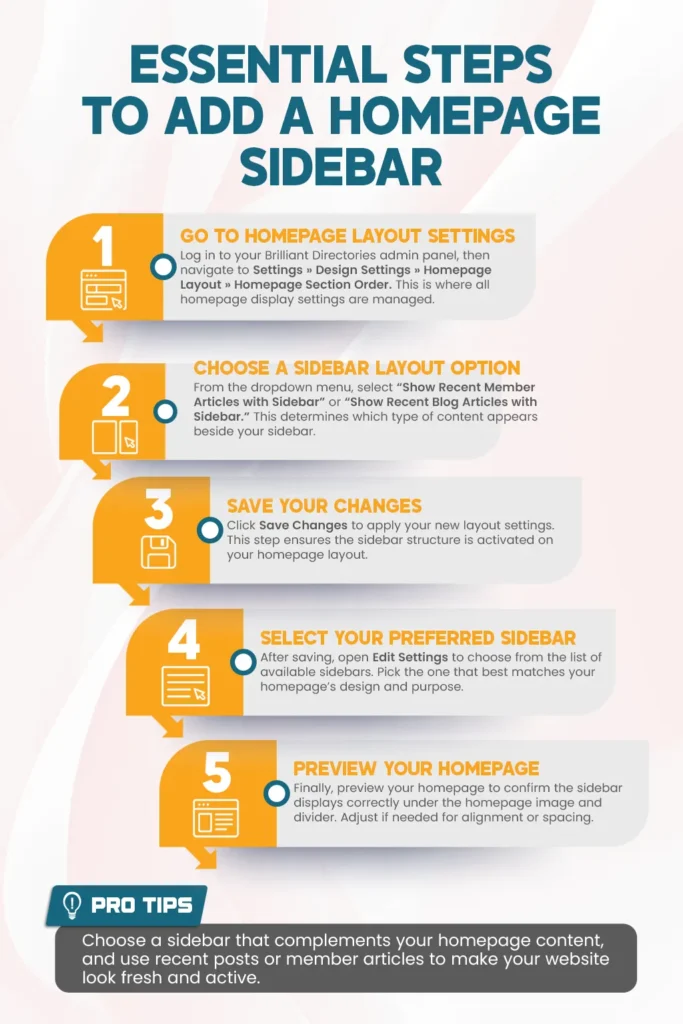
How to Add a Sidebar to the Homepage
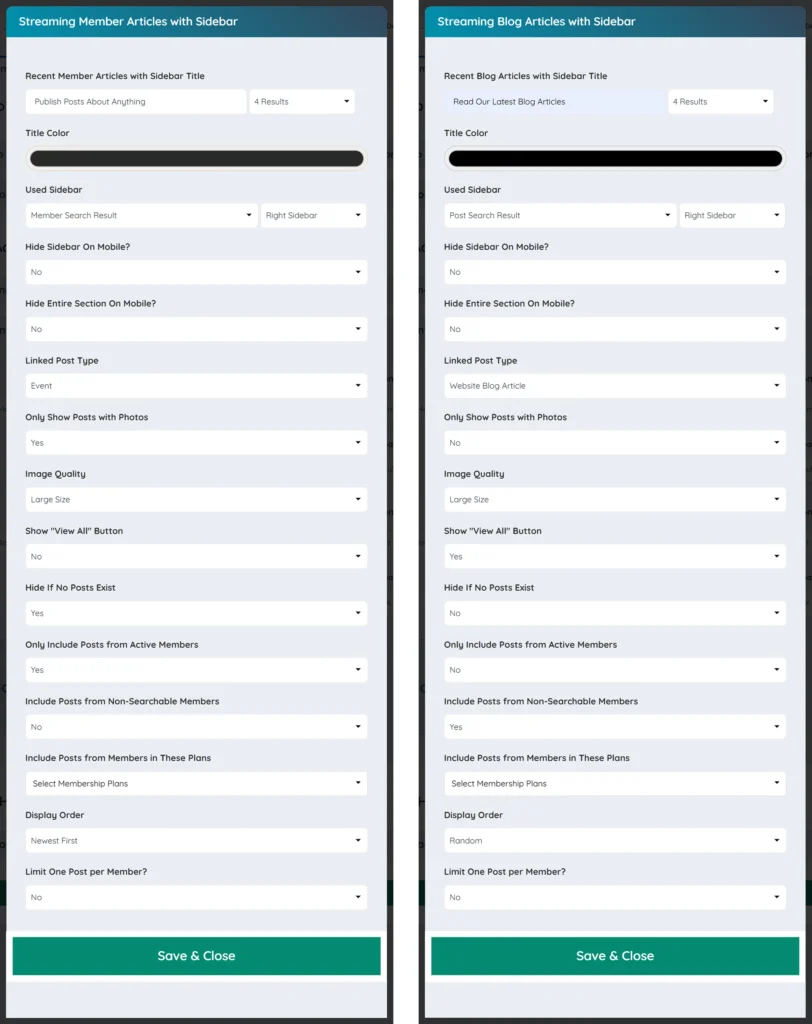
In Brilliant Directories, you can easily display a sidebar on your homepage right below the main image and divider. This sidebar helps showcase additional content, such as recent articles or widgets, making your homepage more engaging and informative.
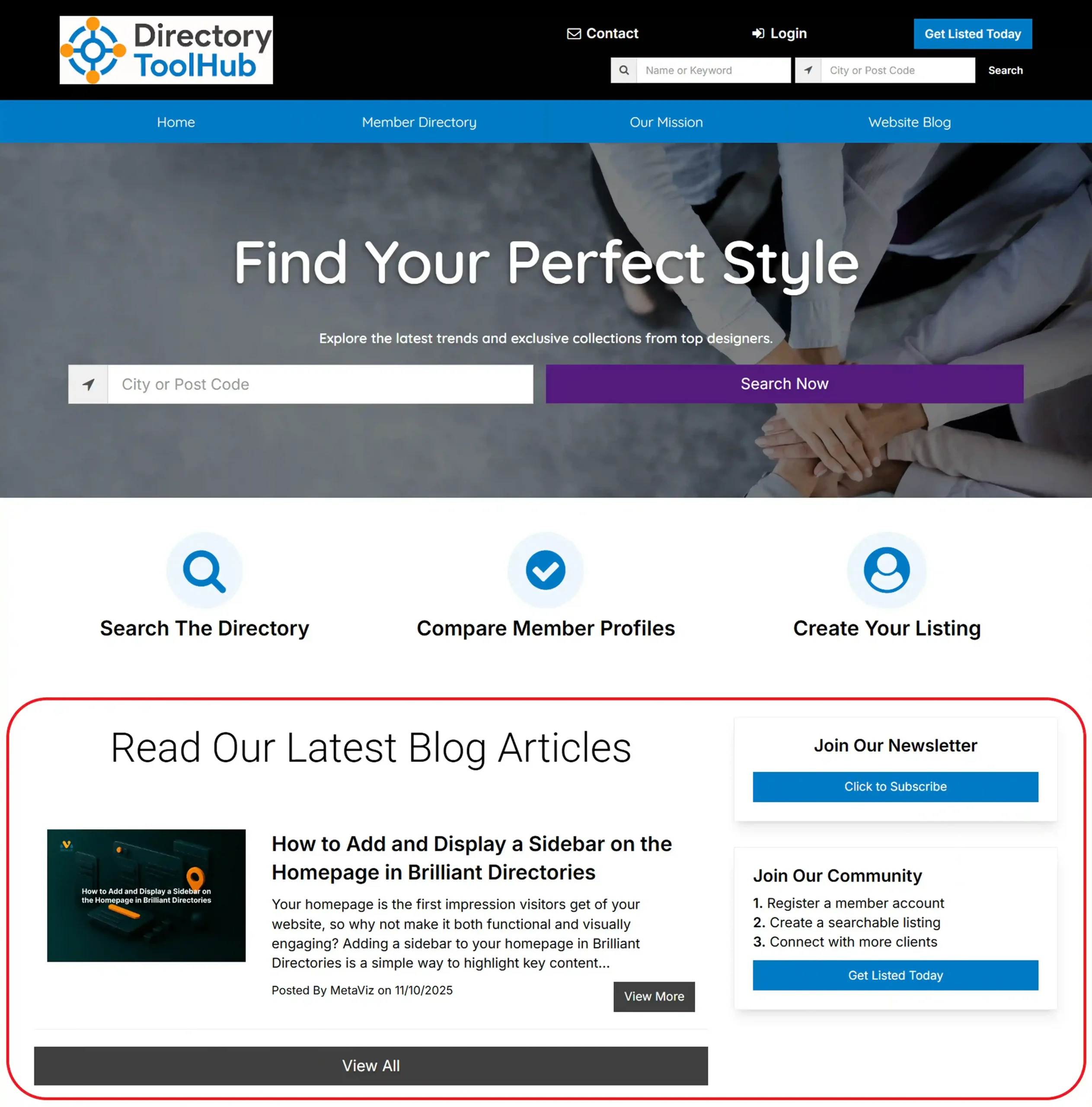
Follow these simple steps to add a homepage sidebar along with the Recent Articles widget:
- Go to Settings » Design Settings » Homepage Layout » Homepage Section Order.
- From the dropdown menu, choose either “Show Recent Member Articles with Sidebar” or “Show Recent Blog Articles with Sidebar.”
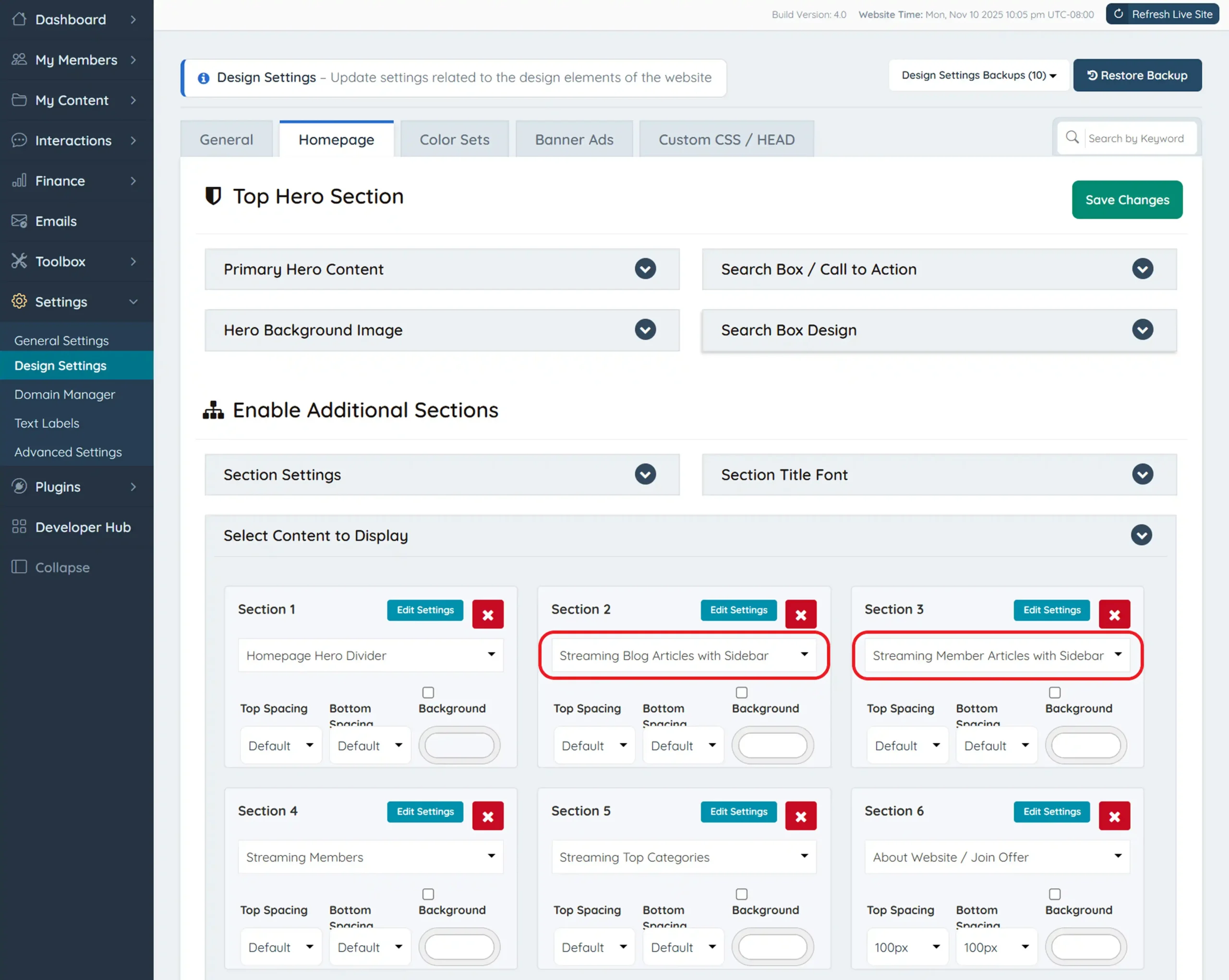
3. Click on Save Changes to apply your new layout.
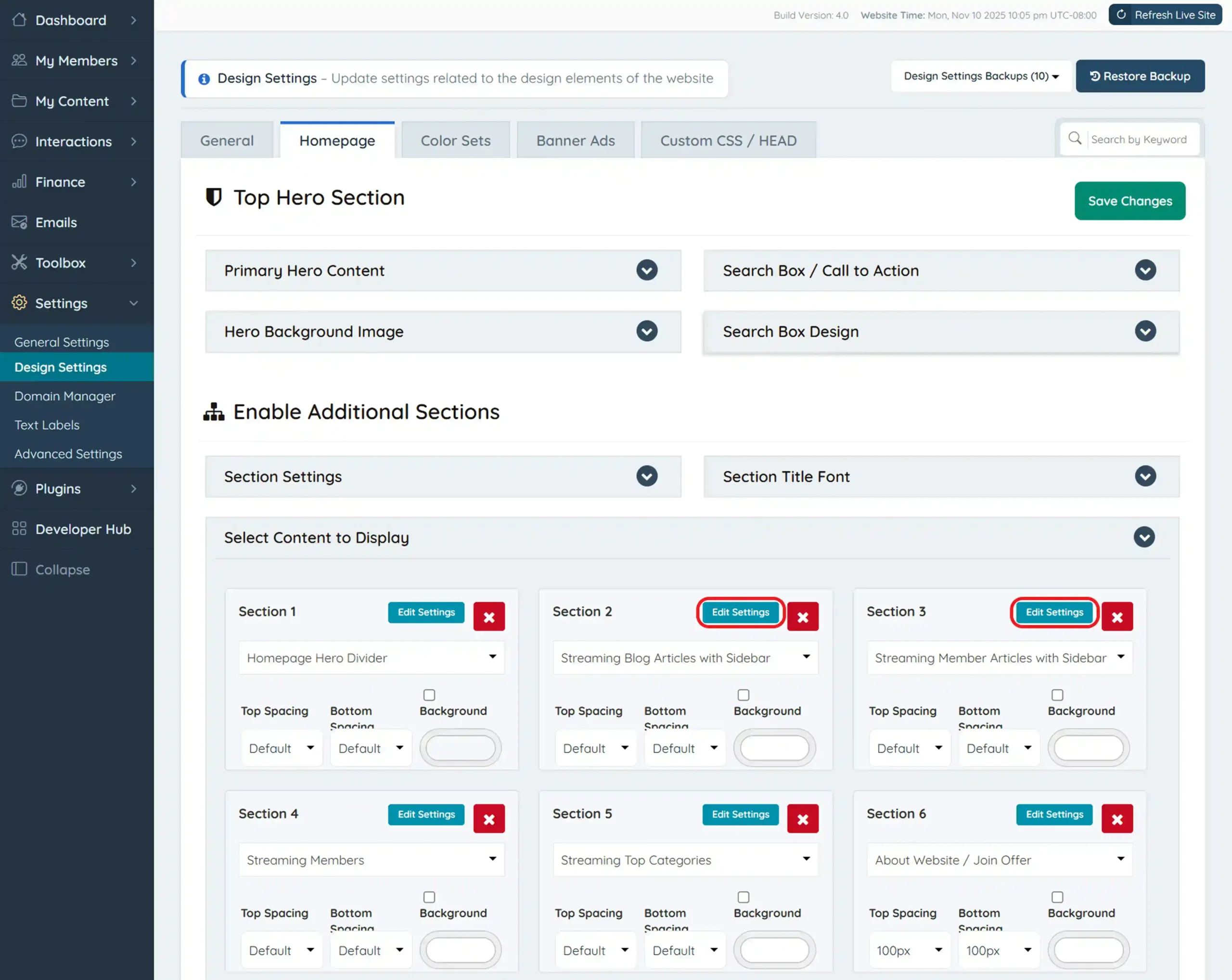
Once you’ve saved the settings, open Edit Settings to choose from the list of available sidebars.
Common Problems When Adding a Sidebar to the Homepage in Brilliant Directories and Their Solutions
Best Practices for Adding and Managing Homepage Sidebars in Brilliant Directories
- Choose the Right Sidebar Layout: Select a sidebar layout that matches your homepage content, either blog articles or member articles, for the best engagement.
- Keep the Design Balanced: Maintain a clean structure by ensuring your sidebar complements the main homepage layout rather than overpowering it.
- Update Content Regularly: Refresh your sidebar with new widgets, recent articles, or announcements to keep your homepage looking dynamic and current.
- Test Before Publishing: Always preview your homepage after saving changes to ensure the sidebar displays properly under the image and divider.
- Use Consistent Styling: Match your sidebar’s color scheme and design with the rest of your website for a cohesive, professional appearance.
Enhance Your Homepage with a Smart Sidebar Today!
Conclusion: Why Adding a Sidebar to Your Homepage in Brilliant Directories Matters
Adding a sidebar to your homepage in Brilliant Directories helps create a more dynamic, content-rich layout that captures attention and improves navigation. It’s an easy yet effective way to display recent articles, highlight key features, and keep your homepage visually balanced and engaging.
Need Help Setting Up Your Homepage Sidebar? Let’s Work Together!
Our team specializes in optimizing Brilliant Directories websites with well-designed layouts and functional sidebars. If you’d like assistance setting up or customizing your homepage sidebar, contact us today to make your website more professional and user-friendly.
Your Brilliant Directories homepage deserves a smarter layout!
Let’s collaborate to build a homepage sidebar that enhances visibility, boosts engagement, and strengthens your overall site performance.
FAQs – Everything You Need to Know About Adding a Sidebar to the Homepage in Brilliant Directories
How can I add a sidebar to my Brilliant Directories homepage?
Go to Settings » Design Settings » Homepage Layout » Homepage Section Order, then select either “Show Recent Member Articles with Sidebar” or “Show Recent Blog Articles with Sidebar.”
Where does the homepage sidebar appear in Brilliant Directories?
The sidebar appears just below your homepage image and divider, displaying selected widgets or article sections.
Can I choose which sidebar to display on the homepage?
Yes, after saving your layout settings, open Edit Settings and select your preferred sidebar from the available list.
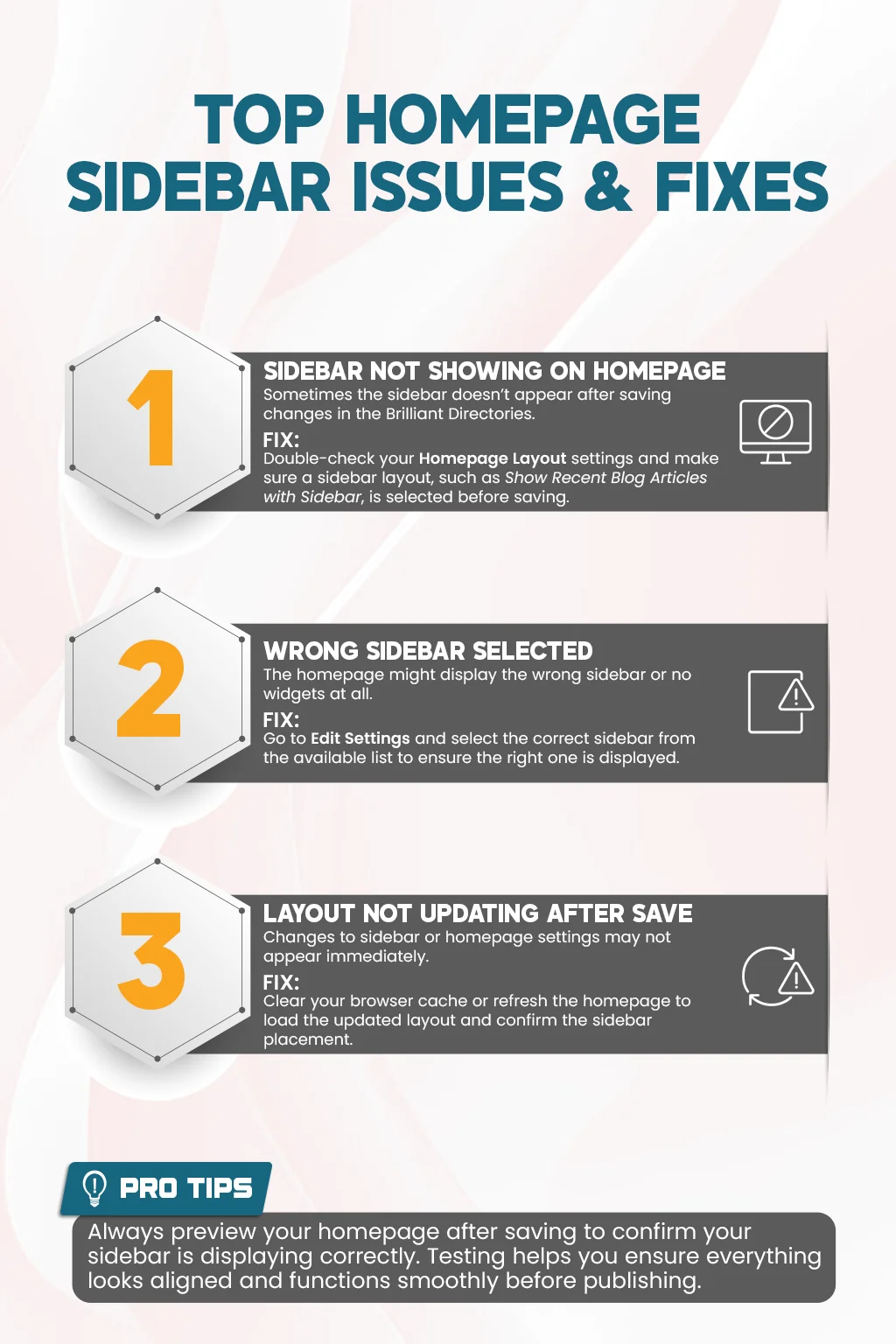
Why isn’t my sidebar showing on the homepage after saving?
Check that you selected the correct layout option and clicked Save Changes. Then refresh your page to ensure the new sidebar appears.
What’s the difference between showing member articles and blog articles with a sidebar?
The Member Articles option displays recent posts from members, while the Blog Articles option highlights recent posts from your main website blog.
Can I customize the widgets inside my homepage sidebar?
Absolutely! You can edit and rearrange widgets inside your selected sidebar from the Sidebar Manager in your admin panel.
How does adding a homepage sidebar improve my website?
A sidebar makes your homepage more interactive by highlighting recent content, improving navigation, and keeping your layout well-structured and visually engaging.
Share this post on social media:
Dev Bilal is a results-driven AI and web development expert specializing in Brilliant Directories, WooCommerce, and intelligent digital solutions. With deep expertise in AI integrations, data science, and full-stack development, he empowers businesses to build scalable, high-performing, and automation-driven platforms that deliver real results.