
How to Create a New Custom Sidebar for Brilliant Directories Pages
- Brilliant Directories
- How to Create a New Custom Sidebar for Brilliant Directories Pages



Why you can trust our content
The tech space is full of hype and difficult terms; we take the reliability standards to new heights. Our blog content is backed by:
Learn more
- Experienced tech professionals, developers, and product engineers
- First-hand data from real projects and in-house case studies
- Verified standards from trusted sources like Statista and BD
Let’s Work Together
“Design isn’t just about how your website looks — it’s about how smoothly it guides your visitors. A thoughtfully built sidebar turns simple pages into powerful experiences that truly connect.”
Co-Founder & CTO
Quick Summary: Sidebar Manager at a Glance
| Section | Key Takeaways |
|---|---|
|
What Is the Purpose of a Custom Sidebar in Brilliant Directories? |
A custom sidebar lets you design unique layouts for specific pages, improving usability and visual balance while keeping important widgets easily accessible. |
|
How Do You Access the Sidebar Manager? |
Go to the Toolbox » Sidebar Manager in your admin dashboard to view, create, and manage all your existing and new sidebars in one place. |
|
Why Should You Create a New Sidebar? |
A new sidebar helps you tailor content for each page ideal for separating search results, post pages, or static pages with targeted widgets and banners. |
|
What Steps Are Involved in Creating a Sidebar? |
Simply click New Sidebar, give it a descriptive name, save it, and start adding widgets or modules that align with your page’s purpose. |
|
How Can You Personalize the Sidebar’s Appearance? |
Add elements like banners, newsletter sign-ups, or search modules and use CSS styling to match your site’s design theme. |
|
Where Can You Use the Sidebar on Your Website? |
You can assign sidebars to static pages, post pages, or member search results using the shortcode [sidebar=your_sidebar_name]. |
|
What Makes a Sidebar Easy to Manage? |
Clear naming conventions and organized widgets make it simple to update, clone, or modify sidebars directly from the Sidebar Manager. |
|
How Can Sidebars Improve User Engagement? |
Well-structured sidebars guide visitors toward key actions like searches, sign-ups, or featured listings, boosting interaction and conversions. |
|
What’s the Best Way to Maintain Sidebars? |
Regularly review and refresh widgets to ensure relevance, clean design, and consistent performance across all Brilliant Directories pages. |
Elevate Your Brilliant Directories Website with Smarter Sidebars!
Step-by-Step Process to Create a New Custom Sidebar in Brilliant Directories
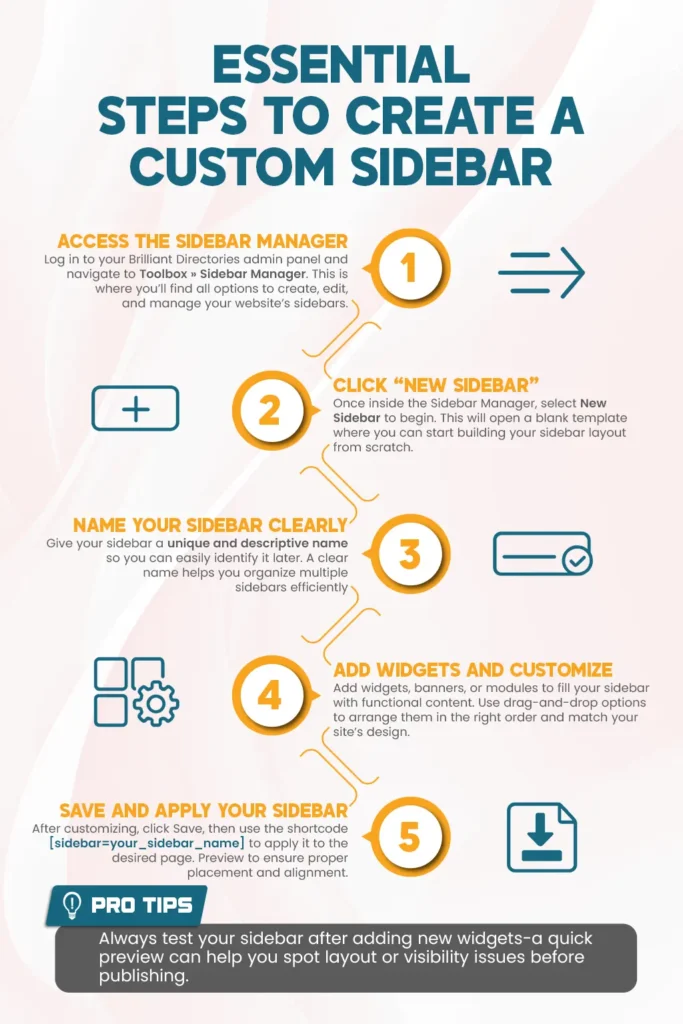
Creating a New Sidebar in Brilliant Directories
Start by heading to your admin dashboard, then open Toolbox » Sidebar Manager. Once inside, click the “New Sidebar” button to begin creating your custom sidebar.
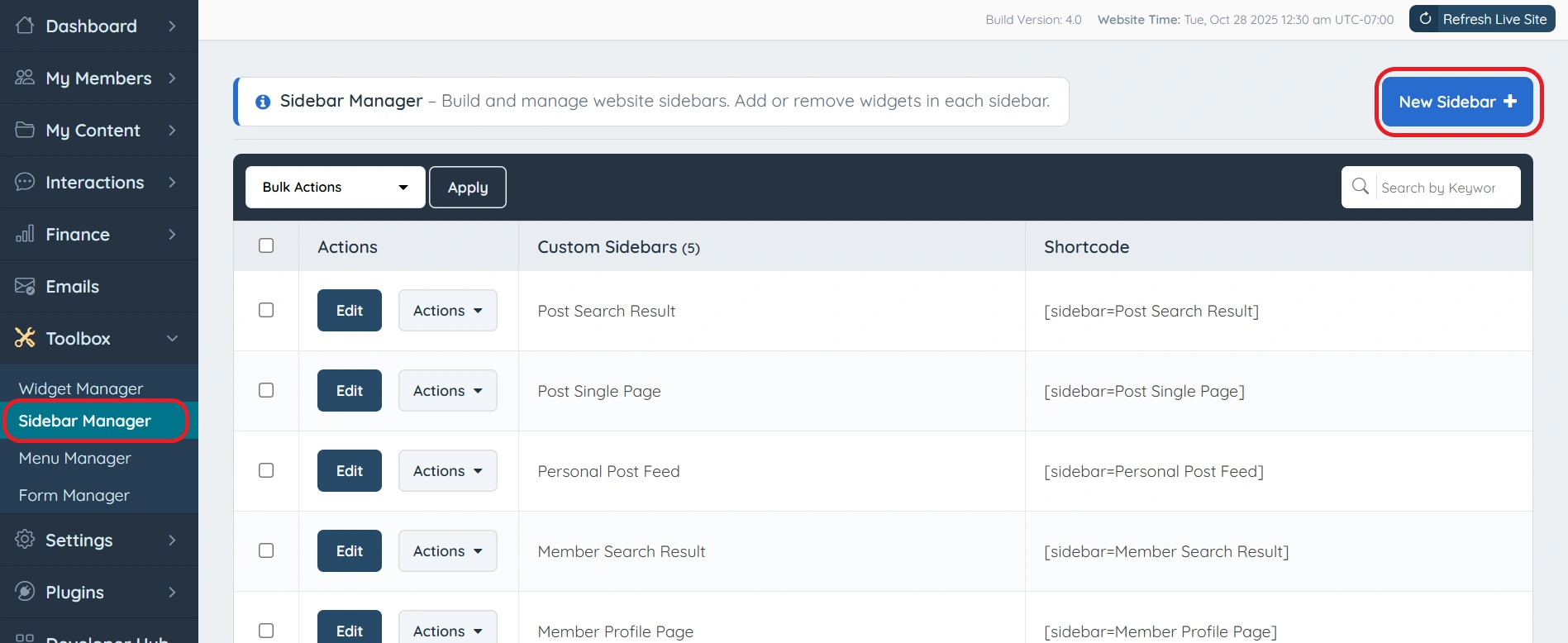
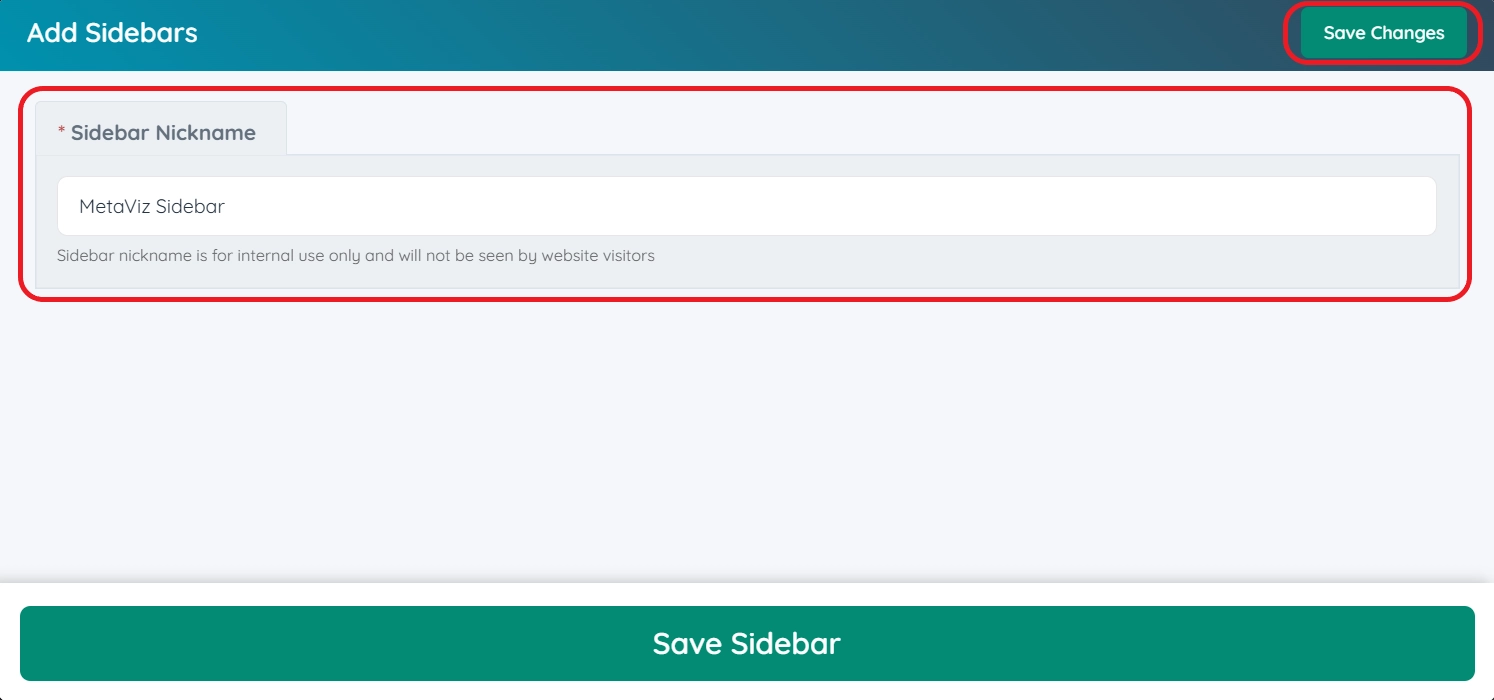
After saving, your new sidebar is ready to use! You can now add widgets, modules, or banners to personalize its content and appearance as needed.
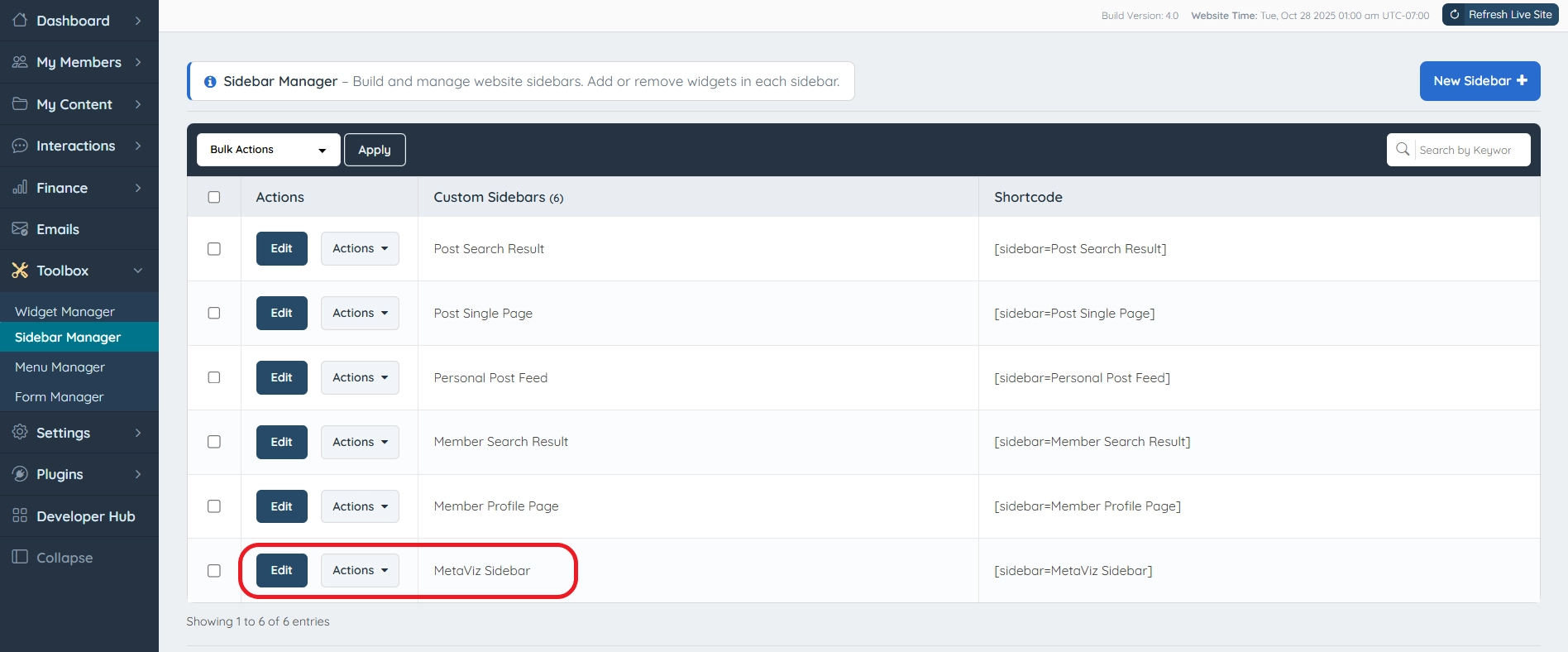
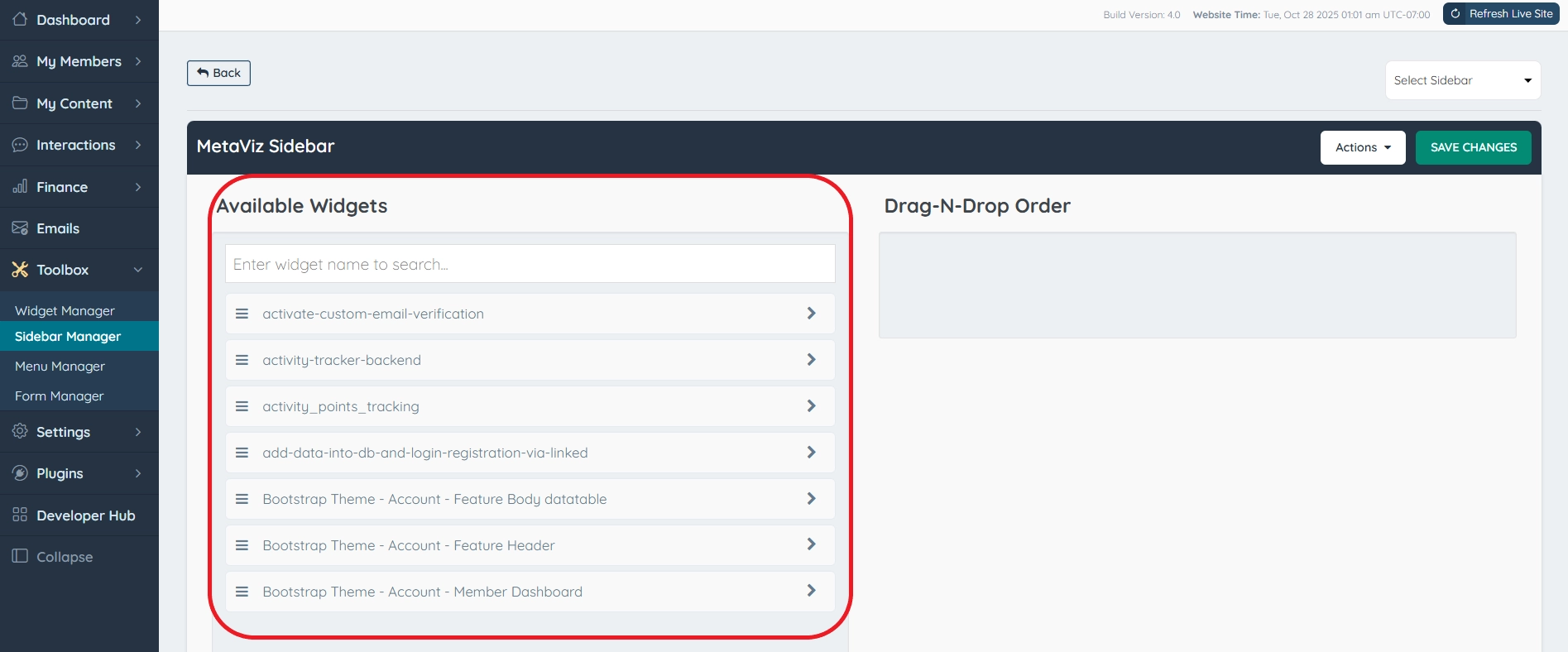
For future edits or management, you can always revisit Toolbox » Sidebar Manager to update, clone, or customize your sidebars anytime.
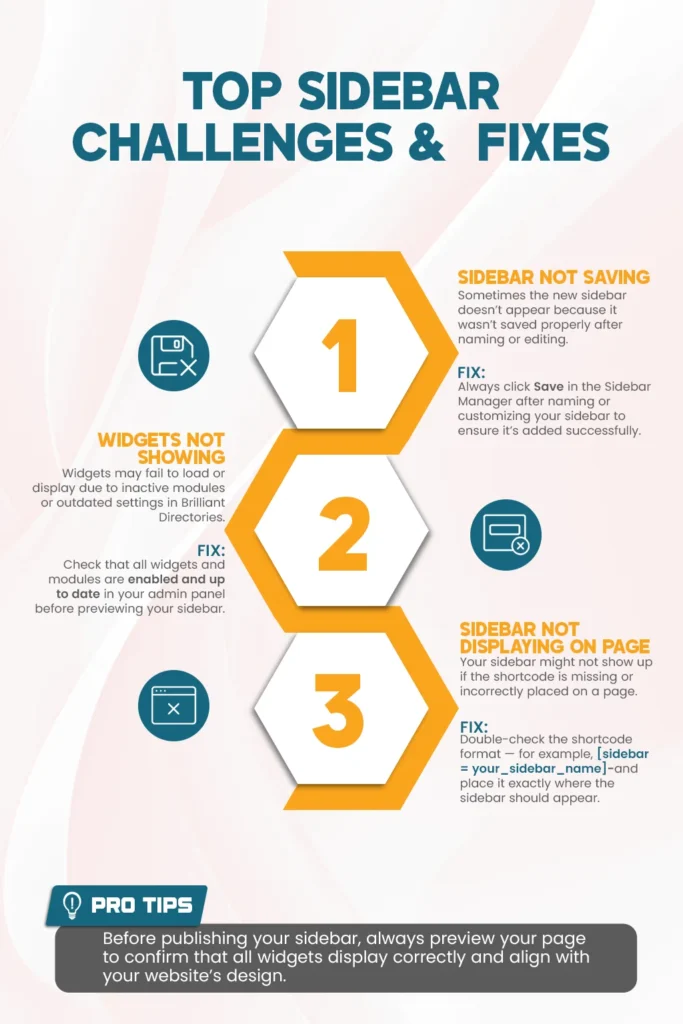
Common Problems When Creating New Sidebars in Brilliant Directories and Their Solutions
Best Practices for Creating and Customizing Sidebars in Brilliant Directories
- Use Clear and Descriptive Names: Label each sidebar with a unique, meaningful name so you can easily recognize its purpose and assign it correctly to pages later.
- Keep Design and Layout Consistent: Maintain visual harmony across your website by using a consistent sidebar structure that aligns with your overall page layout.
- Add Only Essential Widgets: Focus on adding functional widgets like search modules, banners, or newsletter forms that genuinely improve user experience.
- Preview Before Saving Changes: Always preview your sidebar after customization to ensure proper placement, spacing, and visibility across all devices.
Update Sidebars Regularly: Refresh your widgets and content periodically to keep your Brilliant Directories website engaging, relevant, and high-performing.
Build High-Impact Sidebars for Your Brilliant Directories Website!
Conclusion: Why Creating Custom Sidebars in Brilliant Directories Matters
Mastering the art of creating custom sidebars in Brilliant Directories helps you design a website that’s both functional and visually appealing. With the right setup, you can improve navigation, highlight key content, and offer a better browsing experience to your visitors, all while keeping your pages organized and engaging.
Need Help Creating or Customizing Your Brilliant Directories Sidebars?
If you want professional guidance in building, editing, or optimizing your Brilliant Directories sidebars, our team is here to help. We specialize in designing layouts that are clean, user-friendly, and aligned with your brand’s goals. Contact us today to get started with a customized sidebar setup!
Your Brilliant Directories website deserves smarter sidebars!
Let’s work together to create custom, high-performing sidebars that enhance design, boost engagement, and make your website stand out.
FAQs – Everything You Need to Know About Creating Custom Sidebars in Brilliant Directories
How do I create a new sidebar in Brilliant Directories?
To create a new sidebar, go to Toolbox » Sidebar Manager in your admin panel and click New Sidebar. Give it a name, save it, and start adding widgets, banners, or modules to customize its content.
Can I use different sidebars on different pages?
Yes! Brilliant Directories allows you to assign unique sidebars to specific pages using shortcodes like [sidebar=your_sidebar_name] for full layout flexibility.
Why isn’t my sidebar showing on the page?
Your sidebar may not appear if the shortcode is missing or placed incorrectly. Double-check the shortcode format and make sure all widgets and modules are active.
How can I customize the sidebar’s look and layout?
You can personalize the sidebar’s design by adding widgets or applying custom CSS styling. This helps you match your sidebar’s appearance with your website’s theme.
What types of widgets can I add to a sidebar?
You can add widgets like search modules, banners, dynamic filters, or newsletter sign-ups. These make your sidebar more interactive and useful for visitors.
Can I edit or update my sidebar later?
Absolutely. You can return to Toolbox » Sidebar Manager anytime to edit, clone, or delete existing sidebars and update their widgets or layout as needed.
How do I make sure my sidebar looks good on all devices?
Always preview your sidebar after customization and test it on different devices. Adjust the CSS styling if needed to ensure a consistent, mobile-friendly layout.
Share this post on social media:
Dev Bilal is a results-driven AI and web development expert specializing in Brilliant Directories, WooCommerce, and intelligent digital solutions. With deep expertise in AI integrations, data science, and full-stack development, he empowers businesses to build scalable, high-performing, and automation-driven platforms that deliver real results.